Workspaces
After you have logged into the Reliable Insights Platform, you will be brought to your dashboard. Throughout your time with the Reliable Insights Platform, your dashboard serves as the landing point, and your own personal user area.
Creating a New Workspace
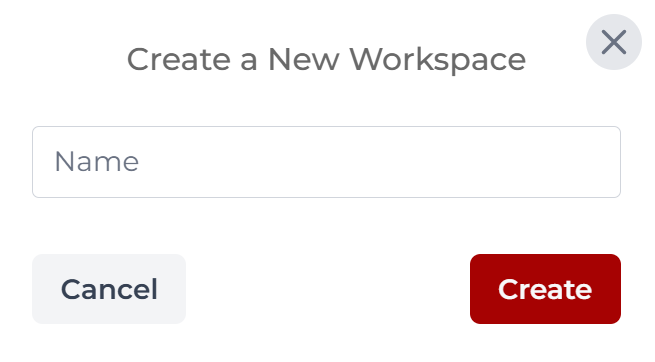
To create a new workspace, you first must click on the New Workspace button. This will open the Create a New Workspace pop-up. Here, you will need to name your workspace, and once you have named and created your workspace, you shall see that your dashboard has been updated with this new workspace.
Workspace View
To view, edit, and update a workspace click on the cog icon as shown in the image below.

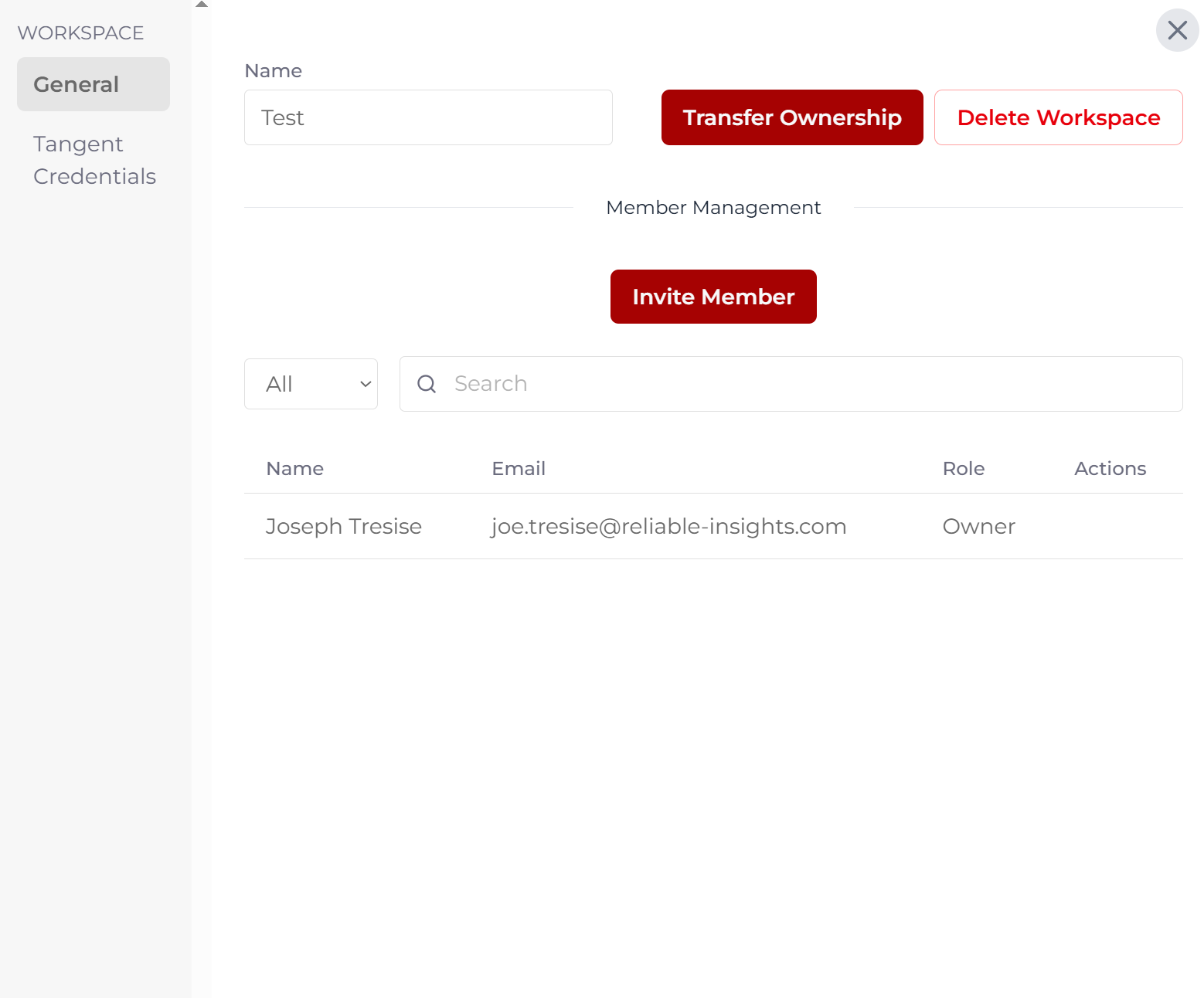
This will open a pop-up containing information about the selected workspace. On the general page, you can invite new members to your workspace and assign them one of two roles; User or Admin. After creating your workspace, you are assigned the role of Owner. Owner's can update the name of, add a Tangent Credential to, transfer ownership of, and delete a workspace.
Tangent Credential
Before continuing, you must set-up your Tangent Credential. This credential allows you to connect your data to the Tangent engine. This credential may stored in numerous formats such as JSON or TXT.