Workspace Management
After you have logged into the Reliable Insights Platform, you will be brought to your dashboard. Throughout your time with the Reliable Insights Platform, your dashboard serves as the landing point, and your own personal user area.
Creating a New Workspace
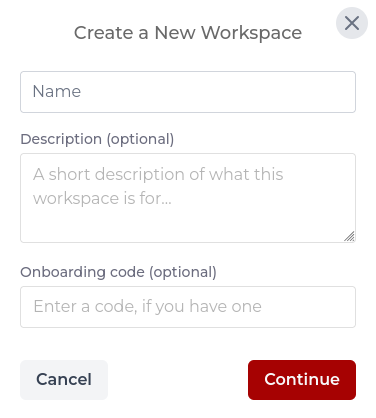
To create a new workspace, you first must click on the New Workspace button. This will open the Create a New Workspace pop-up. Here, you will need to name your workspace, and once you have named and created your workspace, you shall see that your dashboard has been updated with this new workspace.
Workspace View
To view, edit, and update a workspace click on the cog icon as shown in the image below.
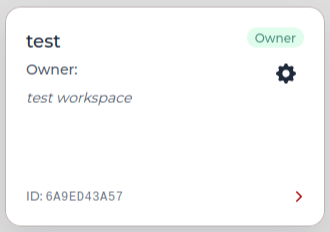
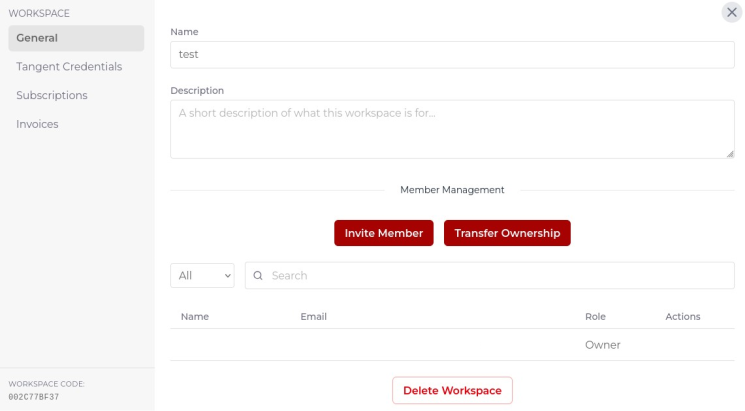
This will open a pop-up containing information about the selected workspace. On the general page, you can invite new members to your workspace and assign them one of two roles; User or Admin. After creating your workspace, you are assigned the role of Owner. Owner's can update the name of, add a Tangent Credential to, transfer ownership of, and delete a workspace.
Inviting New Members and Transferring Workspaces
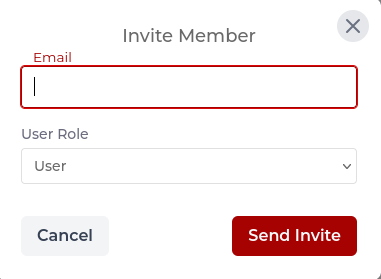
After creating your workspace, and having invited members to your new workspace you may choose to transfer ownership or update an workspace member's role. To invite a new member, first click on Invite Member button within the workspace settings view. From here, you can enter your member's email address and also assign them a role (User or Admin).
Workspace Storage
The Storage tab in workspace settings shows how much storage the workspace is currently using.
Workspace storage is shared across Studio datasets and Pipeline time-series data. This page helps workspace owners and administrators understand how much storage is being used, where the storage is being used, and whether the workspace is close to its storage limit.
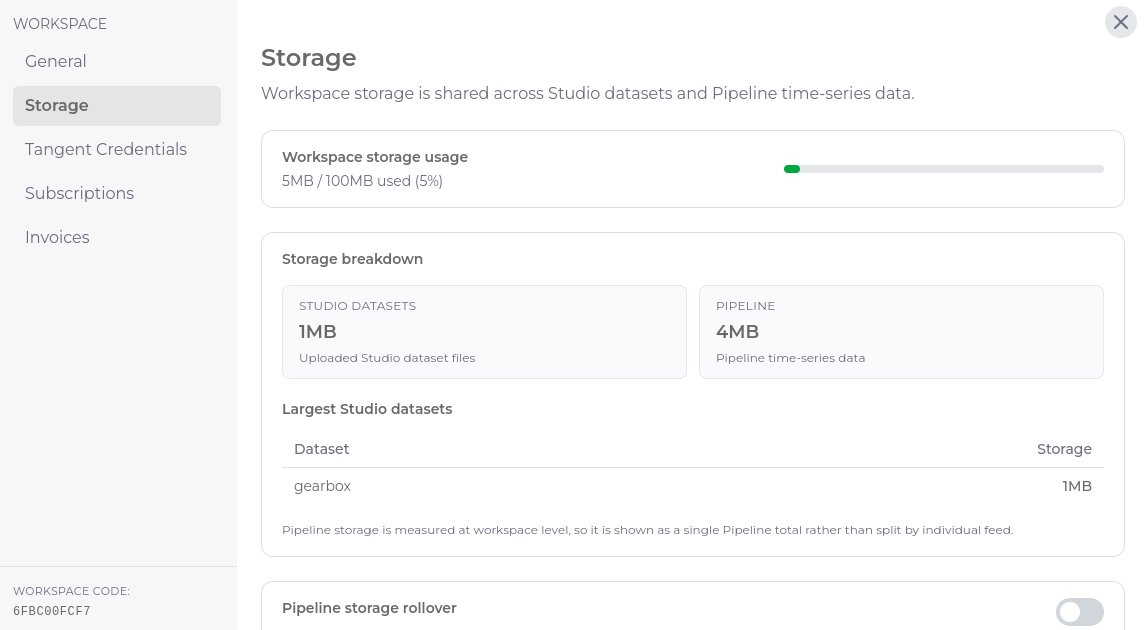
The storage page includes:
- Workspace storage usage - Shows the total storage used by the workspace compared with the workspace storage allowance.
- Storage breakdown - Shows how much storage is being used by Studio datasets and Pipeline time-series data.
- Largest Studio datasets - Lists the Studio datasets using the most storage.
- Pipeline storage rollover - Controls whether automatic Pipeline datasource ingestion can continue after the workspace reaches its storage limit.
When Pipeline storage rollover is enabled, automatic Pipeline datasource ingestion can continue once the workspace has reached its storage limit. To keep newer data ingesting, the oldest Pipeline time-series data will be automatically removed.
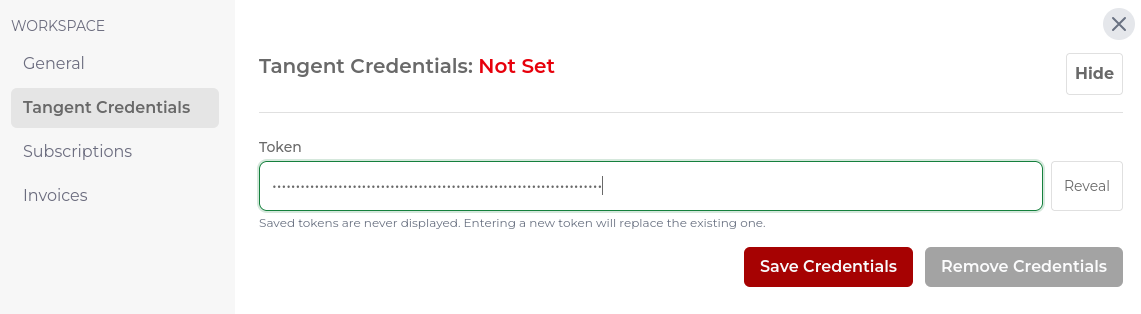
Tangent Credential / Engine Credits
In order to use the modelling engine supplied through the RI Platform the workspace must either have Engine Credits available or have Tangent Credentials linked to the workspace. To link Tangent Credentials to the workspace, use the workspace settings tab.