API Keys
API keys allow external applications and scripts to authenticate with the Reliable Insights Platform API.
Use the API Keys section to generate, rotate, and revoke keys for the current workspace. Each key is linked to the workspace it was created in and can be used to make authorised API requests.
API key table
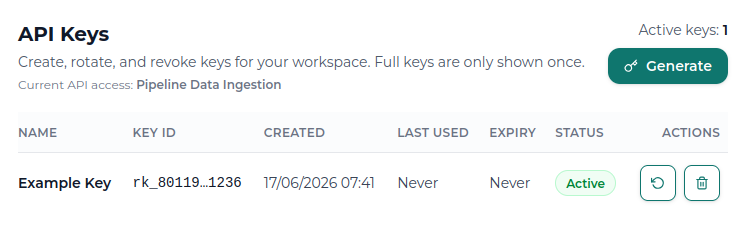
The API Keys table shows the keys created for the current workspace.
| Field | Description |
|---|---|
| Name | A label that helps you identify what the key is used for. |
| Key ID | A shortened identifier for the key. The full key is not shown after creation. |
| Created | When the key was generated. |
| Last Used | The most recent time the key was used to make an API request. |
| Expiry | When the key expires, if an expiry period was set. |
| Status | Whether the key is active or revoked. |
| Actions | Options to rotate or revoke the key. |
Creating an API key
To create a new API key, select Generate.
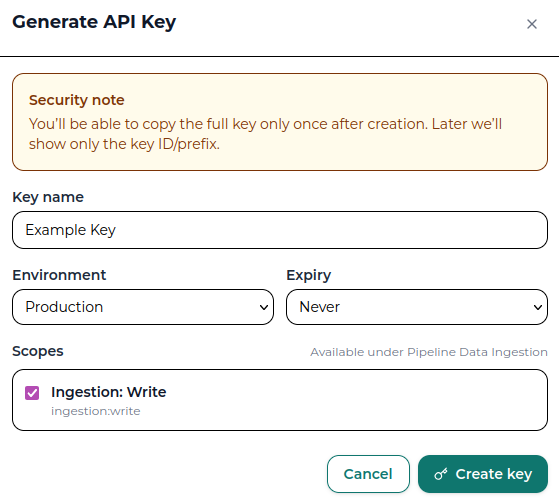
In the Generate API Key window, enter the key details:
| Field | Description |
|---|---|
| Key name | A descriptive name for the key, such as Production Ingestion or Development Testing. |
| Environment | A label that helps identify where the key will be used, such as production or development. |
| Expiry | How long the key should remain active. Available options include Never, 7 days, 30 days, and 90 days. |
| Scopes | The permissions assigned to the key. Available scopes depend on your workspace subscription. |
API key scopes
Scopes control what an API key is allowed to do. The scopes available to your workspace depend on your subscription and API access level.
Possible scopes include:
| Scope | Purpose |
|---|---|
usage:read | Read API usage information. |
datasources:read | Read datasource information. |
datasources:write | Create or update datasources. |
features:read | Read feature information. |
features:write | Create or update features. |
ingestion:write | Ingest data into a Pipeline feed. |
custom:write | Write to custom API workflows where enabled. |
datasets:write | Create or update datasets. |
experiments:write | Create or run experiments. |
results:read | Read results generated by the platform. |
Using your API key
After creating an API key, you can use it to authenticate requests to the Reliable Insights Platform API.
For endpoint-level details, request formats, and response examples, refer to the API Swagger.
Copying the new key
After selecting Create key, the full API key is shown once.
Copy the key immediately and store it securely. You can also download it as a .txt file.
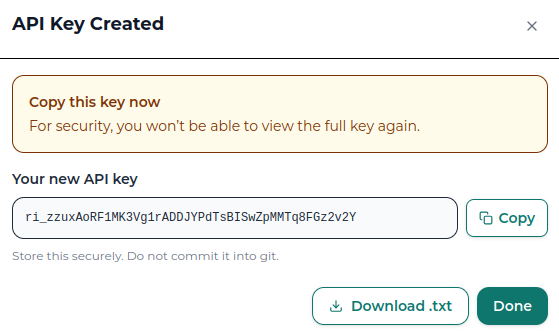
Full API keys are only shown once. After closing the key creation window, you will not be able to view the full key again.
Rotating an API key
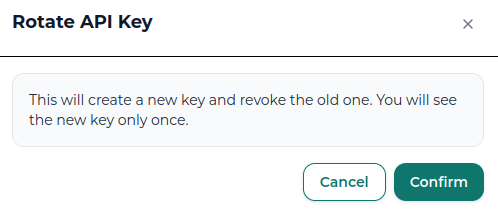
Rotate an API key when you want to replace an existing key with a new one.
Rotating a key creates a new key and revokes the old key. The new key is only shown once, so you must copy and store it before closing the window.
Use rotation when:
- A key may have been exposed.
- You want to refresh keys on a regular security schedule.
- A key is being moved from one system or user to another.
- You want to replace a long-lived key with a new one.
Revoking an API key
Revoke an API key when it is no longer needed or should no longer have access.
Revoking a key disables it immediately. Any application, script, or workflow using that key will no longer be able to authenticate with the API.
Revoking a key cannot be undone. If an integration still needs API access, generate a new key and update the integration before revoking the old one.
API key best practices
Treat API keys like passwords.
Do not:
- Commit API keys to git.
- Share API keys in screenshots.
- Paste API keys into public chats or documents.
- Hardcode API keys into production scripts.
Recommended practice:
- Store API keys in environment variables or a secrets manager.
- Use separate keys for development and production.
- Use the minimum scopes needed for the integration.
- Set an expiry for temporary or short-term integrations.
- Revoke keys that are no longer needed.
- Rotate and replace a key immediately if it may have been exposed.