Build your own GAM
A Generalized Additive Model, or GAM, is a model built from separate terms that are added together to produce a prediction. In Studio, the Use my own GAM modelling approach lets you define that model structure yourself.
Use this workflow when you want more control over the model than an automatic modelling approach provides.
Starting from Create Experiment
To use your own GAM:
- Open Studio > Experiments.
- Select Create Experiment.
- Choose an eligible experiment type.
- Select Use my own GAM as the modelling approach.
- Choose whether to use a saved GAM or create a new GAM.
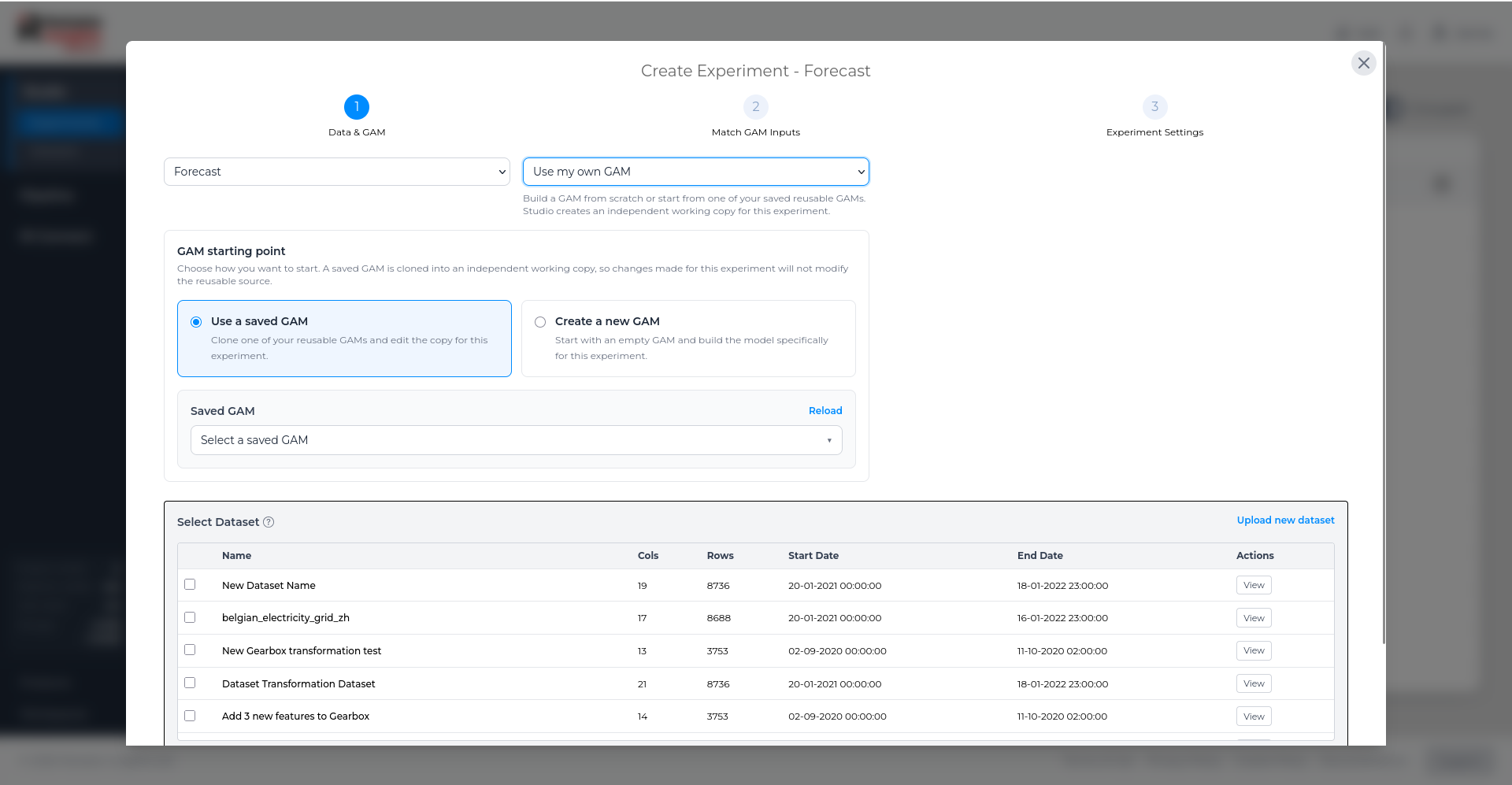
Using a saved GAM
When you use a saved GAM, Studio creates an independent working copy for the new experiment. This means you can adjust the GAM for the experiment without changing the saved reusable version.
The saved GAM selector also lets you manage existing reusable GAMs. From the list, you can select a saved GAM, open it for editing, or delete it if it is no longer needed. Where multiple revisions exist, Studio marks the latest revision so you can identify the most up-to-date version.
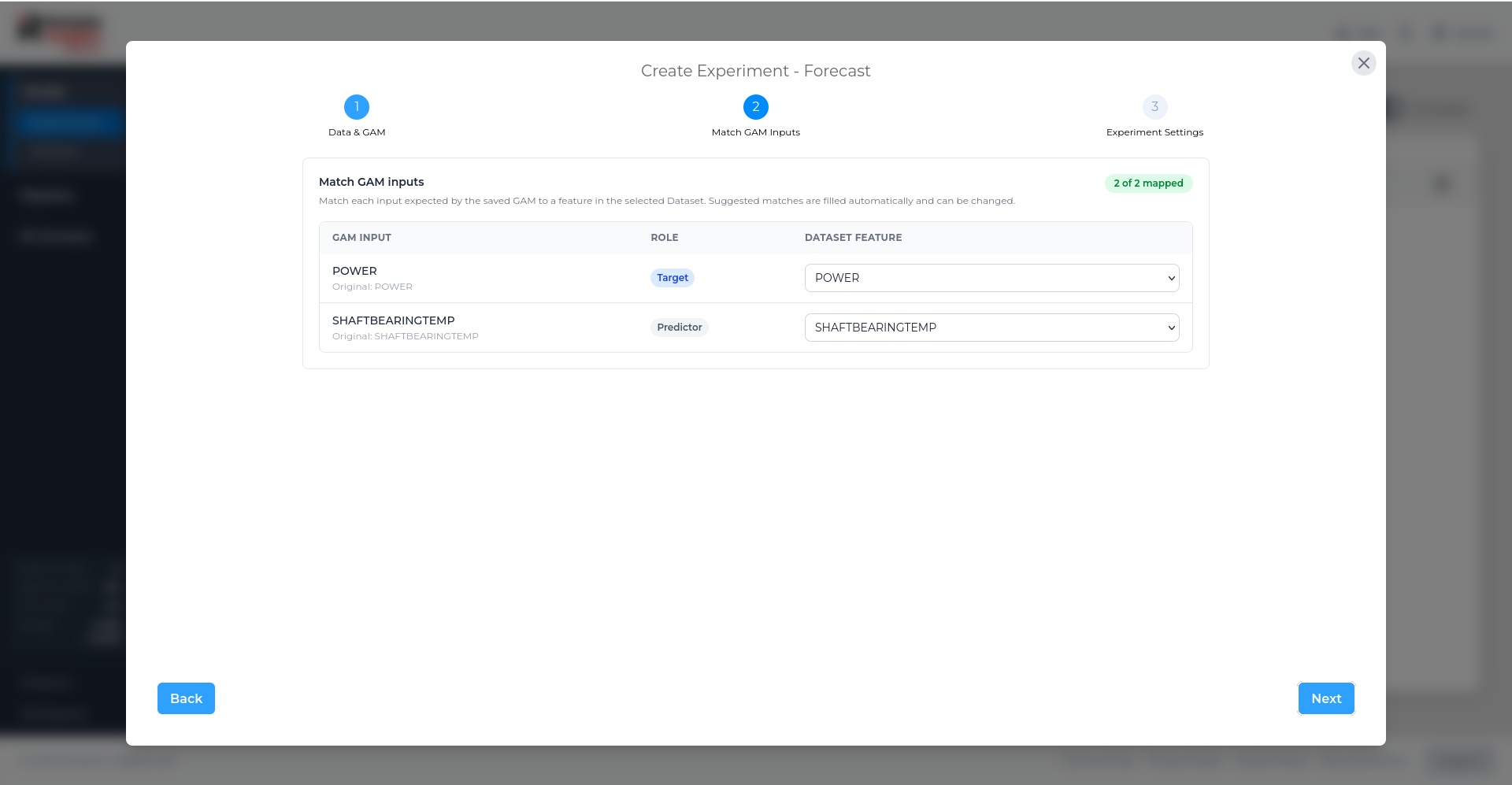
After selecting a saved GAM, match each GAM input to a column in the selected dataset.
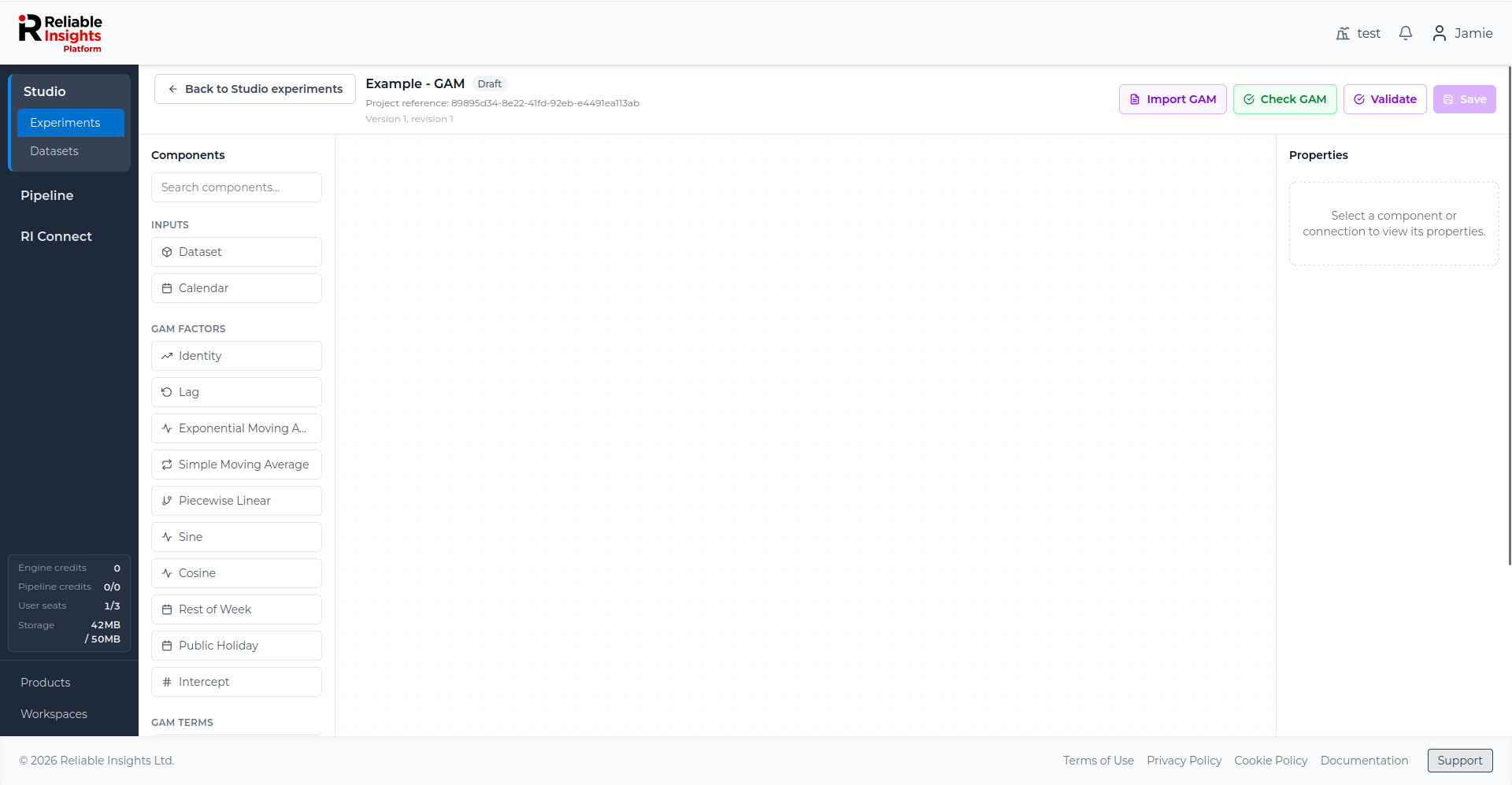
Creating a new GAM
When you create a new GAM, Studio opens the GAM builder with an empty graph. You then build the model by adding inputs, factors, terms, a model node, and an output.
Importing a GAM
You can also import a GAM definition directly into the GAM builder.
Use Import GAM when you already have a GAM structure written down, or when you want to recreate a model from a text or JSON definition instead of building every component manually.
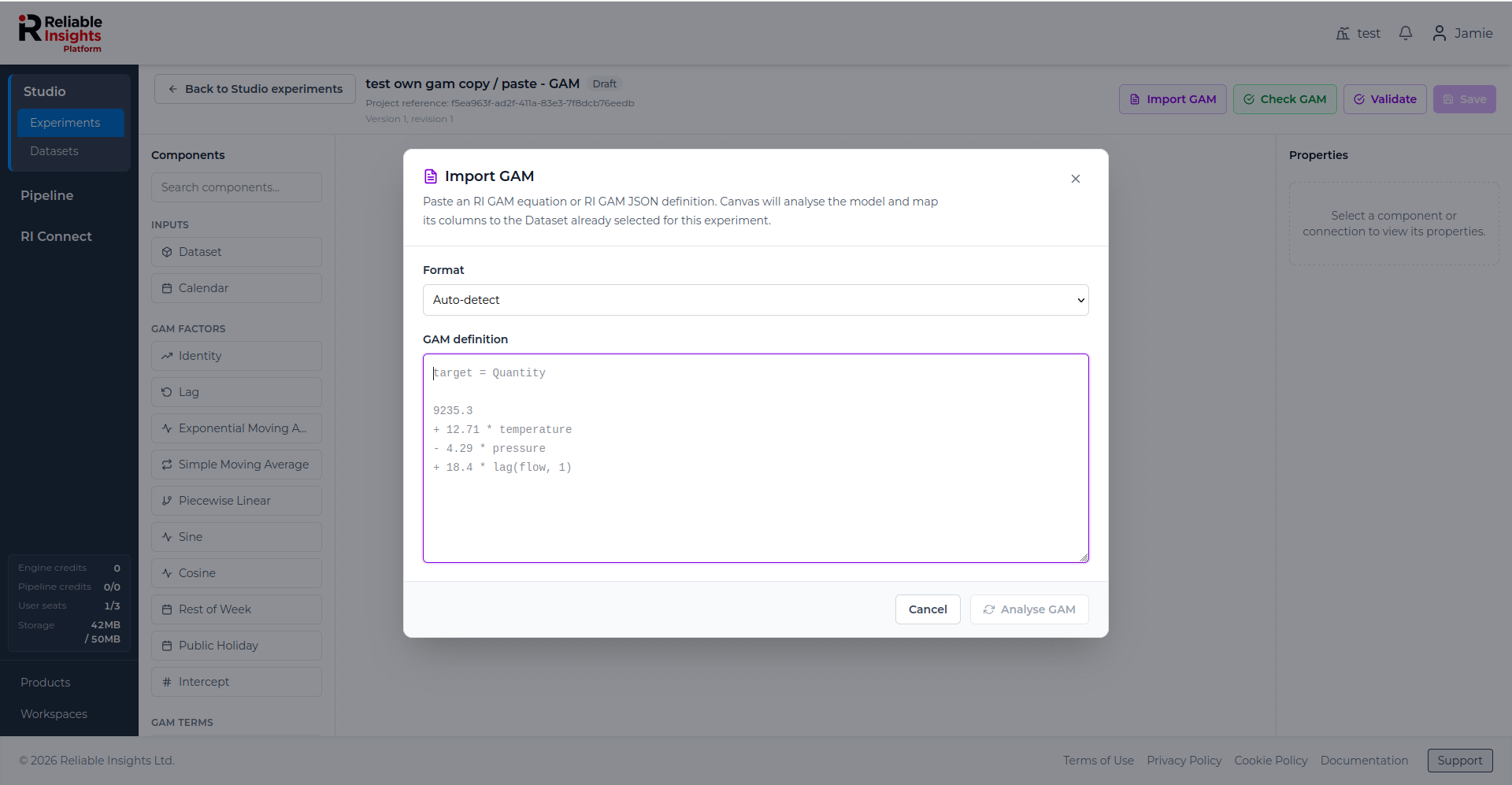
The import tool supports RI GAM text definitions and RI GAM JSON definitions. You can use Auto-detect to let Studio identify the format, or choose the format manually.
For detailed syntax examples and supported import formats, see the RI GAM import reference.
After you select Analyse GAM, Studio reviews the imported definition and checks whether it can be mapped to the dataset selected for the experiment.
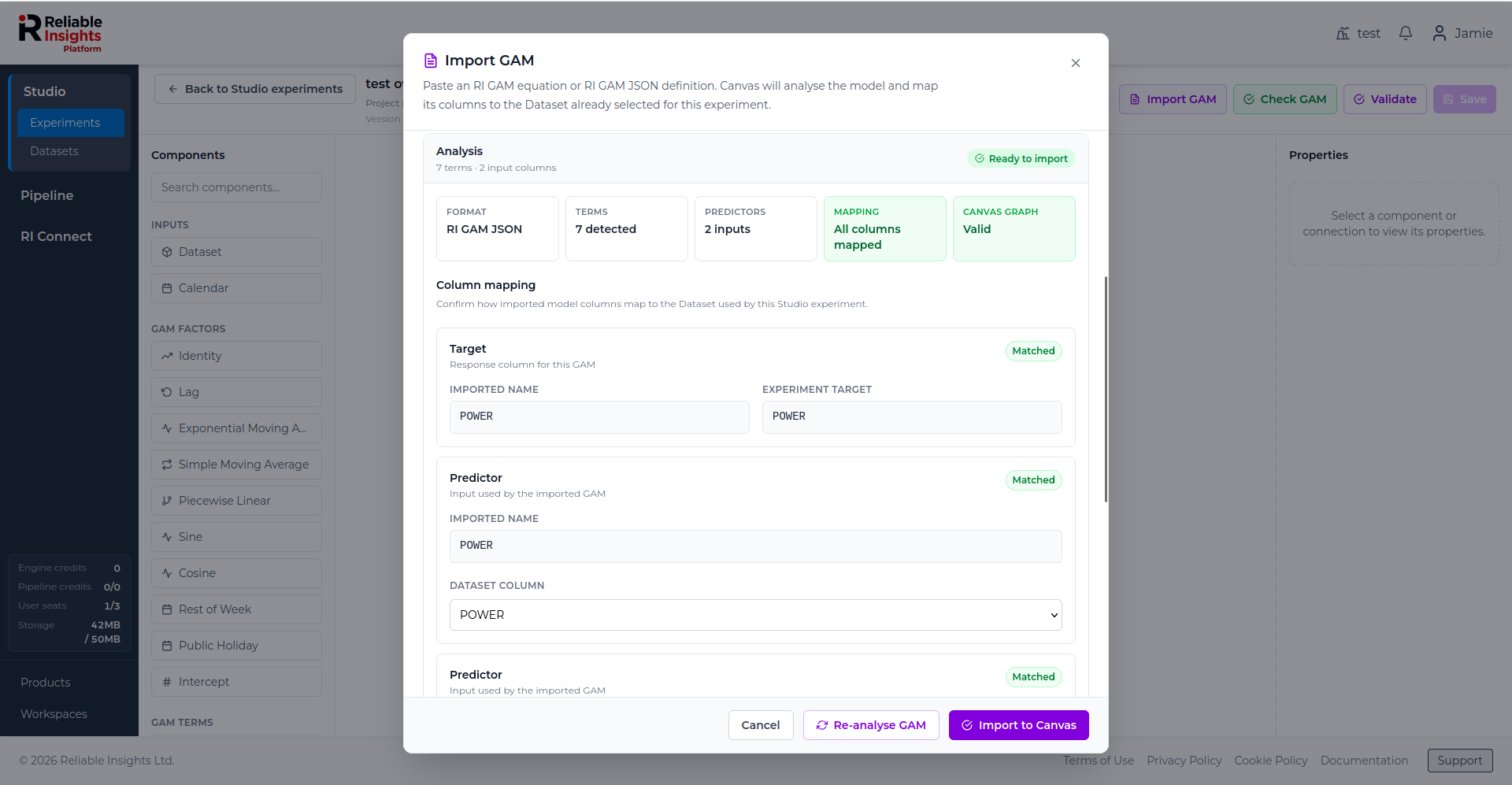
Before importing, review the detected terms and column mappings. If an imported column does not match the selected dataset, choose the correct dataset column from the mapping dropdown.
When the analysis is ready and the graph is valid, select Import to Canvas. Studio converts the definition into editable GAM builder components.
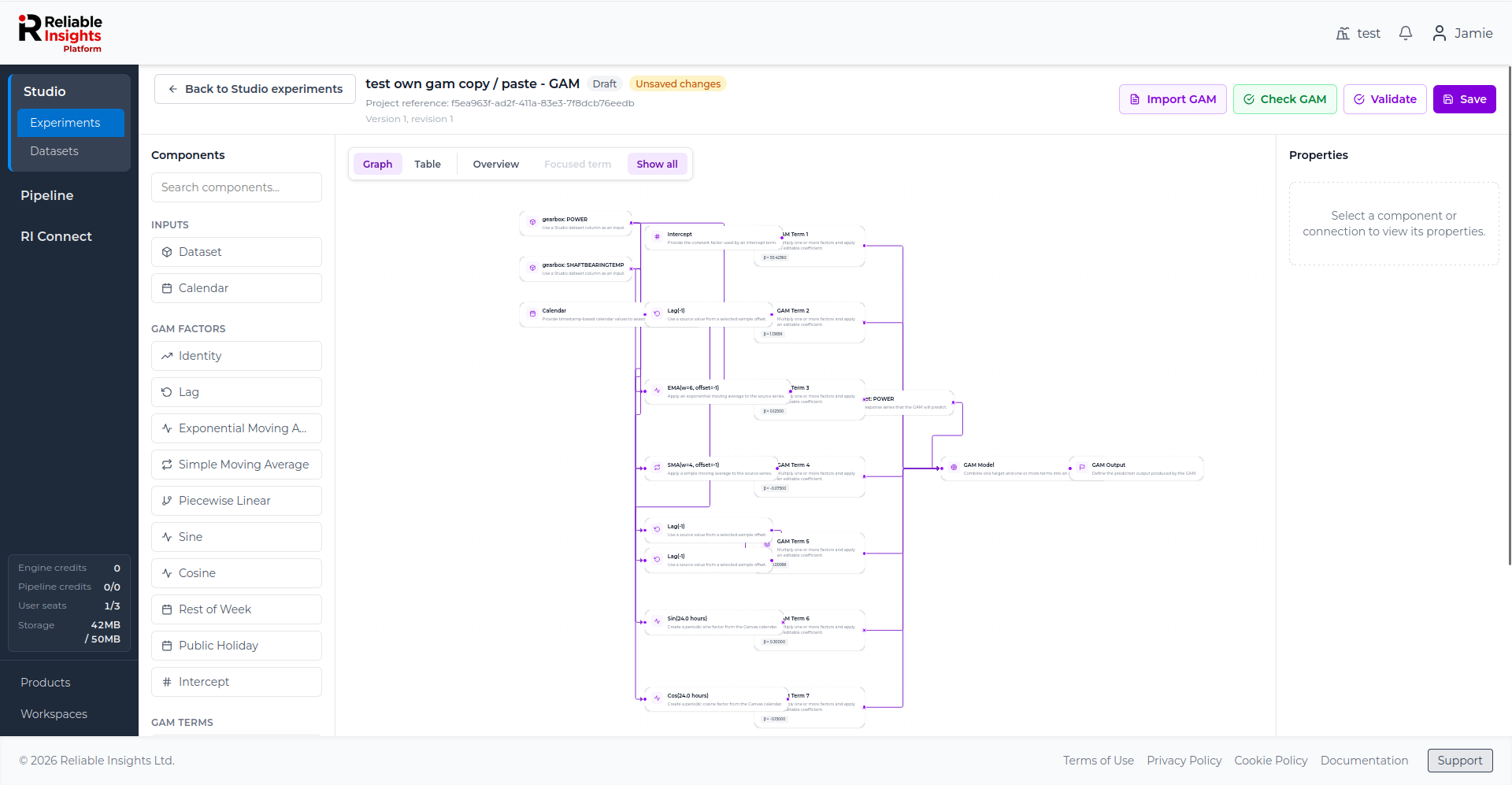
Importing a GAM replaces the graph currently shown in the editor. The imported graph is not saved automatically. Select Save after reviewing the imported model.
For syntax examples, supported formats, and import rules, see RI GAM import reference.
GAM builder layout
The GAM builder has three main areas:
- Components - the available inputs, factors, terms, and model components.
- Graph - the canvas where you connect components together.
- Properties - the panel where you configure the selected component or connection.
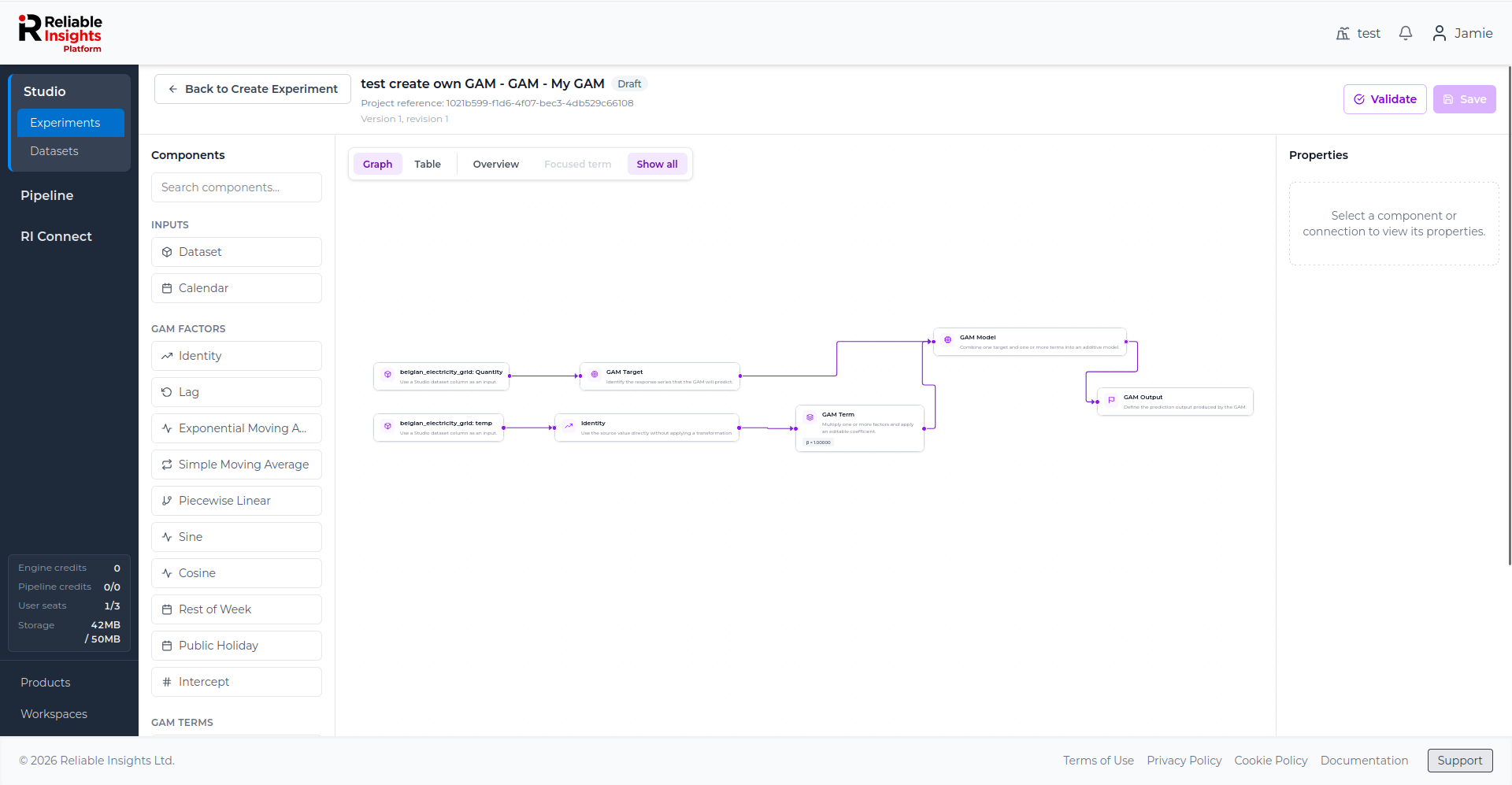
Building the model
A typical GAM graph follows this structure:
Dataset or Calendar input → Factor → GAM Term → GAM Model → GAM Output