Importing GAM definitions
The Import GAM feature allows you to create an editable GAM by pasting an existing model definition instead of building the model manually in Canvas.
Imported GAMs are converted into normal Canvas components. After importing, you can inspect the model visually, edit terms and coefficients, validate the graph, save the GAM, and run it in the same way as a GAM created directly in Canvas.
Supported import formats
Import GAM supports two Reliable Insights formats:
- RI GAM Text - a human-readable equation format designed for writing and copying GAMs easily.
- RI GAM JSON - a structured format designed for programmatic model interchange.
You can also select Auto-detect. When Auto-detect is selected:
- input beginning with
{is interpreted as RI GAM JSON; - all other input is interpreted as RI GAM Text.
Import GAM supports fitted model definitions that can be represented using the GAM components available in Canvas.
RI GAM Text
RI GAM Text is intended to be easy to read and write.
A model can be written as:
target = POWER

10
+ 2.5 * temperature
- 1.2 * pressure
+ 0.75 * lag(flow, 1)
The first line identifies the target, and the remaining lines define the additive terms in the GAM.
This example contains:
- an intercept of
10; - an identity term using
temperature; - a negative identity term using
pressure; - a lagged
flowterm.
RI GAM JSON
RI GAM JSON provides a structured representation of the same GAM components. It is useful when the model definition is generated or stored by another system.
{
  "format": "ri-gam",
  "version": 1,
  "target": "POWER",
  "family": "gaussian",
  "link": "identity",
  "terms": [
    {
      "coefficient": 55.423596,
      "factors": [
        {
          "type": "intercept"
        }
      ]
    },
    {
      "coefficient": 1.136586,
      "factors": [
        {
          "type": "lag",
          "column": "POWER",
          "offset": -1
        }
      ]
    },
    {
      "coefficient": 0.125,
      "factors": [
        {
          "type": "ema",
          "column": "POWER",
          "window": 6,
          "offset": -1
        }
      ]
    },
    {
      "coefficient": -0.075,
      "factors": [
        {
          "type": "sma",
          "column": "SHAFTBEARINGTEMP",
          "window": 4,
          "offset": -1
        }
      ]
    }
  ]
}
Mapping imported columns
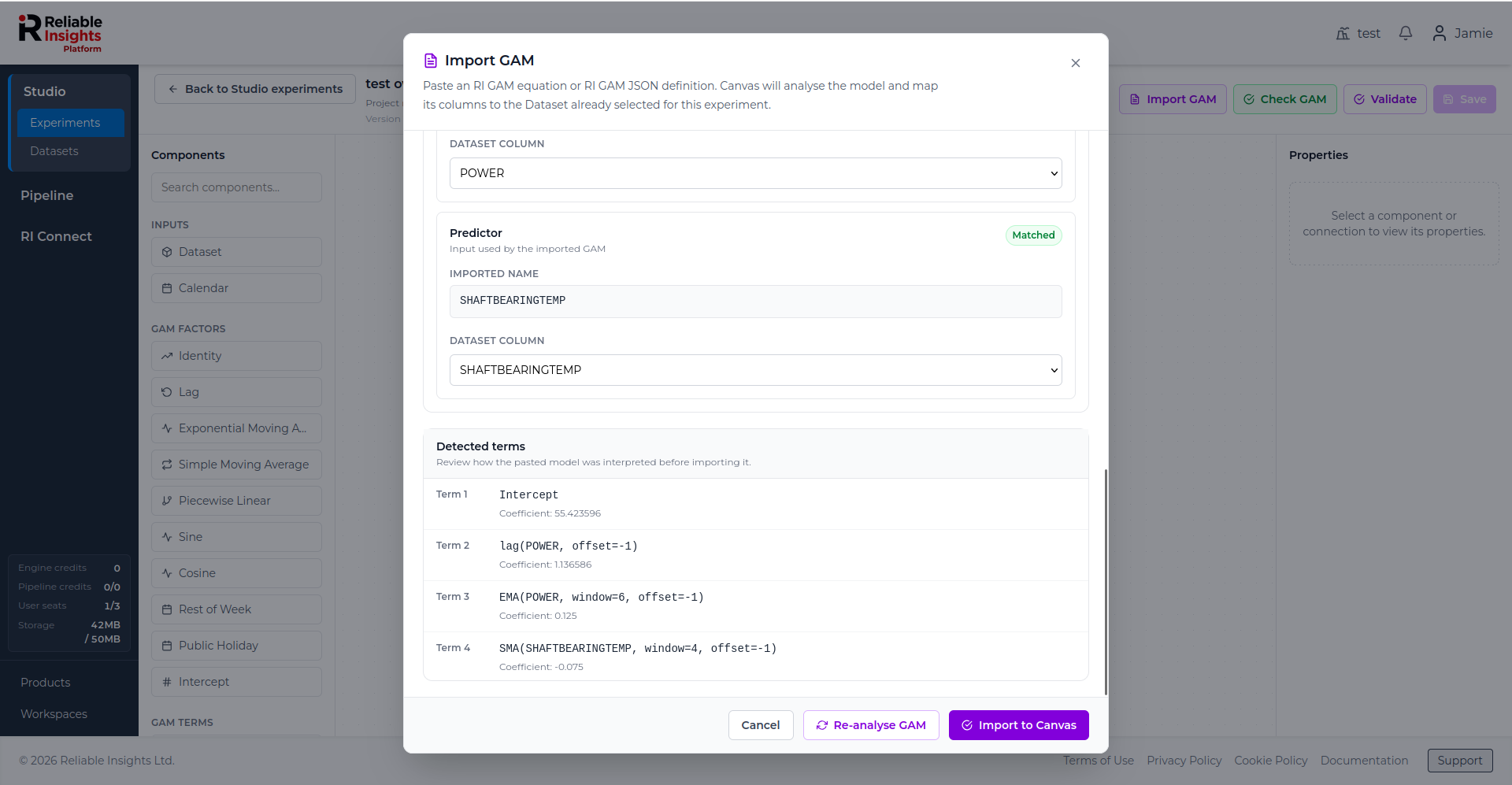
When you select Analyse GAM, Studio attempts to map each imported column to a column in the dataset selected for the Studio experiment.
Columns with matching names are mapped automatically. If a column cannot be matched automatically, select the appropriate dataset column manually and then select Re-analyse GAM.
The target of the Studio experiment is selected before the GAM builder opens. Importing a GAM does not change the experiment target.
Reviewing detected terms
The import analysis shows the terms detected from the pasted model definition. Review these terms before importing the model into Canvas.
Import workflow
To import a GAM:
- Select Import GAM.
- Choose Auto-detect, RI GAM Text, or RI GAM JSON.
- Paste the model definition.
- Select Analyse GAM.
- Review the detected format, terms, predictors, column mappings, and graph validation status.
- Resolve any required column mappings.
- Select Re-analyse GAM after changing a mapping.
- Select Import to Canvas when the model is ready.
- Review or edit the generated Canvas graph.
- Select Save to save the imported GAM.
- Select Check GAM before running the model.
Import to Canvas replaces the graph currently shown in the editor. Importing does not save the new graph automatically.
Unsupported model definitions
Import GAM is not a general Python or R code importer.
External library expressions such as s(...), te(...), ti(...), or smooth(...) cannot be imported by themselves because they do not contain enough fitted model information to reproduce the model.
The fitted model must be represented using supported RI GAM factors and fitted coefficients.