Datasources
A datasource is a connection to an external data system. Pipeline uses datasources to fetch time-series data for your feeds.
Datasources can connect to supported file transfer sources, such as SFTP or FTPS servers, call approved external API endpoints, or receive data through a customer-hosted Database Connector.
Once a datasource has been added, Pipeline can use it to create or populate feeds. For SFTP, FTPS, and External API datasources, RI Platform tests the connection during setup. For Database Connector datasources, the database connection is configured and validated locally on the machine running the connector.
Without a datasource, Pipeline has no way to reach your data. Datasources are therefore the starting point for automated Pipeline workflows.
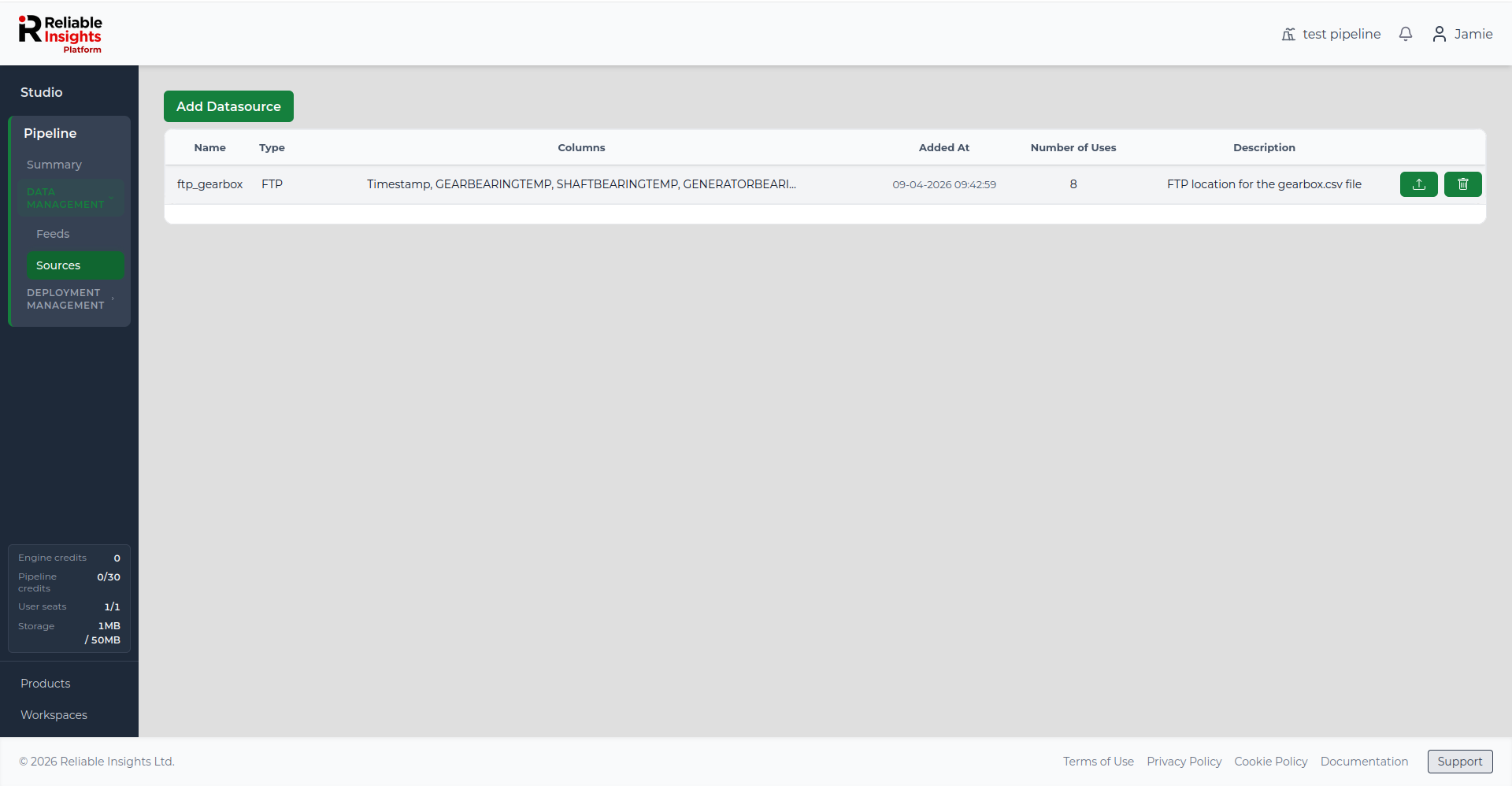
Adding a datasource
- Go to Datasources in the left sidebar.
- Click Add Datasource.
- Choose the datasource type.
- Follow the setup flow for the selected datasource type.
For SFTP, FTP via TLS, and External API datasources, Pipeline asks you to enter connection details, test the connection, review a preview, and save the datasource.
For Database Connector datasources, Pipeline asks you to define the platform-side connector details and feed mappings. Database credentials and SQL are configured locally after downloading the connector installation package.
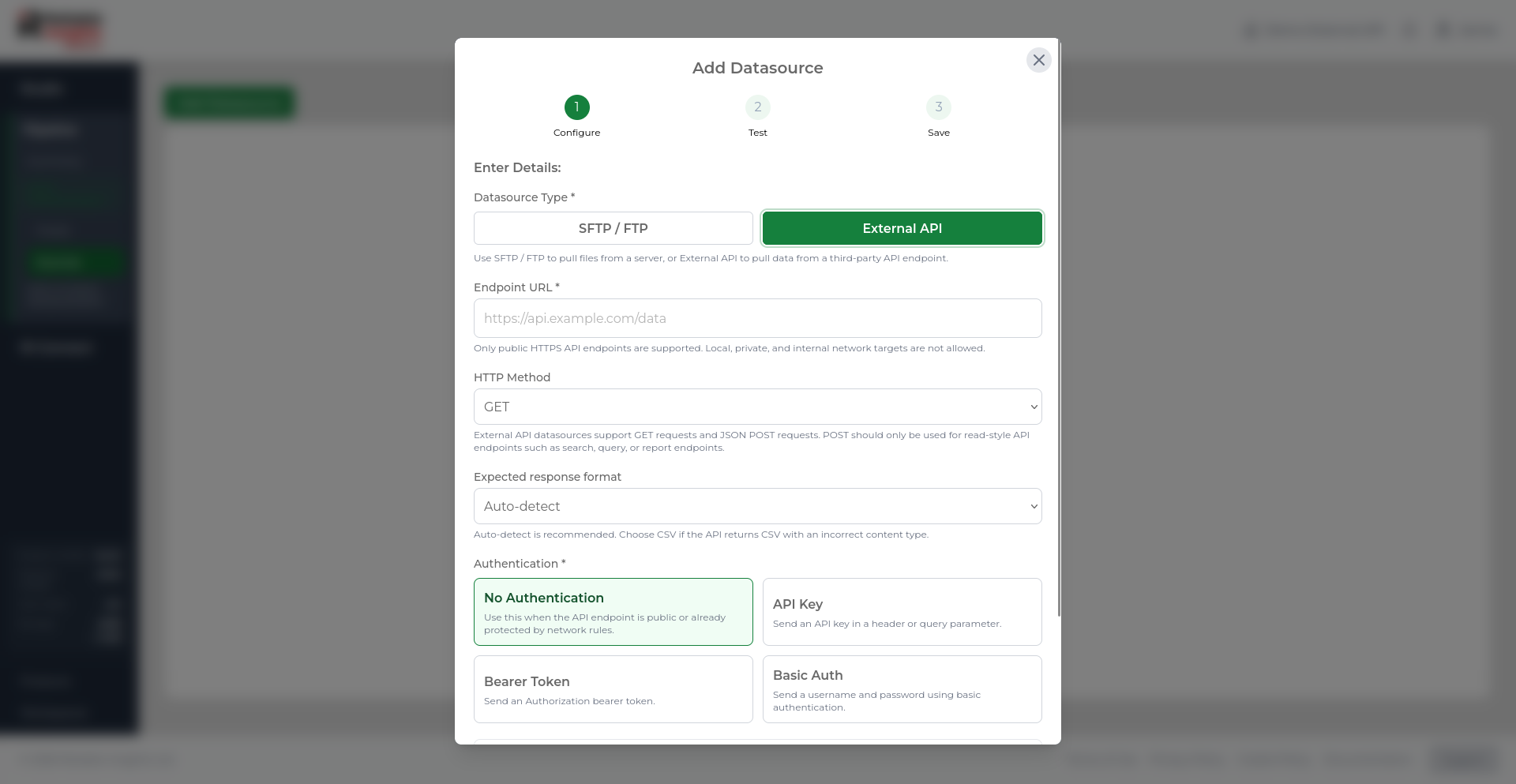
Pipeline currently supports file transfer datasources, External API datasources, and customer-hosted Database Connector datasources. The fields shown in the setup form depend on the datasource type selected.
SFTP datasource
| Field | Description |
|---|---|
| Host | The public hostname of the SFTP server. |
| Port | The port used to connect to the server. SFTP usually uses port 22. |
| Username | Your SFTP login username. |
| Password / Private key | Depending on your server's authentication method. |
| File Path | The full path to the file on the server. |
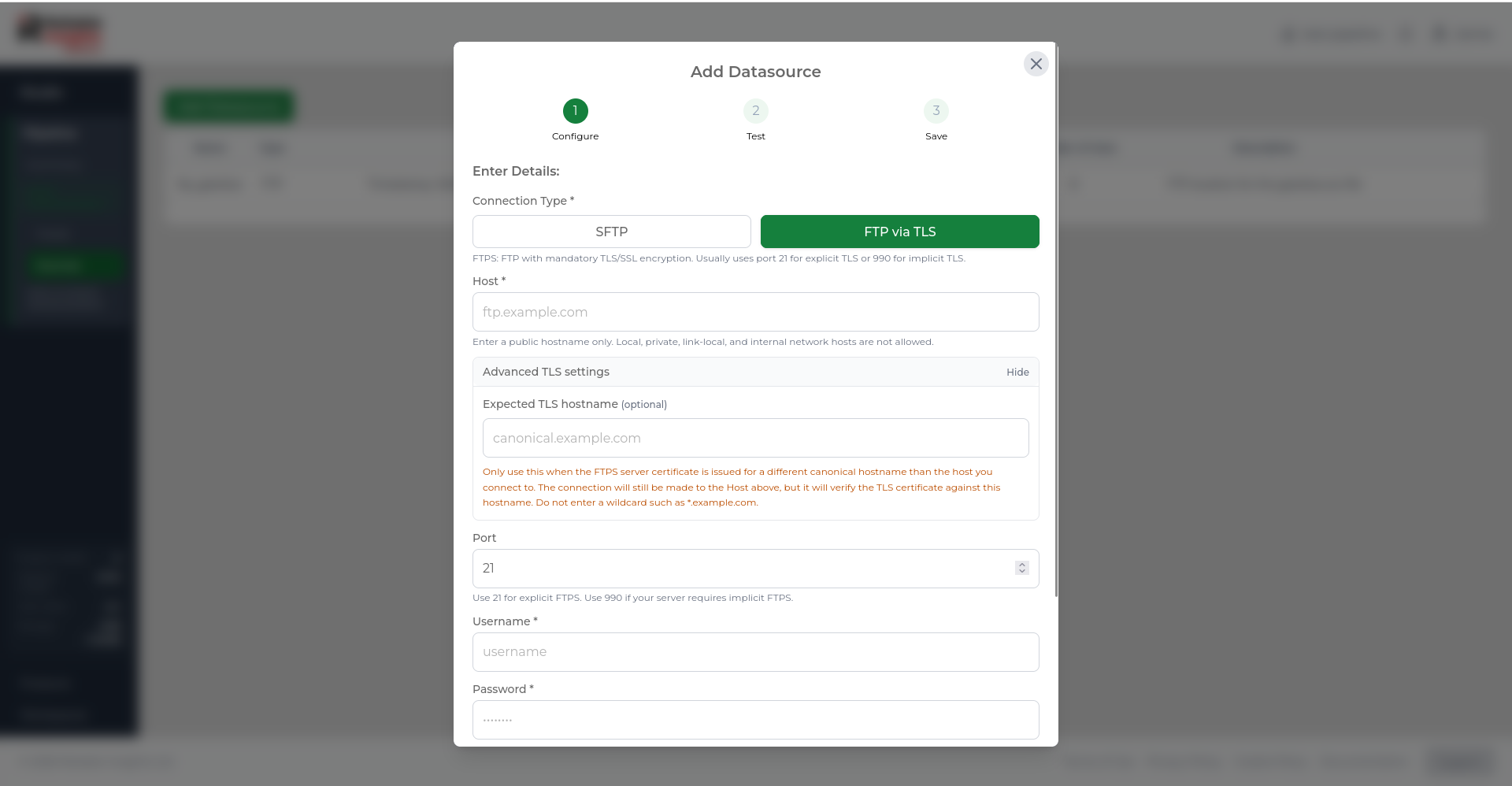
FTP via TLS datasource
Use an FTP via TLS datasource when your data is available through an FTPS server.
| Field | Description |
|---|---|
| Host | The public hostname of the FTPS server. |
| Port | The port used to connect to the server. Use 21 for explicit FTPS, or 990 if your server requires implicit FTPS. |
| Username | The username used to connect to the server. |
| Password | The password used to connect to the server. |
| File Path | The full path to the file on the server. |
Advanced TLS settings
For FTP via TLS datasources, you can optionally provide an Expected TLS hostname.
Use this only when the FTPS server certificate is issued for a different canonical hostname than the host you connect to. Pipeline still connects to the host entered above, but verifies the TLS certificate against the expected hostname.
External API datasource
Use an External API datasource when Pipeline should retrieve data from a third-party API endpoint.
External API datasources are useful when your data is available through an HTTPS API rather than through a file transfer server. Pipeline can connect to the endpoint, test the response, detect available fields, and use the response data to create Pipeline feeds.
External API requirements can vary depending on the API provider. The API must return data in a supported structure, and the endpoint must be reachable by RI Platform.
| Field | Description |
|---|---|
| Endpoint URL | The public HTTPS API endpoint that returns the data. |
| HTTP Method | The request method used by the API. GET is commonly used for read-only endpoints. JSON POST can be used where supported. |
| Expected response format | The expected response format. Auto-detect is recommended where available. |
| Authentication | The authentication method required by the API, such as no authentication, API key, bearer token, or basic authentication. |
| Advanced options | Optional headers, query parameters, incremental sync, pagination, and response parsing settings. |
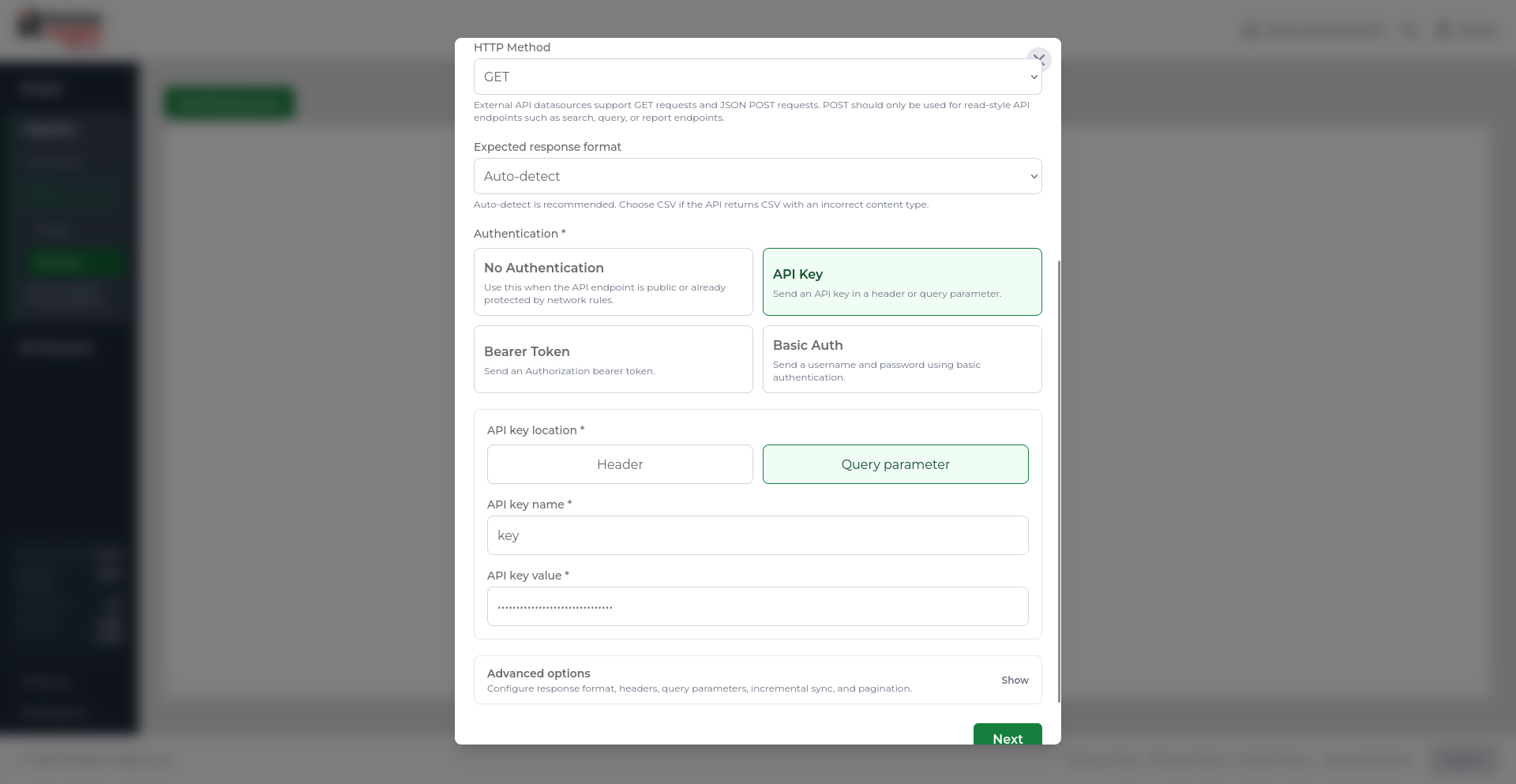
Authentication
External API datasources can be configured with different authentication methods depending on what the API requires.
Supported options include:
- No Authentication - Use this when the endpoint is public or already protected by other network rules.
- API Key - Send an API key in a header or query parameter.
- Bearer Token - Send an authorisation bearer token.
- Basic Auth - Send a username and password using basic authentication.
Avoid placing secrets directly in the endpoint URL or request body. Use the authentication fields provided by the datasource setup form wherever possible.
Advanced options
Some APIs require additional configuration before Pipeline can retrieve data correctly.
Advanced options can include:
- Optional headers - Add fixed request headers required by the API.
- Optional query parameters - Add fixed query parameters, such as site IDs, meter IDs, filters, or response format options.
- Timestamp-based incremental sync - Add start and end time parameters where the API supports time filtering.
- Pagination - Configure page-based requests where the API returns results across multiple pages.
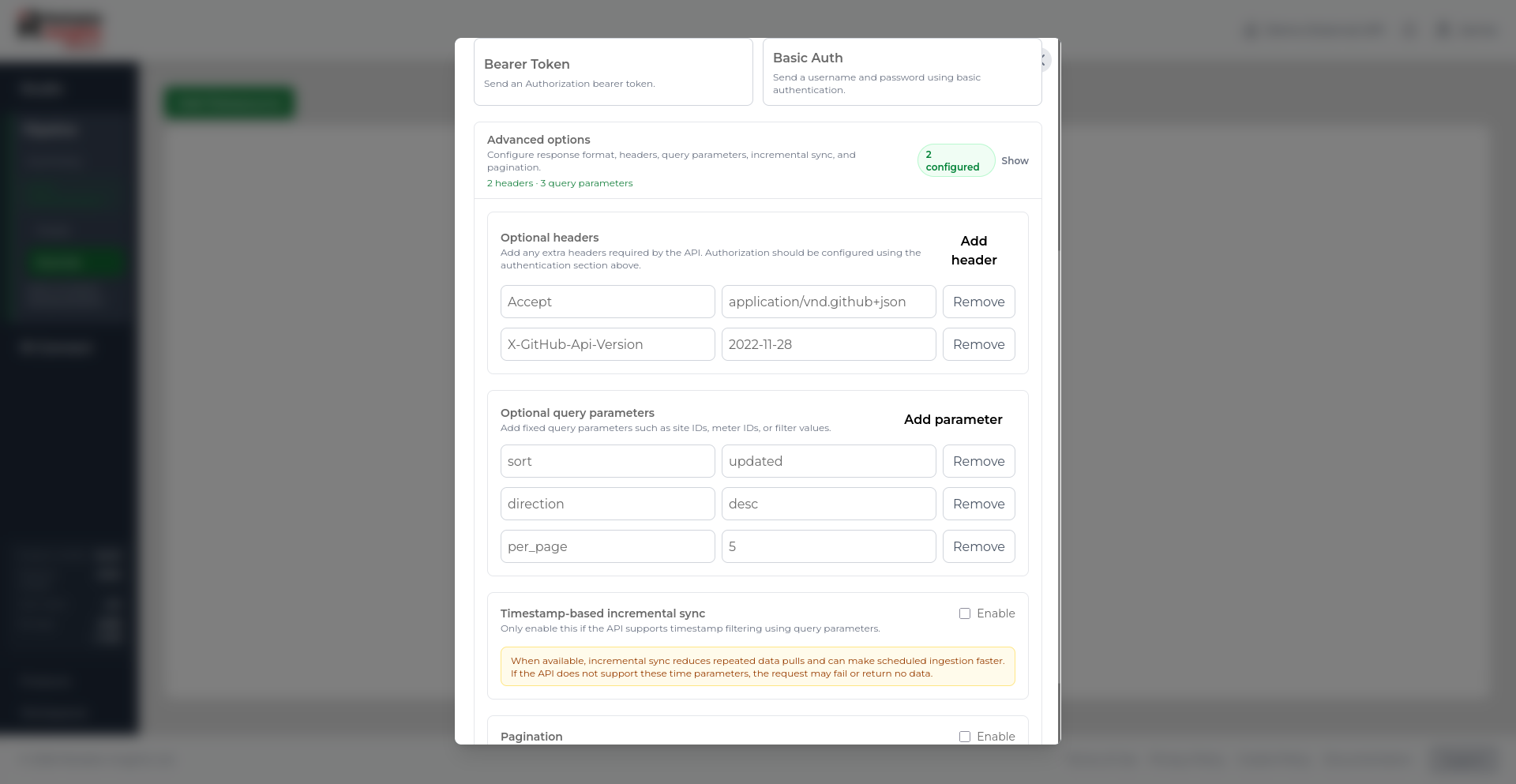
Only enable incremental sync or pagination when the API supports the required request parameters. If an API does not support those parameters, the request may fail or return no data.
Testing the connection
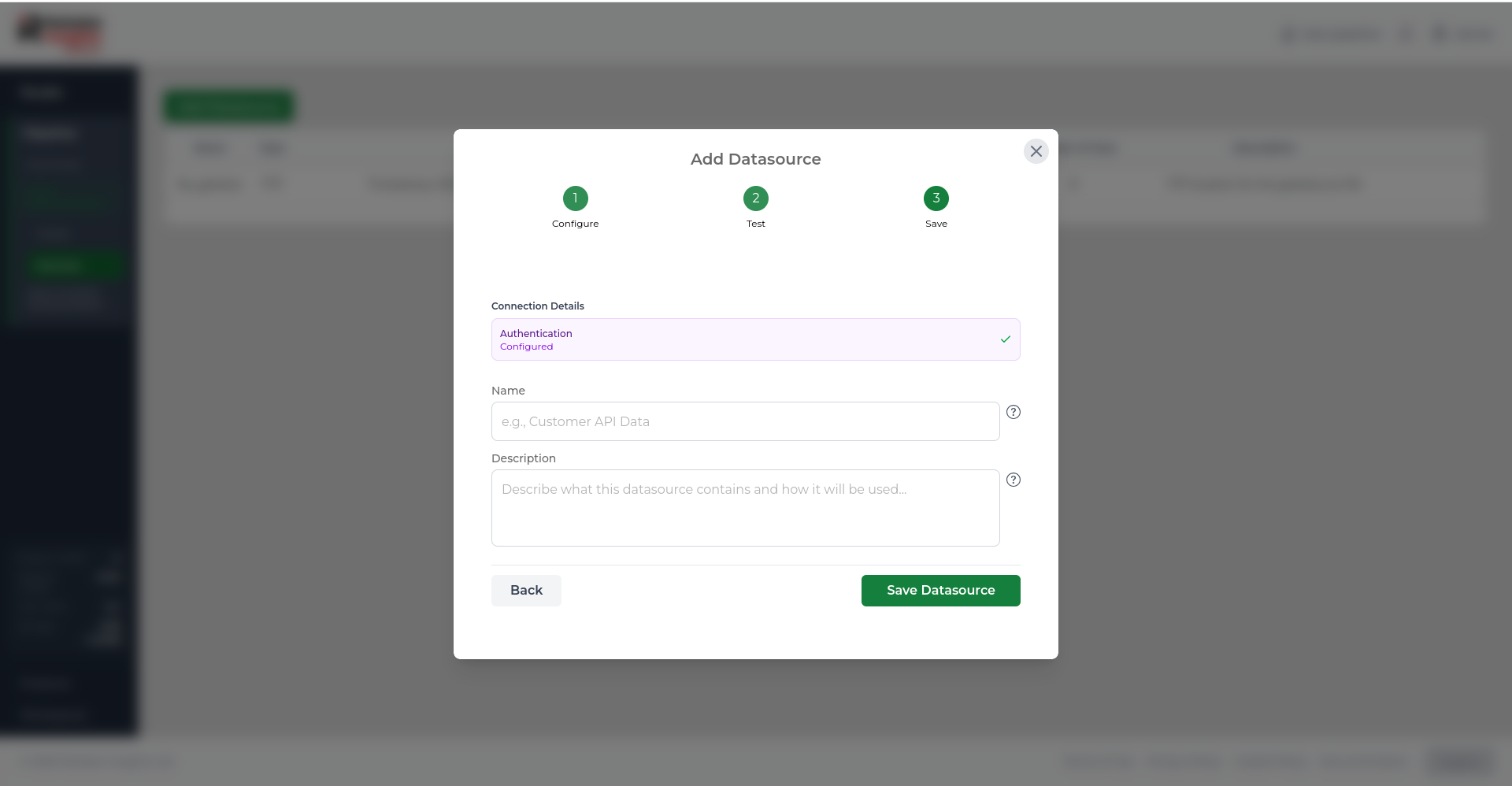
A connection test is required before you can save a new datasource.
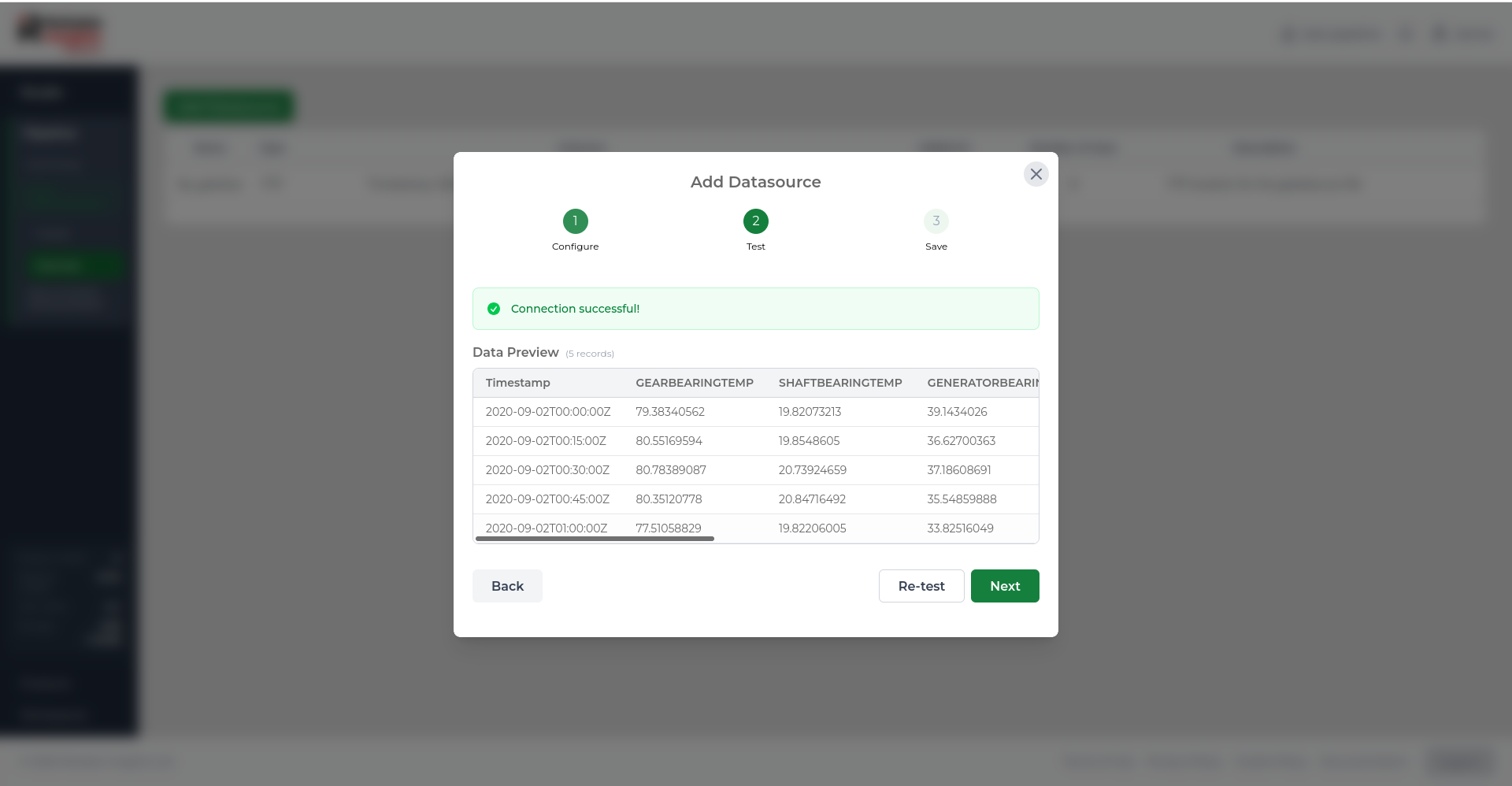
During the test, Pipeline connects to the datasource and checks that it can retrieve data successfully. If the test passes, Pipeline shows a preview of the data, including the columns and the first few rows.
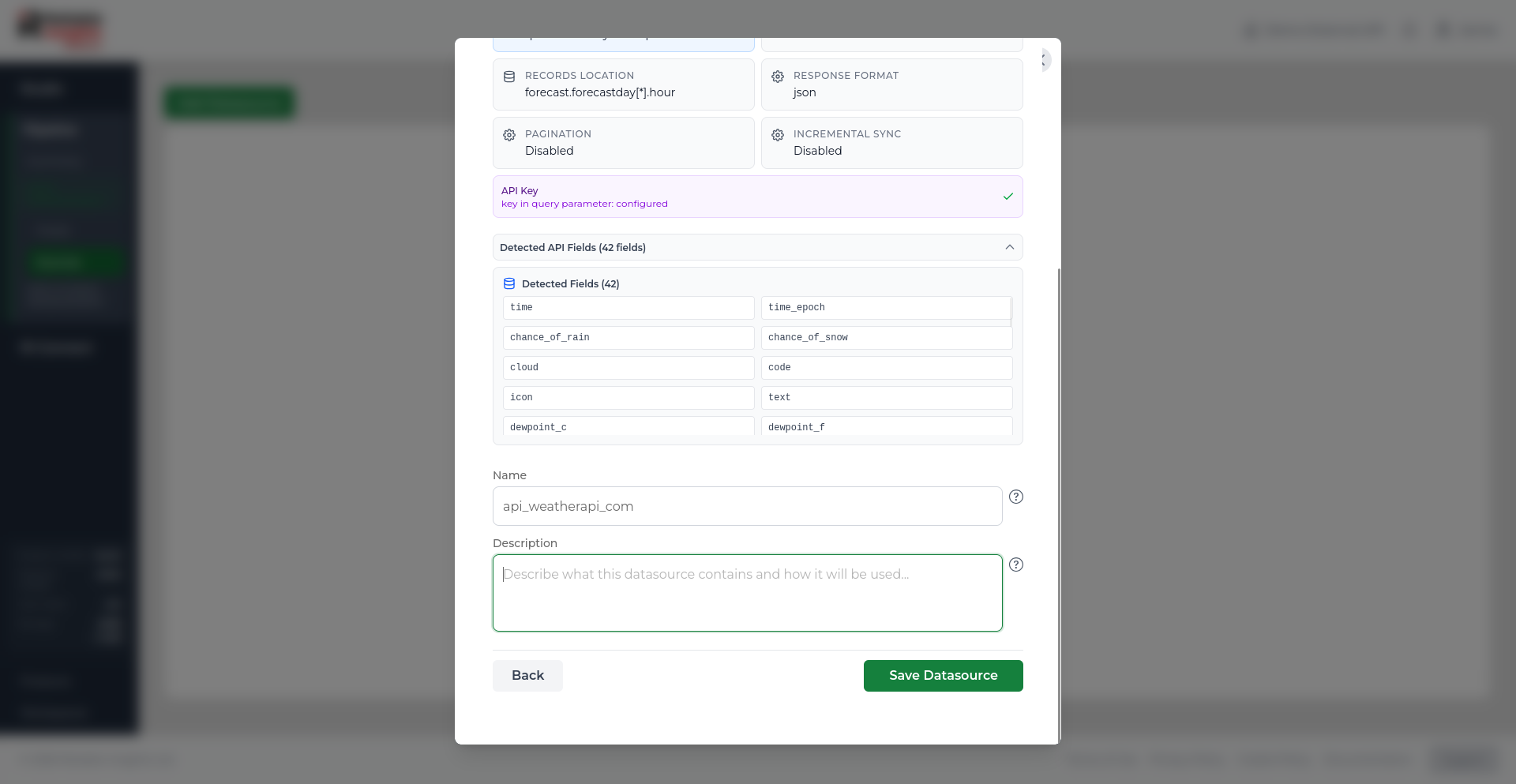
For External API datasources, the connection test also helps Pipeline understand the API response. Pipeline checks the response format, identifies possible record locations, previews returned data, and detects fields that may later be used as feeds.
- The columns it found (headers).
- Whether it could identify a timestamp column.
- A preview of the first few rows.
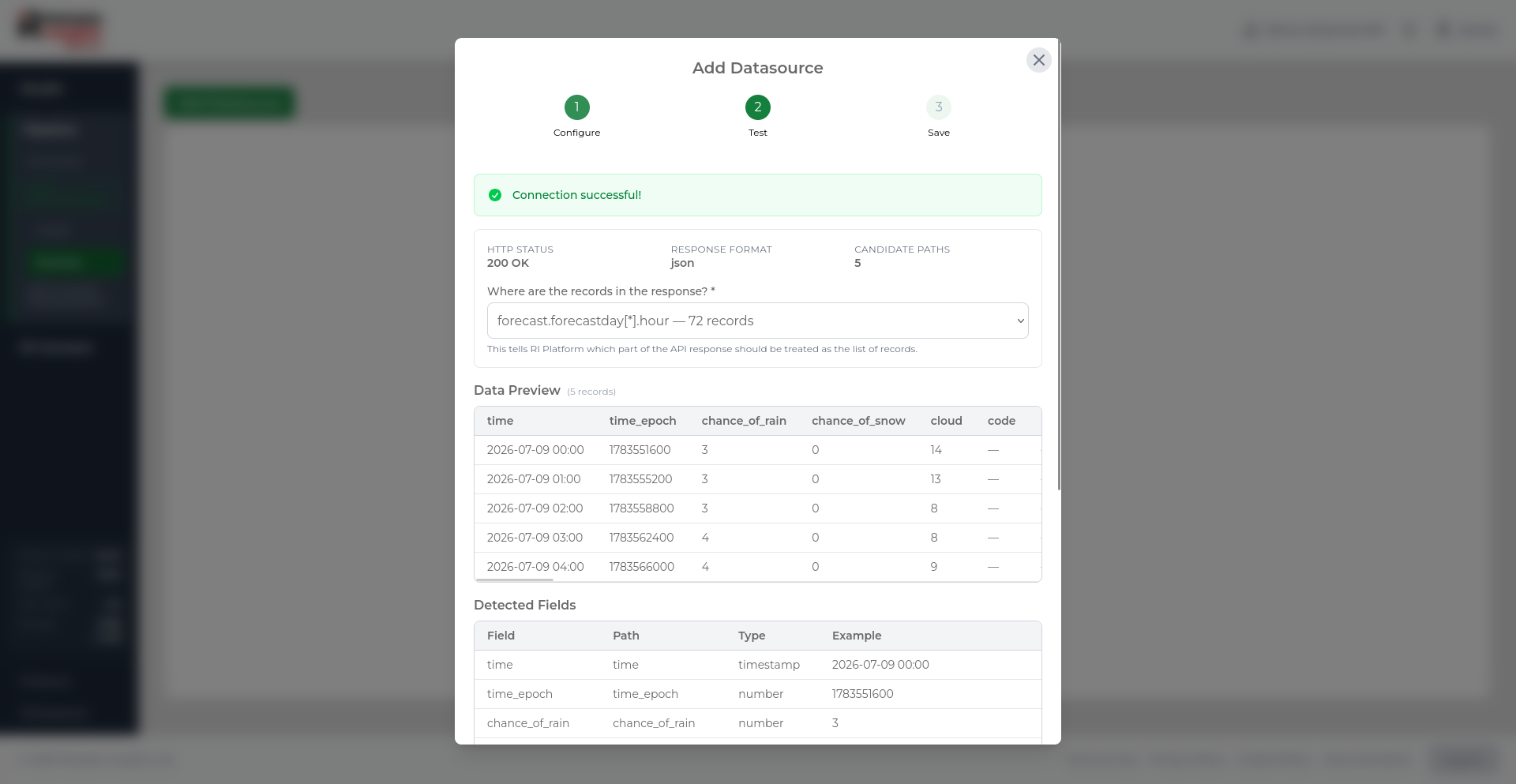
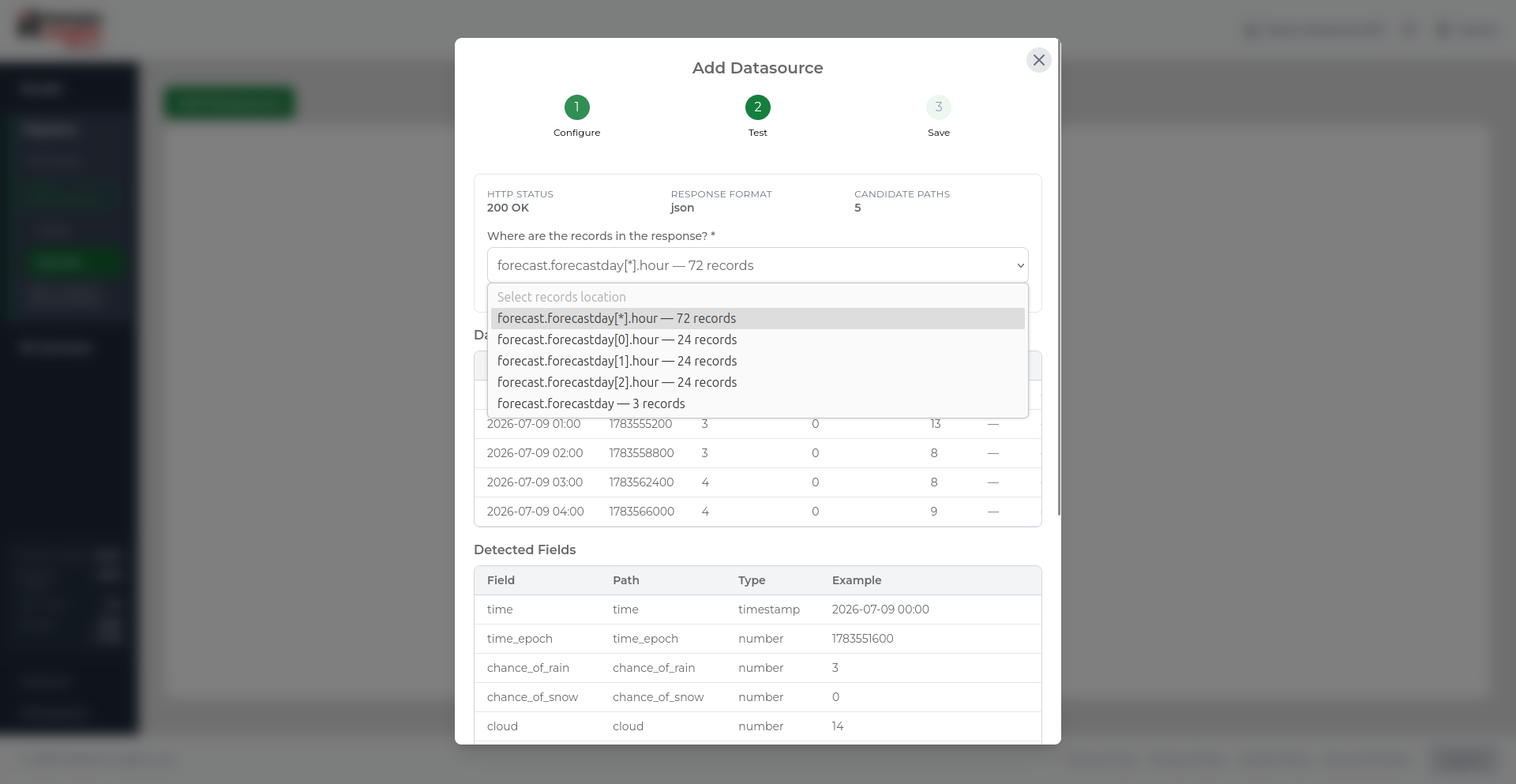
For APIs that return nested JSON, Pipeline asks which part of the response contains the list of records. The selected records location tells Pipeline which part of the response should be treated as rows of data.
If the test fails, an error message is shown. See Datasource connection issues below for specific guidance.
Saving a datasource
After the connection test succeeds, add a name and description for the datasource.
For Database Connector datasources, selecting Create Database Connector immediately creates the datasource, feeds, and mappings in Pipeline. The datasource remains pending until the customer-hosted connector is installed and successfully registers with RI Platform.
Use a clear name that helps you and your team recognise the datasource later. The description should explain what the datasource contains and how it will be used.
For External API datasources, the save step also summarises the configured endpoint, response format, records location, authentication status, and detected fields.
Database Connector datasource
Use a Database Connector datasource when you want Pipeline to ingest time-series data from a PostgreSQL or MySQL database hosted in your own environment.
Unlike SFTP, FTP via TLS, and External API datasources, RI Platform does not connect directly to the database. Instead, you create the connector in Pipeline, download a personalised installation package, and run the connector on your own machinery. The connector reads data locally and sends the mapped values to Pipeline using outbound requests.
Do not enter database passwords, connection strings, certificates, hostnames, or SQL queries into the Pipeline website. These details are configured locally after downloading the Database Connector installation package.
Database Connector setup creates:
- A Database Connector datasource.
- One Pipeline feed for each database source field entered in the wizard.
- A mapping from each database source field to its Pipeline feed.
- A pending connector that can be installed using the personalised package.
Database Connector feeds are created automatically. You do not need to create them separately from the Feeds page.
Supported database engines
Database Connector currently supports:
- PostgreSQL
- MySQL
Before you begin
Before creating a Database Connector, make sure you have:
- A PostgreSQL or MySQL database.
- A machine that can run the connector.
- Docker and Docker Compose available on that machine.
- Network access from the connector machine to the database.
- Outbound access from the connector machine to RI Platform.
- A read-only database user for the required source data.
- The database columns that should become Pipeline feeds.
- Permission to create datasources in the workspace.
Standard installation requires the connector machine to download the approved Database Connector image. Offline installation is coming soon.
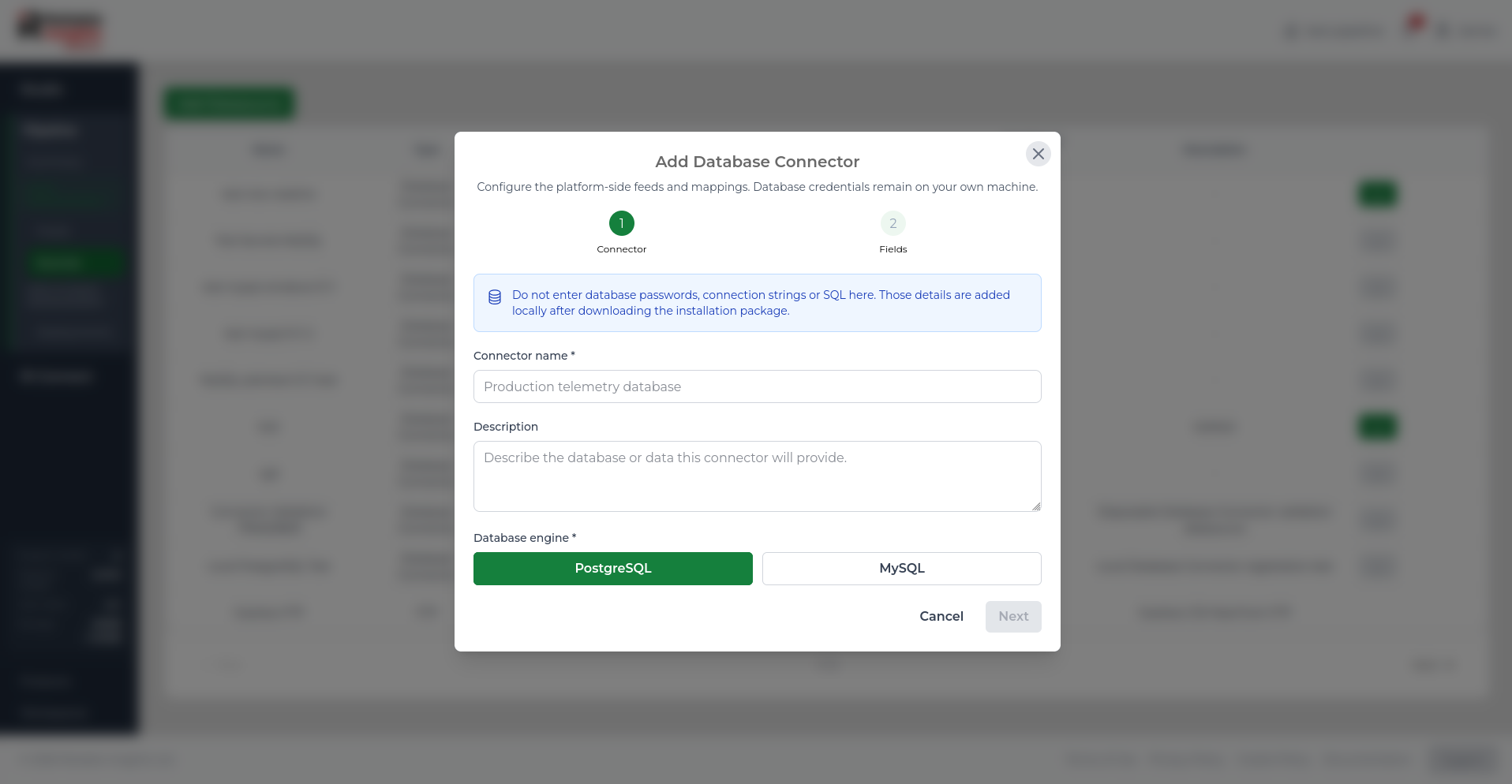
Configure database fields
In the second step, define which database fields should become Pipeline feeds.
Each row maps one database source field to one Pipeline feed.
| Field | Description |
|---|---|
| Database source field | The column name returned by the local SQL query. |
| Pipeline feed name | The name of the Pipeline feed that will receive values from this database field. |
| Units | Optional units for the feed, such as C, bar, or kW. |
Each Database Connector must include at least one field. You can add multiple fields if the same database query should populate several Pipeline feeds.
Do not add the timestamp column as a database source field. The local SQL query must return the timestamp separately using the alias timestamp.
Download the installation package
After you select Create Database Connector, Pipeline creates the datasource, feeds, and mappings. The connector is then shown as pending until it is installed and registered.
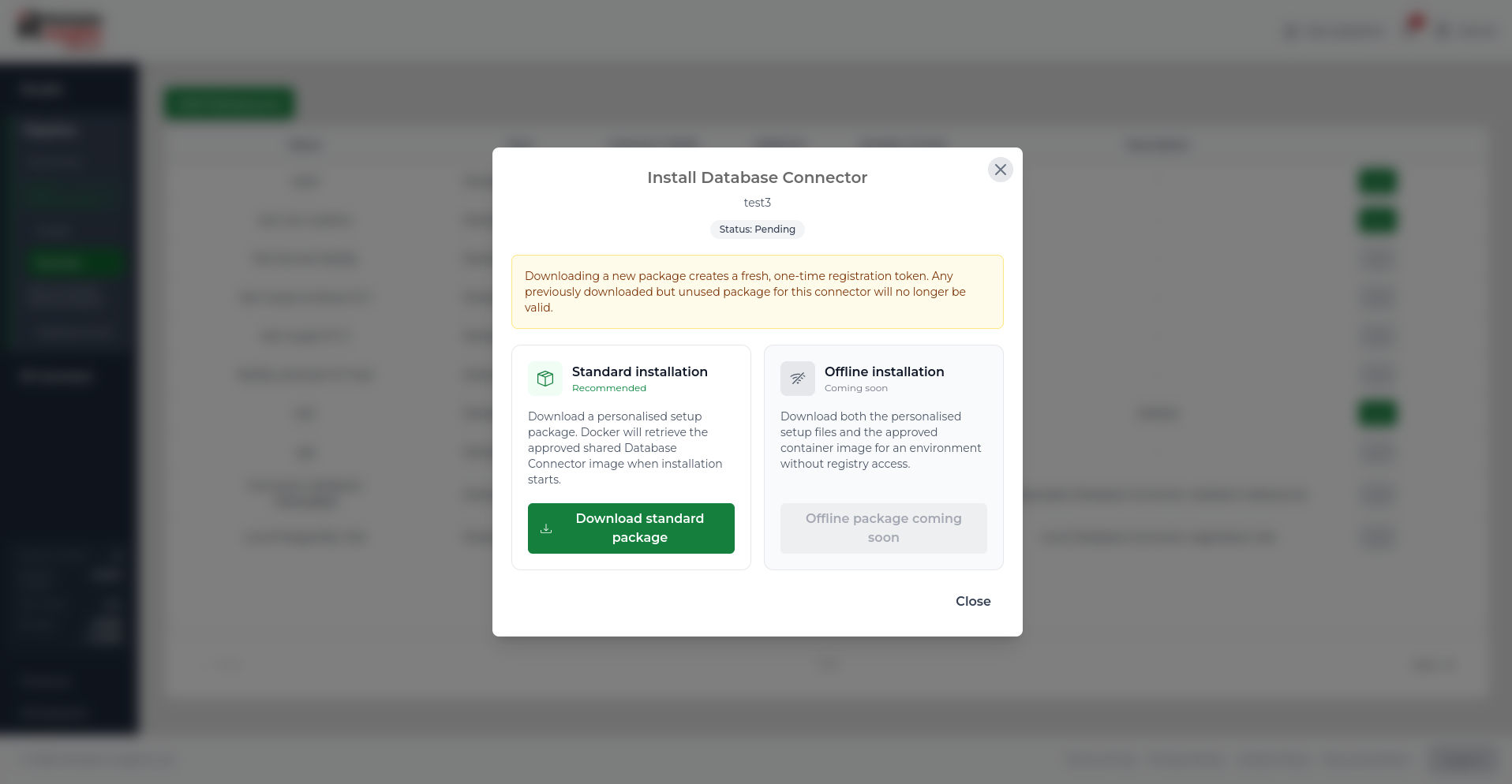
The Install Database Connector window opens after creation. From here, download the standard installation package.
The package is personalised for the connector and includes the connector configuration needed to register it with RI Platform.
Downloading a new package creates a fresh one-time registration token. Any previously downloaded but unused package for the same connector will no longer be valid.
To continue:
- Select Download standard package.
- Move the downloaded package to the machine that will run the connector.
- Extract the package.
- Configure the database connection and SQL query locally.
- Run the installation script included in the package.
The local installation process validates the configuration, previews the query, registers the connector, sends a heartbeat, and starts ingestion.
The extracted folder also includes a README file with further installation and configuration instructions. Follow the README when setting up the connector locally, especially when configuring database credentials, SQL query settings, and the connector runtime.
Configure the connector locally
The downloaded package contains the files needed to run the connector. Database details are added locally, not in RI Platform.
The local configuration includes:
| Setting | Description |
|---|---|
| Database host | The hostname or IP address that the connector machine uses to reach the database. |
| Database port | The database port. |
| Database name | The database containing the source table or view. |
| Database username | A dedicated read-only database user. |
| Database password | The password for the read-only database user. |
| TLS mode | The database TLS setting used by the connector. |
| SQL query | The query that returns the timestamp and mapped numeric fields. |
| Poll interval | How often the local connector checks for new records. |
| Batch size | The maximum number of records read in one connector batch. |
Protect the extracted package and local configuration files. They may contain registration details, database credentials, connector state, or other sensitive configuration.
Database query requirements
The connector runs a customer-defined SQL query locally.
Depending on your database structure, it may be useful to create a database view for the connector to query. A view can simplify complex joins, rename columns into the expected format, filter the source data, or expose only the timestamp and numeric values that should be ingested into Pipeline.
The query must:
- Return one timestamp column using the exact alias
timestamp. - Return every database source field configured in Pipeline.
- Return mapped values as finite numeric values.
- Return timestamps in strictly ascending order.
- Return unique timestamps.
- Use a bounded batch size.
- Read data only; do not use write, update, delete, or administrative SQL.
For example:
SELECT
    measured_at AS timestamp,
    temperature,
    pressure
FROM measurements
WHERE measured_at > %(cursor)s
ORDER BY measured_at ASC
LIMIT %(batch_size)s;
For more complex database structures, the same pattern can be used against a database view instead of a raw table, for example:
SELECT
    timestamp,
    temperature,
    pressure
FROM pipeline_measurements_view
WHERE timestamp > %(cursor)s
ORDER BY timestamp ASC
LIMIT %(batch_size)s;
The column names returned by the query must match the database source field values entered in Pipeline.
For PostgreSQL, returned timestamps must include timezone information.
For MySQL, ensure that local DATETIME values are converted to UTC where required.
Editing a datasource
- On the Datasources page, click the Update icon on the datasource row.
- Update the fields you want to change.
- Re-test the connection if required.
- Save the updated datasource.
Deleting a datasource
- Click the Delete icon on the datasource row.
- Confirm the deletion in the dialog.
For a Database Connector datasource, stop the customer-hosted connector before deleting the datasource. Deleting the datasource disables the connector-specific platform configuration and prevents the connector from sending new data.
Deleting a datasource does not automatically delete feeds created from it, but those feeds will stop receiving new data. For Database Connector datasources, check your organisation's data-retention requirements before deleting the datasource.
Datasource connection issues
Database Connector package cannot be downloaded
- Confirm that Database Connector access is enabled for the workspace.
- Confirm that you have permission to create and manage datasources.
- Confirm that the connector is still pending.
- If you previously downloaded a package but did not install it, download a new package and use only the newest package.
Database Connector registration token expired
Registration tokens are short-lived and can only be used once.
Return to the Datasources page and download a new installation package if the connector is still pending. Downloading a new package invalidates earlier unused packages for the same connector.
Database Connector cannot reach the database
Check this on the machine running the connector:
- The database host and port are correct.
- The database accepts connections from the connector machine.
- The database username and password are correct.
- The database user has permission to run the configured query.
- The selected TLS mode matches the database configuration.
- The connector logs do not show database-specific connection errors.
Database query preview reports a missing timestamp
Make sure the query returns a timestamp column using the exact alias timestamp.
For PostgreSQL, the timestamp must include timezone information. For MySQL, convert local DATETIME values to UTC where required.
Database query preview reports missing fields
Every database source field configured in Pipeline must be returned by the local SQL query.
Check for differences in spelling, case, aliases, or renamed database columns.
Database query preview reports non-numeric values
Mapped source fields must return finite numeric values. Text, Boolean values, NaN, and infinite values are not accepted as Pipeline feed values.
Database Connector feed remains on Waiting for data
Confirm that:
- The connector service is running.
- Registration completed successfully.
- The initial heartbeat succeeded.
- The local query returns rows.
- The mapped source fields match the query output.
- The connector host can make outbound requests to RI Platform.
External API test failed
- Confirm that the endpoint URL is correct and uses HTTPS.
- Confirm that the API endpoint is publicly reachable where required.
- Confirm that the selected HTTP method matches the API documentation.
- Confirm that any required API key, bearer token, basic authentication details, headers, or query parameters have been entered correctly.
- If using JSON POST, confirm that the request body is valid JSON.
External API response has no records
- Confirm that the API response contains a list of records.
- Check whether the correct records location has been selected.
- Confirm that any filters, query parameters, time ranges, or pagination settings are not excluding the expected data.
- Re-test the datasource after changing the configuration.
External API fields look wrong
- Confirm that the selected records location points to the repeating data records, not to a summary object.
- Check whether the API returns nested fields that need to be flattened before they can be used as feed columns.
- Confirm that the response format is correct.
- If the API sometimes returns different fields, test using a representative request.
Test failed - connection refused or timeout
- Confirm the host and port are correct.
- Confirm the server can be reached from Pipeline.
- For SFTP or FTP via TLS, check that the server allows connections from the Pipeline server.
Test failed - authentication error
- Double-check your credentials.
- Confirm that the account has permission to access the file.
- Confirm that the selected connection type matches the server configuration.
Test passed but data looks wrong
- Confirm that the file path points to the correct file.
- If the preview rows look empty or garbled, the endpoint may be returning a format that Pipeline cannot parse.
- Confirm that the file contains the expected columns.
- Confirm that the file includes a timestamp column.
- If the timestamp column is not detected, check that the column name contains the words
timestamp,date,time, ordatetime.
Connection was working and now fails
- The datasource may have changed its authentication credentials or URL.
- The file path may have changed.
- The datasource may be temporarily unavailable.
- Check the Alerts panel for a recent Critical or Major alert on this datasource.