Feed Transformations
Feed transformations allow you to create new Pipeline feeds from existing Pipeline feeds using a visual workflow.
They are useful when you want to create derived live features, such as rolling averages, lagged values, differences, or aggregated values. The generated outputs are published back into Pipeline as new feeds.
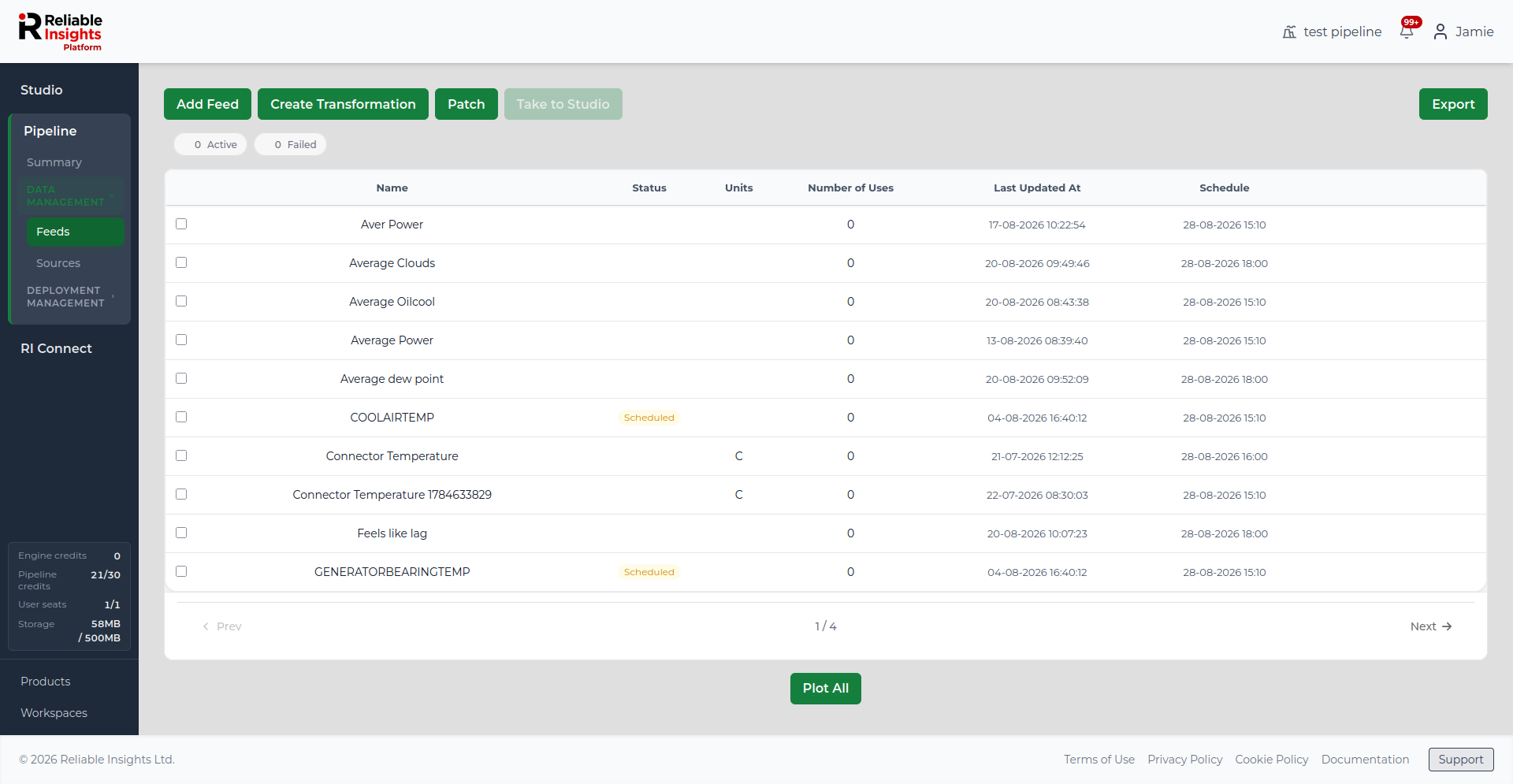
When to use feed transformations
Use feed transformations when you want to create reusable derived feeds from existing Pipeline data.
Common examples include:
- creating a rolling average from a noisy sensor feed
- calculating the difference between consecutive samples
- creating lagged versions of a feed
- aggregating values over a defined window
- preparing additional inputs for deployments
Feed transformations create new Pipeline feeds. They do not replace the original input feeds.
Creating a feed transformation
- Go to Pipeline in the left sidebar.
- Open Feeds.
- Click Create Transformation.
- Build the transformation workflow using the visual editor.
- Preview and validate the workflow.
- Publish the transformation outputs as new Pipeline feeds.
Transformation editor
The transformation editor uses a visual canvas.
A typical workflow contains:
| Component | Description |
|---|---|
| Pipeline Feed | Uses an existing Pipeline feed as an input. |
| Lag | Creates a shifted version of a feed. |
| Rolling Window | Calculates a rolling statistic over a defined number of samples. |
| Difference | Calculates the difference between samples. |
| Aggregate | Aggregates values using a selected operation. |
| Transformation Output | Defines the final output that will be published as a new Pipeline feed. |
Drag components onto the canvas, connect them from left to right, and configure each selected component in the Properties panel.
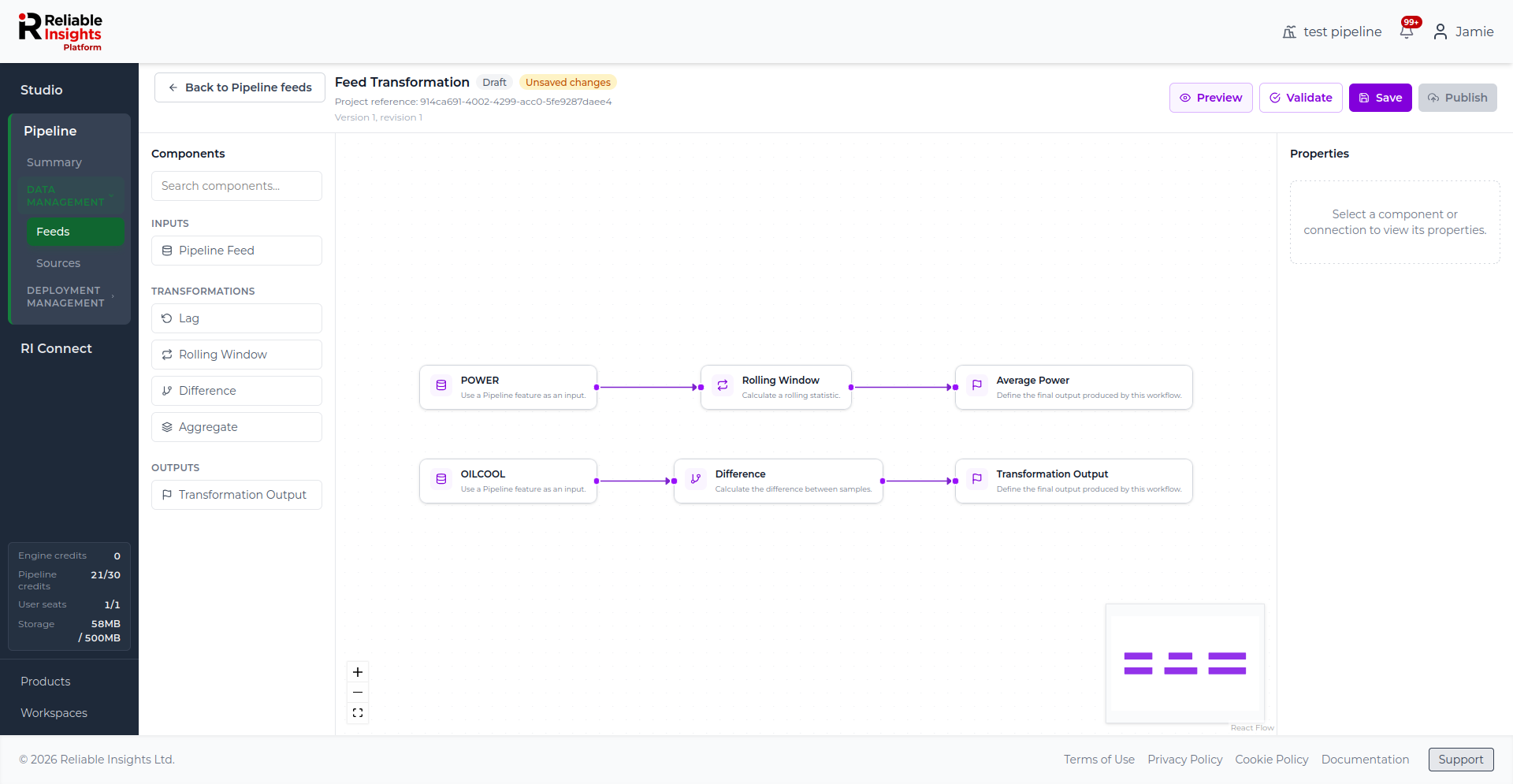
Configuring input feeds
Use a Pipeline Feed component to choose the existing feed that should be used as an input.
When you select a Pipeline Feed component, the Properties panel allows you to:
- change the label shown on the canvas
- select the Pipeline feed used by the component
- review basic information about the selected feed
The selected feed provides the source values for the connected transformation components.
Configuring transformations
Transformation components control how input values are converted into derived values.
For example, a Rolling Window component can calculate a rolling statistic such as a mean over a defined number of samples. A Difference component can calculate changes between samples.
To configure a transformation:
- Select the transformation component on the canvas.
- Update its settings in the Properties panel.
- Connect the transformation to a Transformation Output component.
The available settings depend on the transformation type.
Defining outputs
A Transformation Output component defines the new feed that will be created when the transformation is published.
For each output, you can configure:
| Setting | Description |
|---|---|
| Label | The name shown on the transformation canvas. |
| Output name | The name of the Pipeline feed that will be created. |
| Description | Optional context explaining what the output represents. |
| Units | Optional measurement units for the generated feed. |
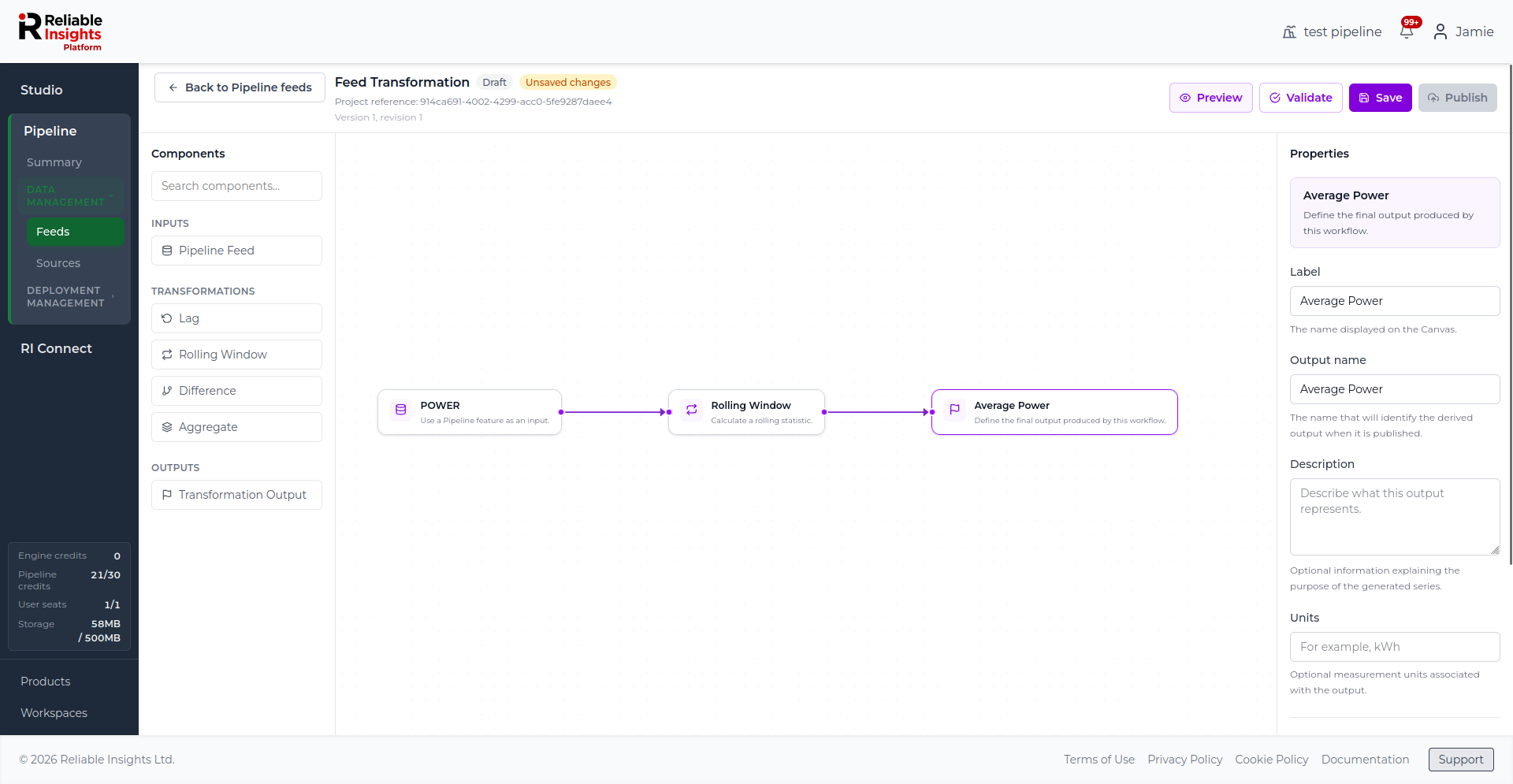
The output name is important because it becomes the name of the generated Pipeline feed.
Previewing a transformation
Click Preview to review the transformed outputs before publishing.
The preview lets you choose an output and compare it with the input feed used to create it. This helps you confirm that the transformation behaves as expected before the output becomes a Pipeline feed.
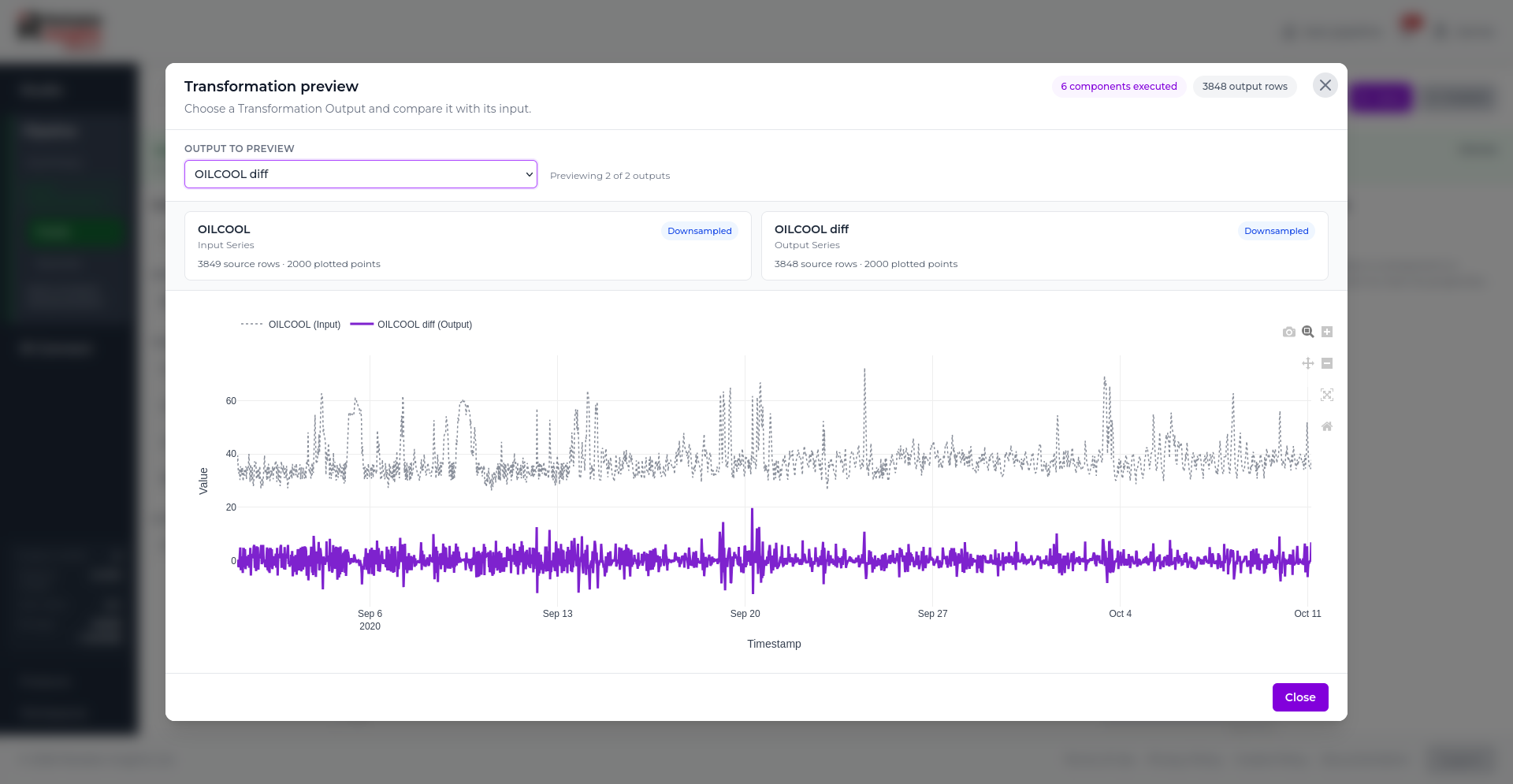
Validating the workflow
Click Validate to check the transformation graph.
Validation checks whether the workflow is complete and whether the components are connected correctly. If validation passes, the page shows a confirmation message with the number of components, connections, errors, and warnings.
You should validate the workflow before publishing.
Saving a draft
Click Save to save the current transformation as a draft.
Drafts allow you to leave the editor and return later without publishing the outputs as feeds.
If the page shows Unsaved changes, save the transformation before leaving the editor or publishing.
Publishing feed transformations
Click Publish when the transformation is ready.
Publishing creates one new Pipeline feed for each Transformation Output component.
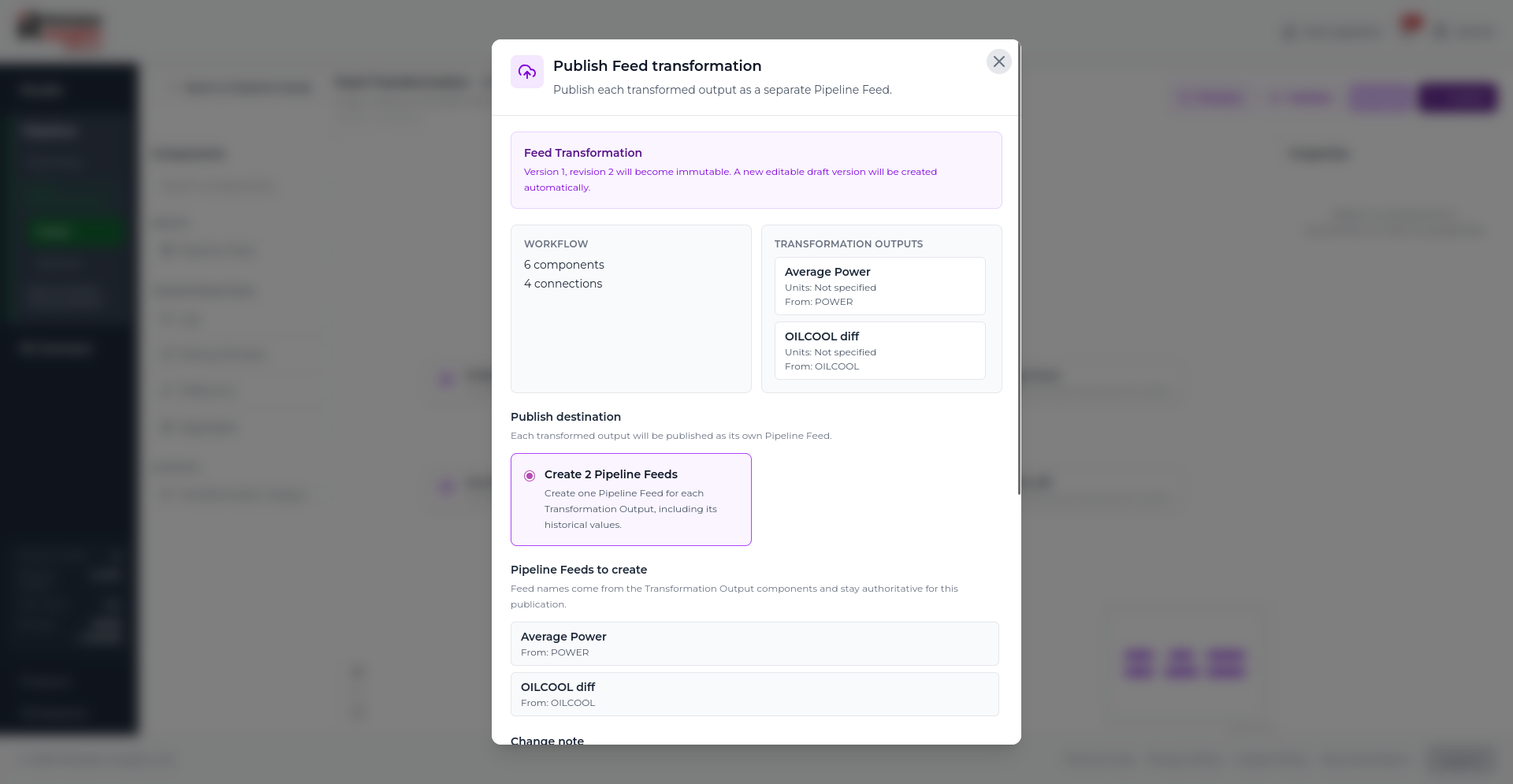
For example, if a transformation has two outputs, publishing creates two Pipeline feeds.
Pipeline feed transformations have a fixed publish destination. Each output is published to the Feeds page as a separate Pipeline feed.
When a transformation is published, the saved revision becomes immutable and a new editable draft revision is created automatically for future changes.
Background publishing
Publishing may continue in the background.
While publication is running, the transformation is temporarily read-only. You can leave the page and continue using the platform while the generated feeds are created.
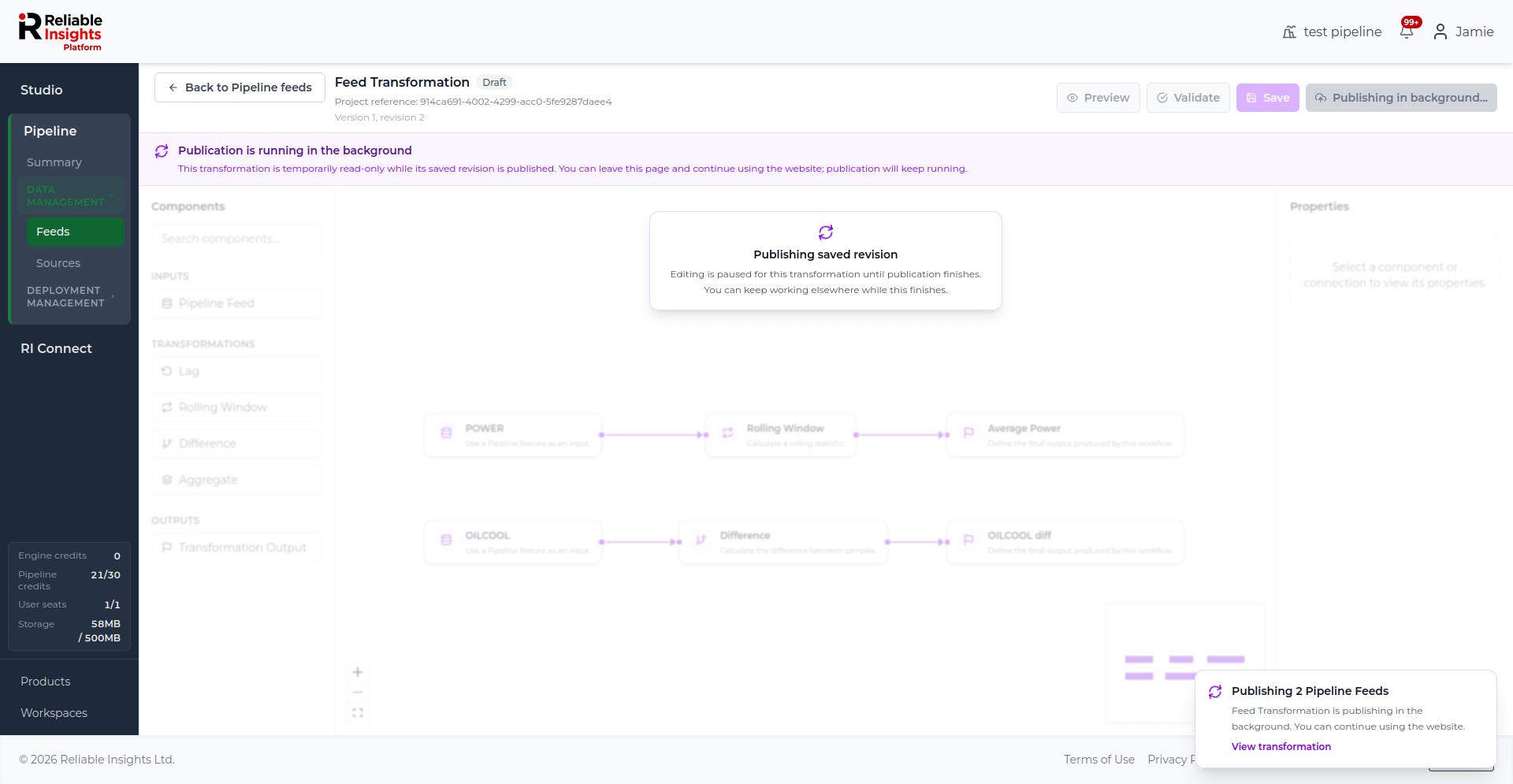
A notification appears while publishing is in progress. You can use View transformation to return to the transformation if needed.
After publishing
After publishing completes, the generated outputs appear on the Feeds page as Pipeline feeds.
These feeds can be used like other Pipeline feeds. For example, you can use them in deployments, plot them, export them, or use them as inputs to future workflows.
Troubleshooting feed transformations
Publish is disabled
If Publish is disabled:
- check that the workflow has at least one Transformation Output
- check that all required component settings are complete
- click Validate and resolve any errors
- save any unsaved changes
Validation fails
If validation fails, review the message shown on the page.
Common causes include:
- components that are not connected
- missing input feeds
- missing output names
- transformation components without required settings
- outputs that are not connected to a valid input path
The preview does not show the expected values
Check that the correct output is selected in the preview dropdown.
Also review the connected input feed and the transformation settings. For example, a rolling calculation may look different depending on the selected window size and operation.
Published feeds are not visible immediately
Publishing can continue in the background. Wait for the publishing notification to complete, then refresh the Feeds page if needed.