Compare Models
Compare Models allows you to compare completed Studio models built from the same dataset.
You can use the comparison to understand how different models perform, how consistent their performance is, which predictors and engineered features they rely on, and how their modelling configurations differ.
Comparisons are available for:
- Forecasting
- Anomaly Detection
- Soft Sensor
Models within a comparison must use the same experiment type. Where supported, the selected models can use different modelling approaches, allowing you to compare Tangent and RI Standard models directly.
The exact comparison information shown depends on the experiment type and the compatibility of the selected models.
Opening Compare Models
To start a comparison:
- Open Studio > Datasets.
- Find the dataset containing the models you want to compare.
- Select the Compare Models button in the dataset actions.
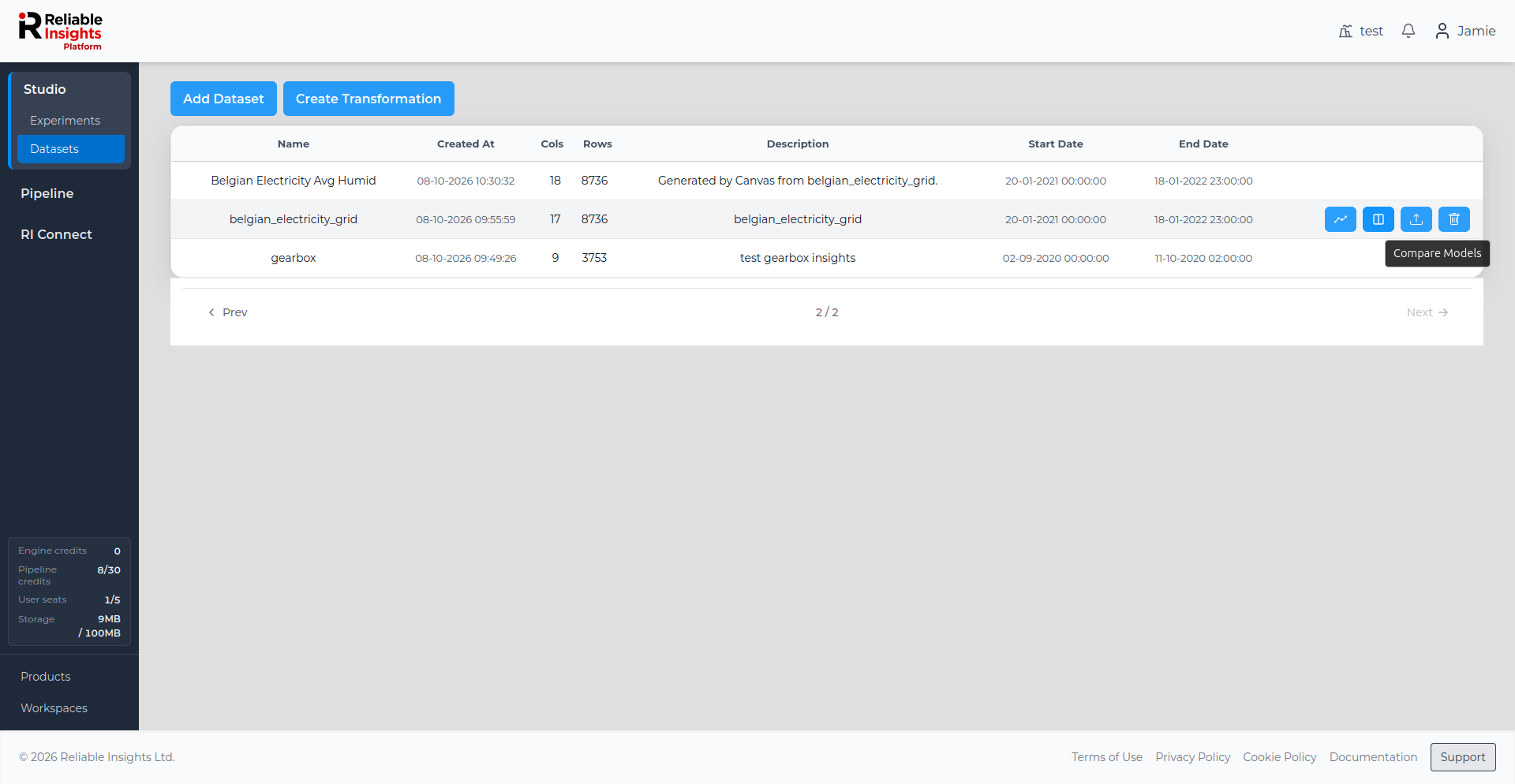
Studio then asks which experiment type you want to compare.
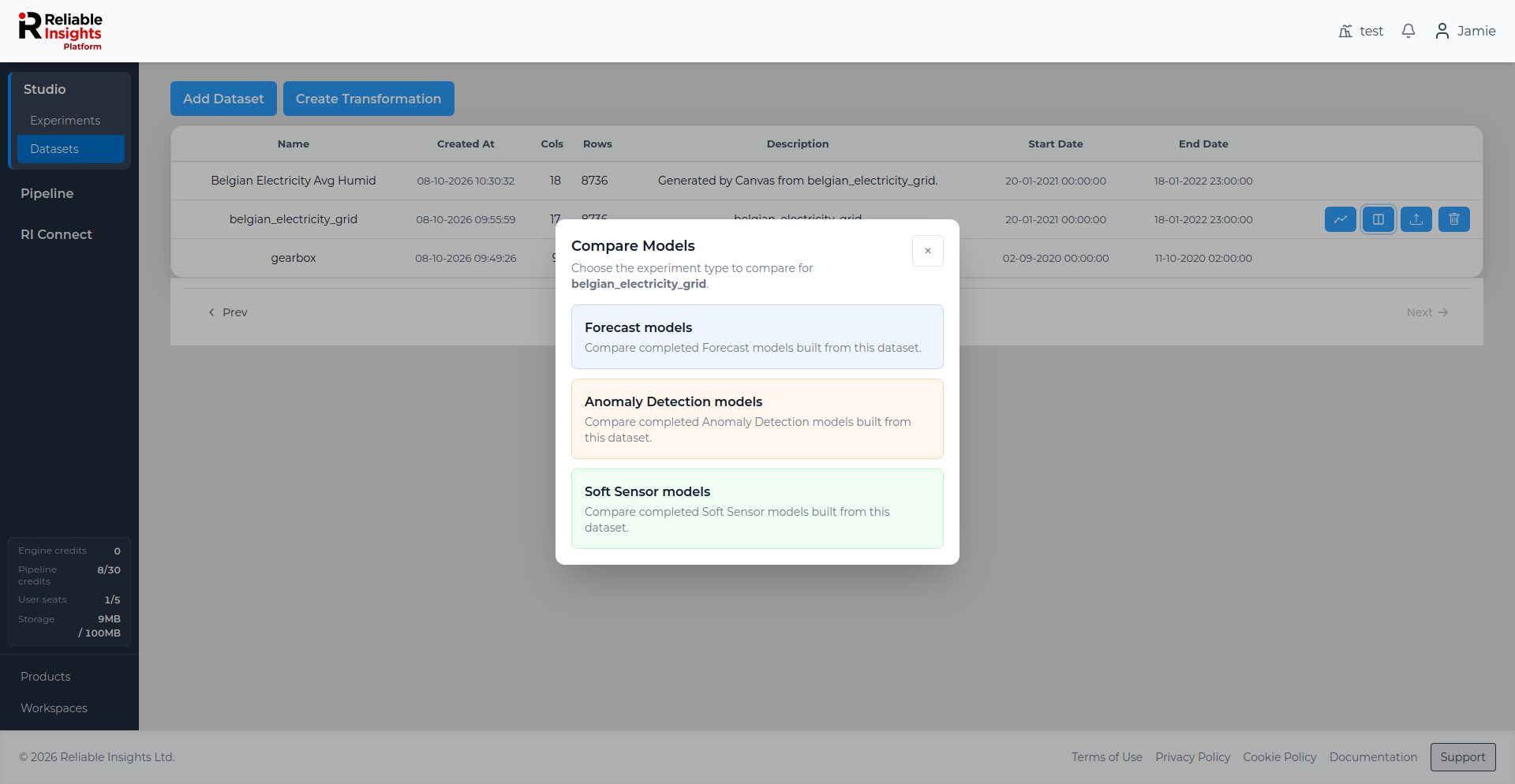
Only completed experiments built from the selected dataset are available for comparison.
Selecting models
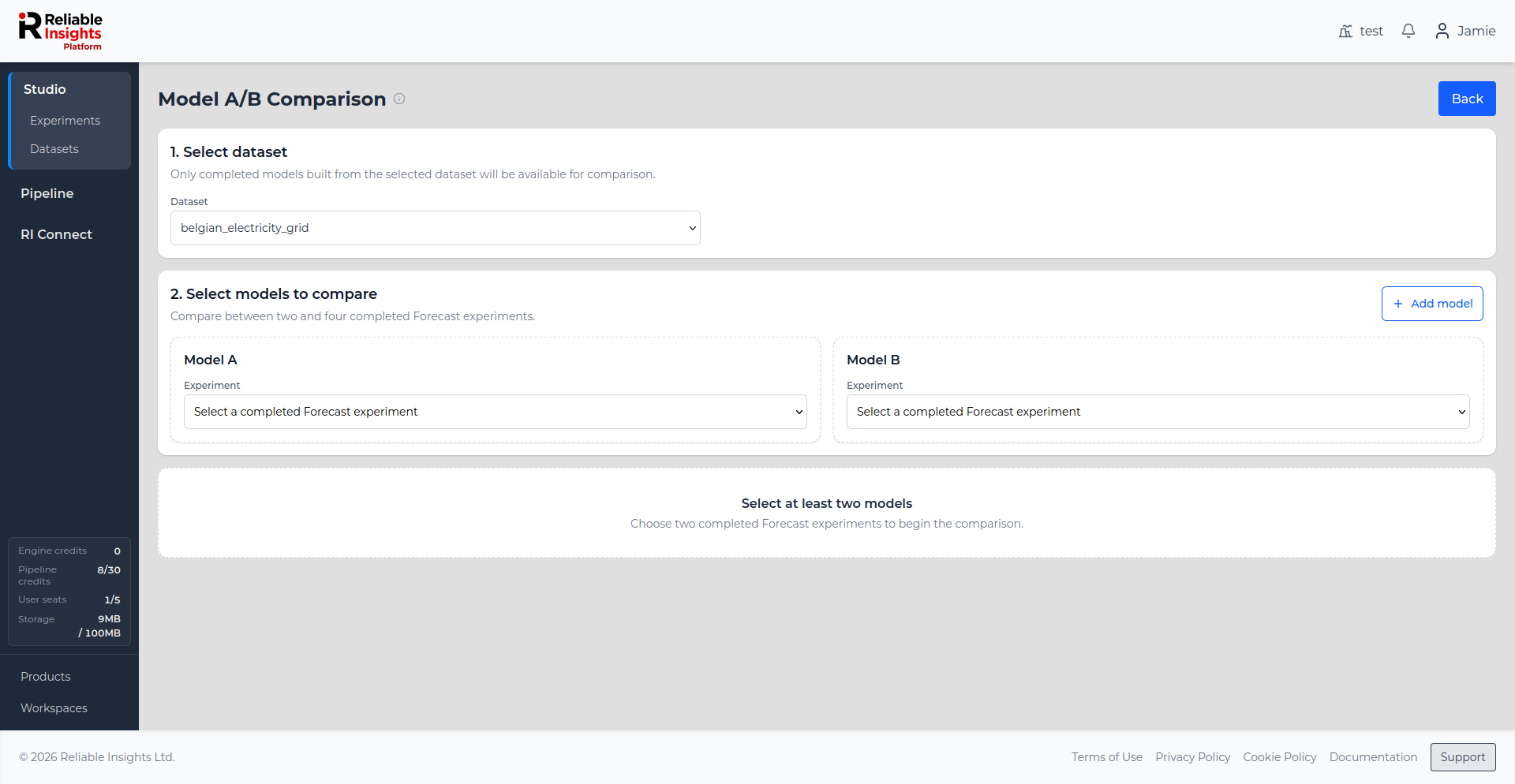
The comparison page lets you select between two and four completed models of the chosen experiment type.
Select an experiment for Model A and Model B. Use Add model if you want to include additional models in the comparison.
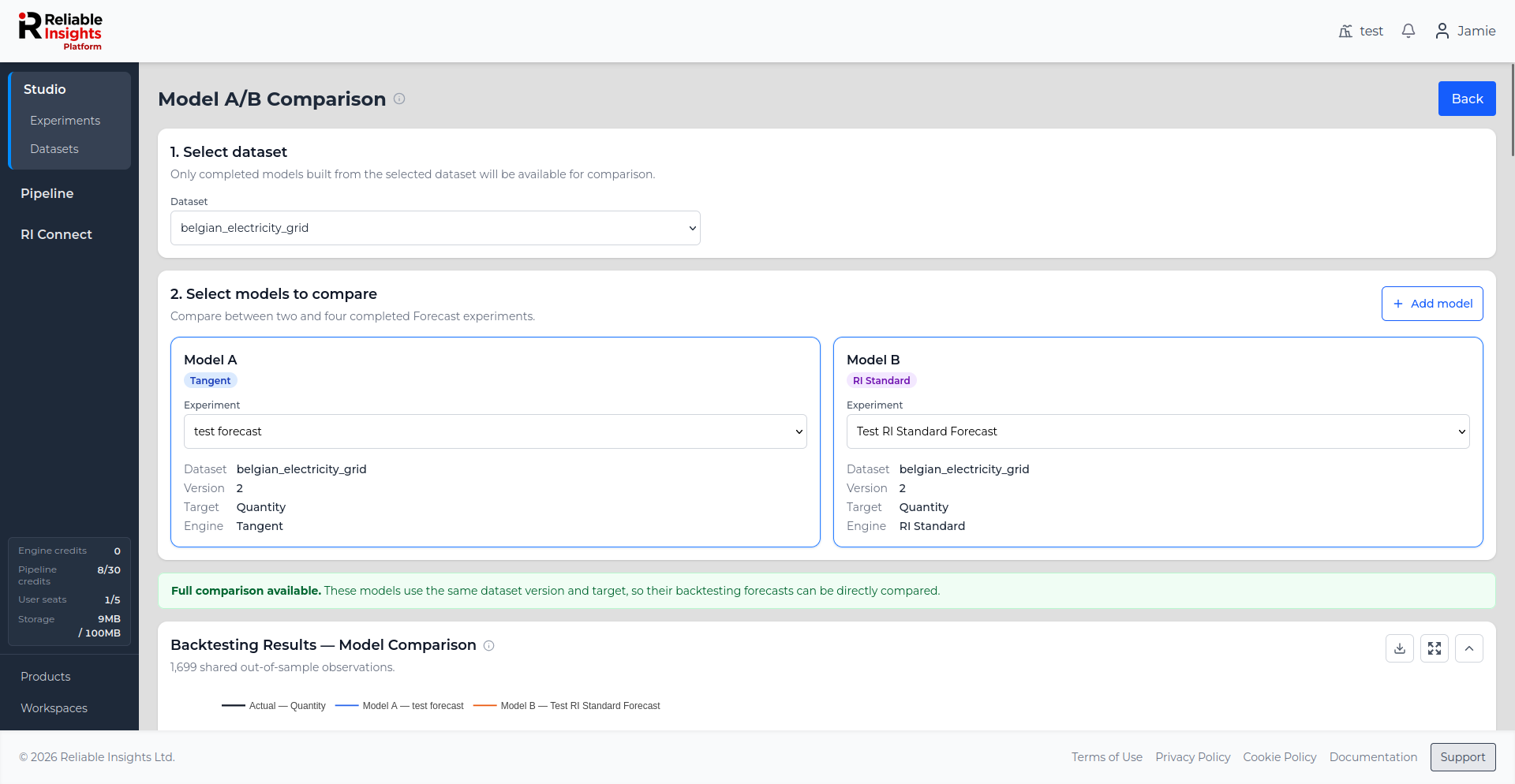
Information about each selected experiment is shown beneath the selector, including the dataset, dataset version, target, and modelling engine where relevant.
This can help confirm that you are comparing the intended experiments.
Comparison compatibility
Some comparison views require the models to have compatible experimental setups.
For example, Forecast models using the same dataset version and target can have their out-of-sample forecasts compared directly over their shared observations.
When models differ in ways that prevent a direct comparison, some comparison sections may not be available.
Comparing different modelling approaches
Compare Models can also help you understand differences between models built using different modelling approaches.
For example, a Forecast model created using Tangent can be compared with an RI Standard model built from the same dataset.
When doing this, consider both predictive performance and the structure of the models. Different modelling approaches may identify different predictors, engineered features, and relationships within the same dataset.
For more information about the available modelling approaches, see Experiments.
Forecast and Soft Sensor comparisons
Completed Forecast and Soft Sensor models use the same set of model-comparison views.
Compare Models provides several views for comparing model outputs, performance, performance stability, error distributions, model importance, and experimental configuration.
The exact views available depend on the compatibility of the selected models.
Backtesting comparison
For compatible Forecast and Soft Sensor models, Backtesting Results — Model Comparison displays the models over their shared out-of-sample period.
The actual target is shown alongside the model outputs from each selected experiment.
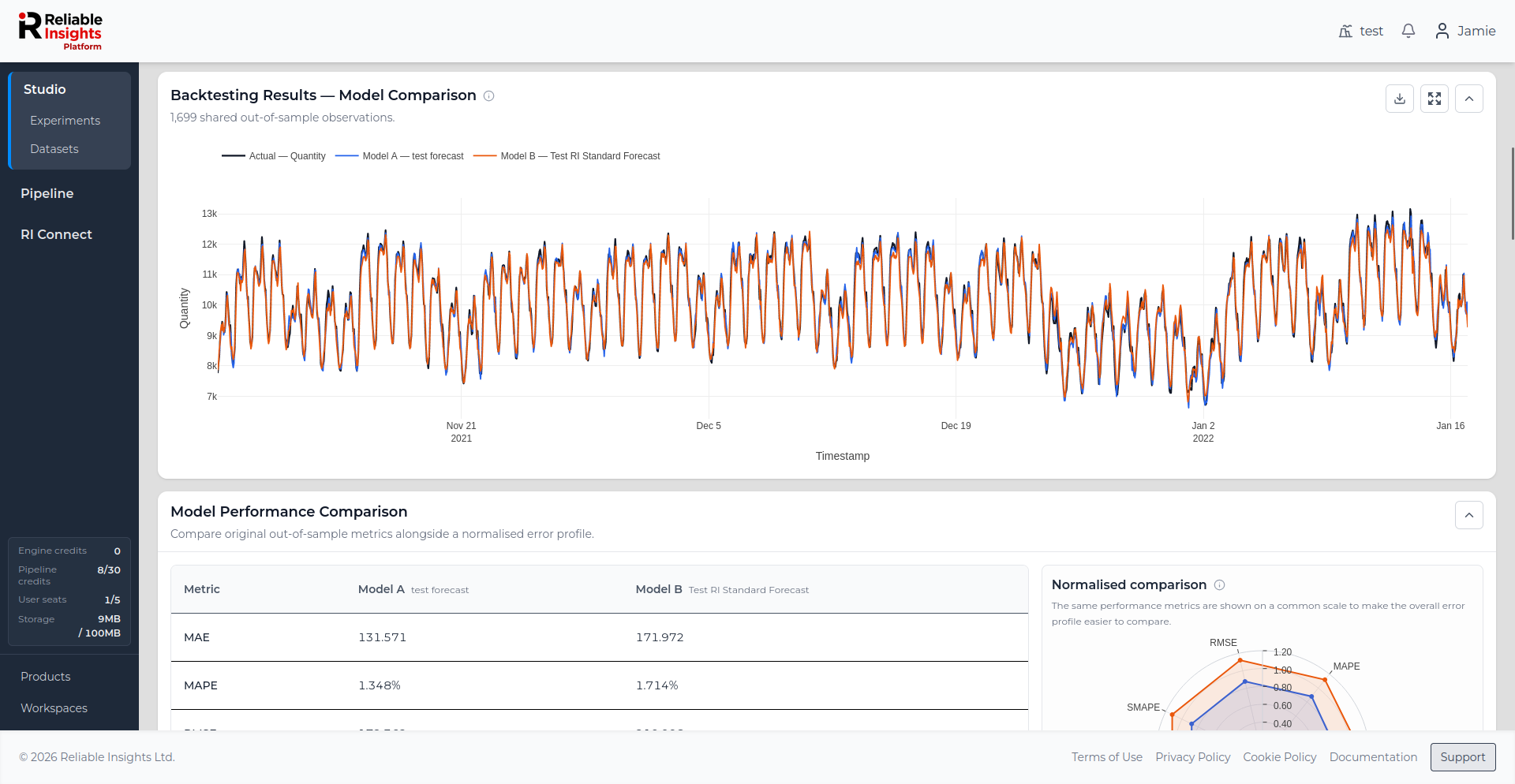
This view is useful for seeing where the models behave similarly and where their predictions diverge.
Only observations that can be compared fairly across the selected models are included in the direct backtesting comparison.
Model performance comparison
The Model Performance Comparison section compares the original out-of-sample performance metrics for each model.
These may include metrics such as:
-
MAE
-
MAPE
-
RMSE
-
SMAPE
-
RMSSE
-
MASE
-
Bias (MBE)
-
MdAE
The table shows the original metric values for each model.
A Normalised comparison is also provided to make the overall error profiles easier to compare across metrics.
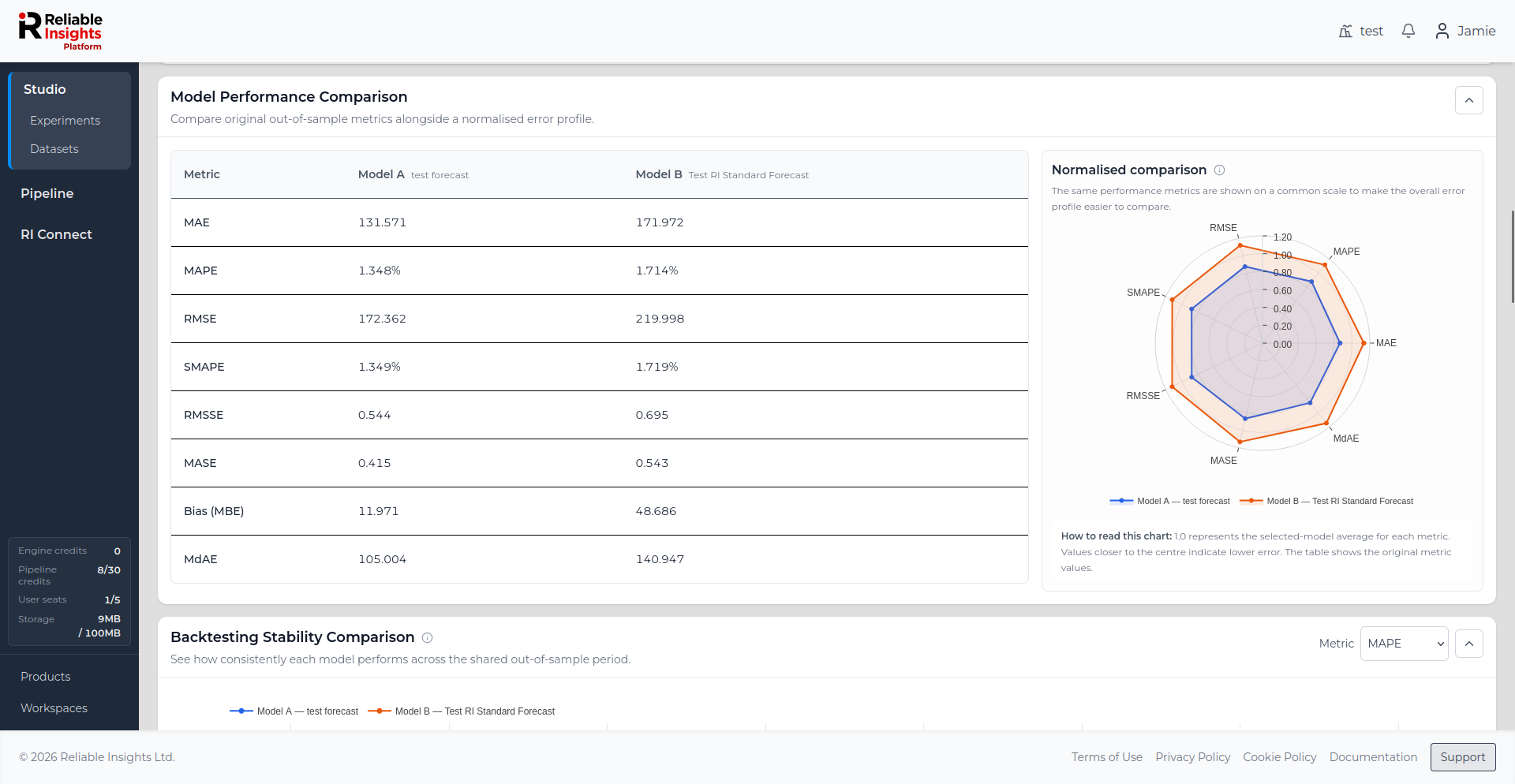
In the normalised chart, 1.0 represents the average value across the selected models for that metric. Values closer to the centre indicate lower error.
Metrics describe different aspects of model performance. A model performing better on one metric does not necessarily mean that it is better for every use case.
Backtesting stability
Overall model performance does not always show how consistently a model performs over time.
The Backtesting Stability Comparison divides the shared out-of-sample period into chronological windows and compares the selected performance metric across those windows.
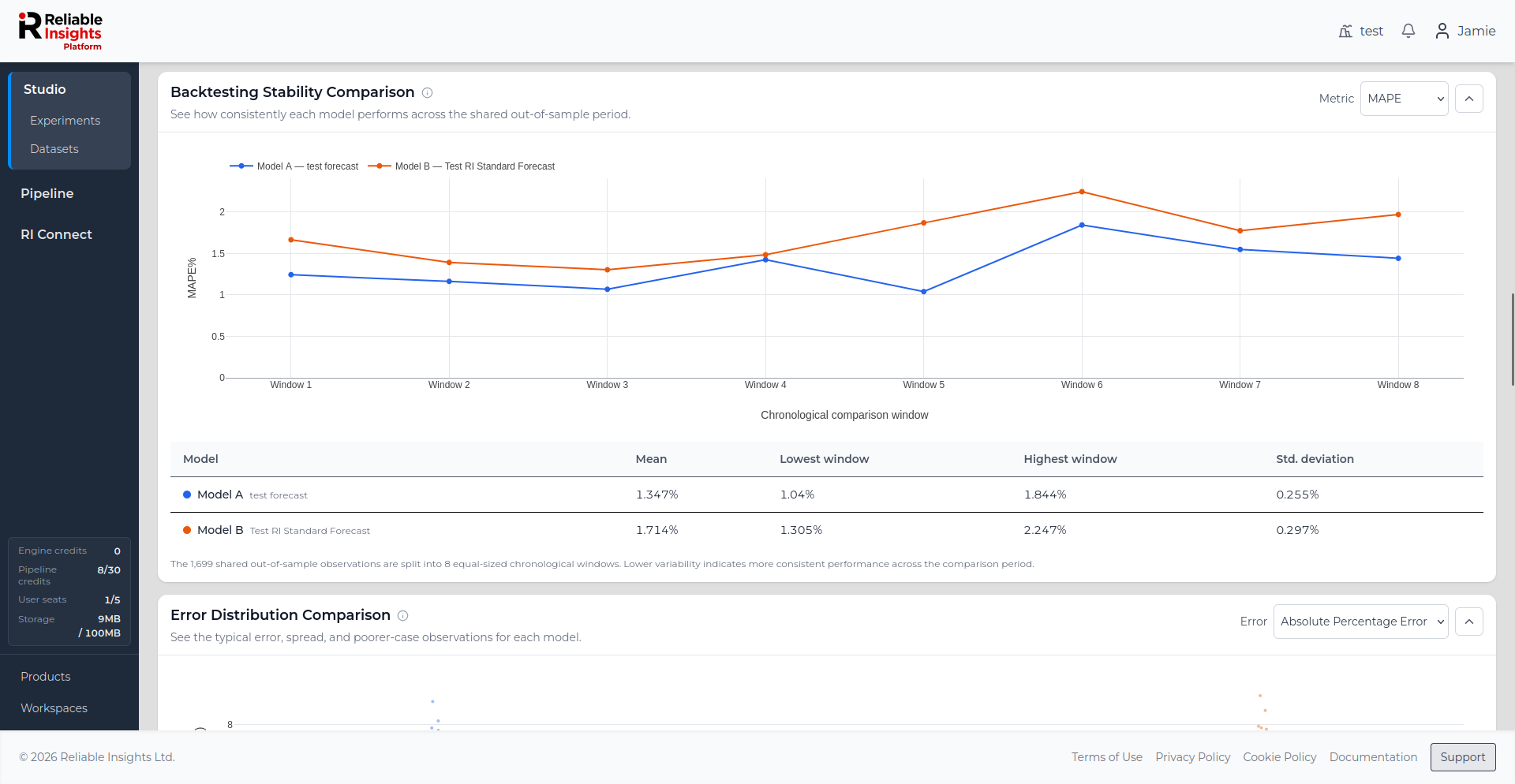
Use the Metric selector to change the metric being compared.
The summary beneath the chart shows information such as:
- Mean metric value
- Lowest window value
- Highest window value
- Standard deviation
Lower variability generally indicates that the model performs more consistently across the comparison period.
Error distribution
The Error Distribution Comparison shows how prediction errors are distributed for each model.
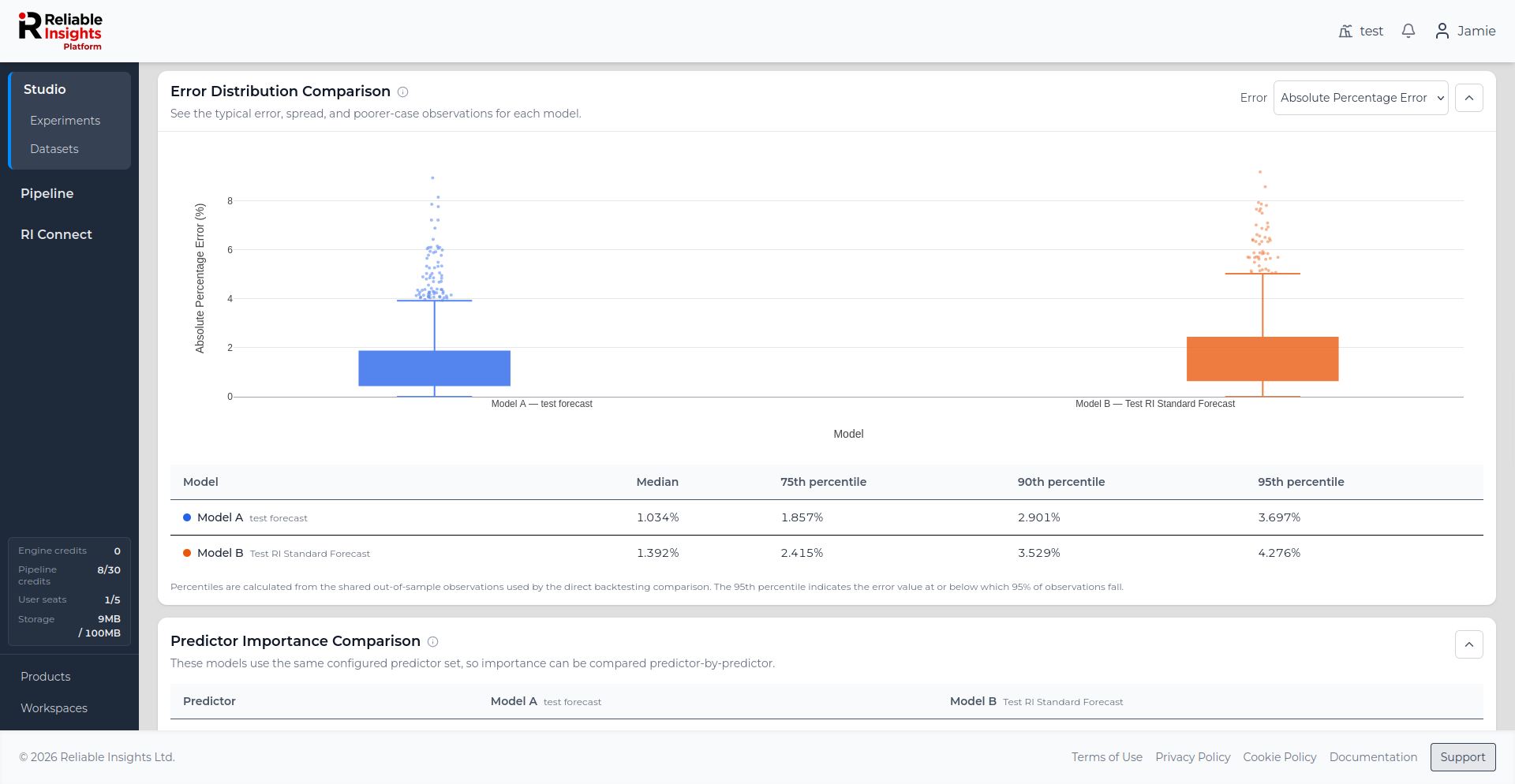
You can select the error measure to inspect.
The distribution view helps distinguish between models that may have similar average performance but different behaviour on typical observations and observations with larger errors.
The accompanying statistics include values such as:
- Median
- 75th percentile
- 90th percentile
- 95th percentile
For example, the 95th percentile is the error value at or below which 95% of the compared observations fall.
Predictor importance comparison
Where predictor information is available, Predictor Importance Comparison shows the relative importance assigned to predictors by each model.
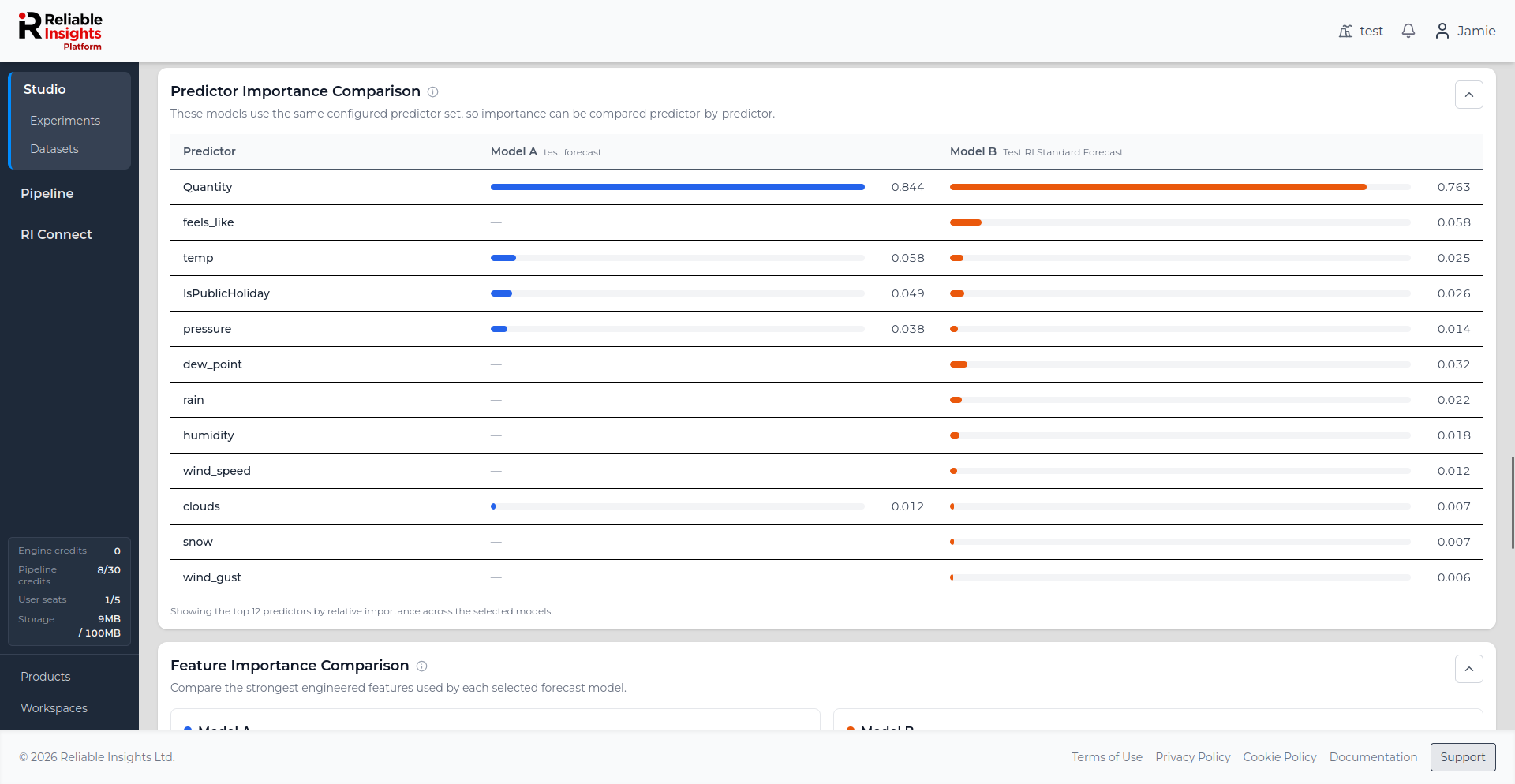
This can help identify whether different models are relying on the same underlying variables.
Where the selected models use the same configured predictor set, predictors can be compared directly side by side.
Predictor importance describes contribution to the model. It does not establish that a predictor causes changes in the target.
Feature importance comparison
Feature Importance Comparison shows the strongest engineered features used by each model.
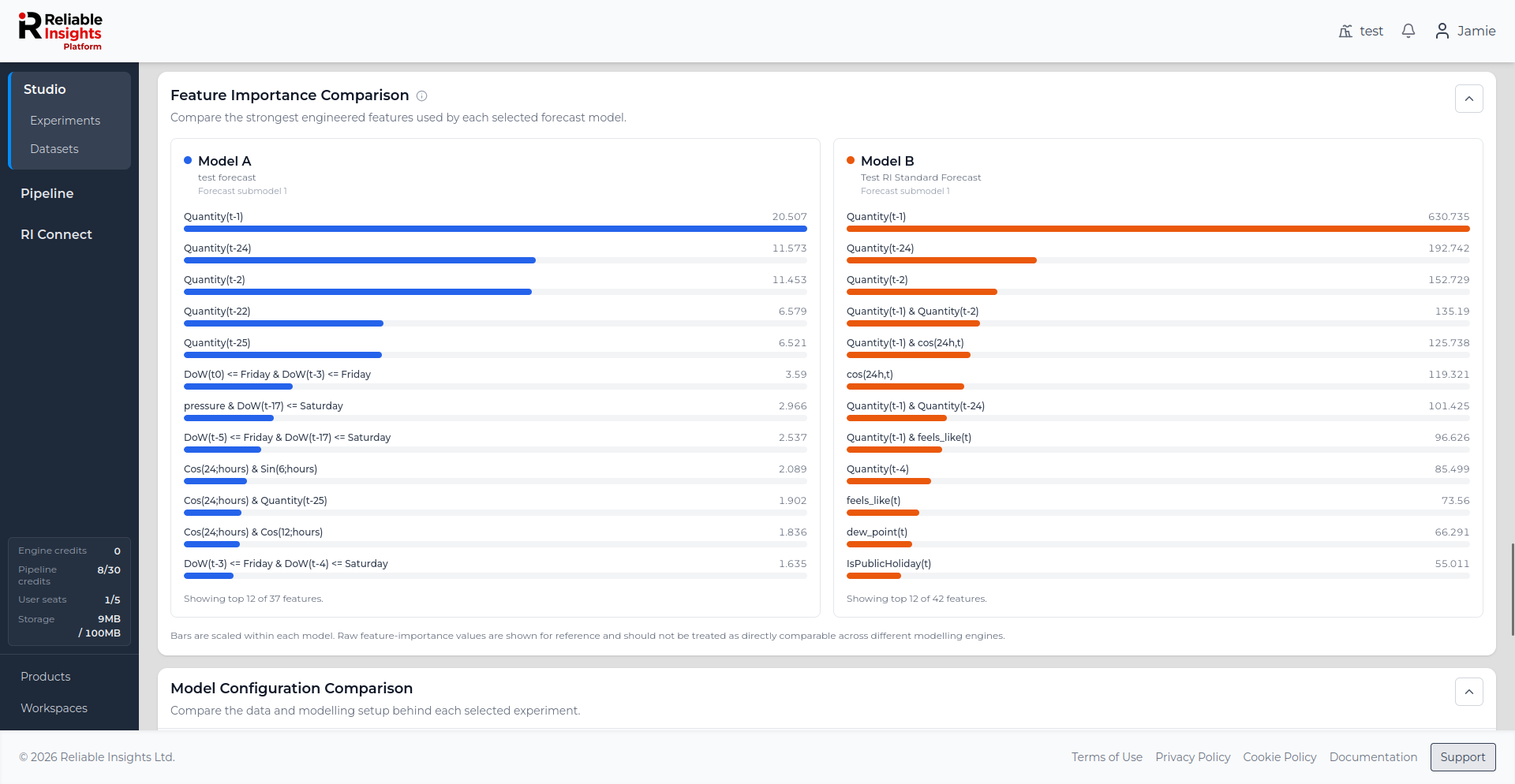
Features may include transformations of the original predictors, such as:
- Lagged values
- Calendar effects
- Periodic terms
- Interactions between variables
- Other model-generated transformations
The bars are scaled within each model so that the most important features for that model can be identified easily.
Raw feature-importance values should not be treated as directly comparable between different modelling engines. Use this section primarily to understand which features are most important within each model.
Model configuration comparison
The Model Configuration Comparison shows the experimental setup behind each selected model.
For Forecast models, this can include:
- Modelling engine
- Dataset
- Dataset version
- Target
- Sampling rate
- Number of dataset observations
- Number of predictors
- Forecast horizon
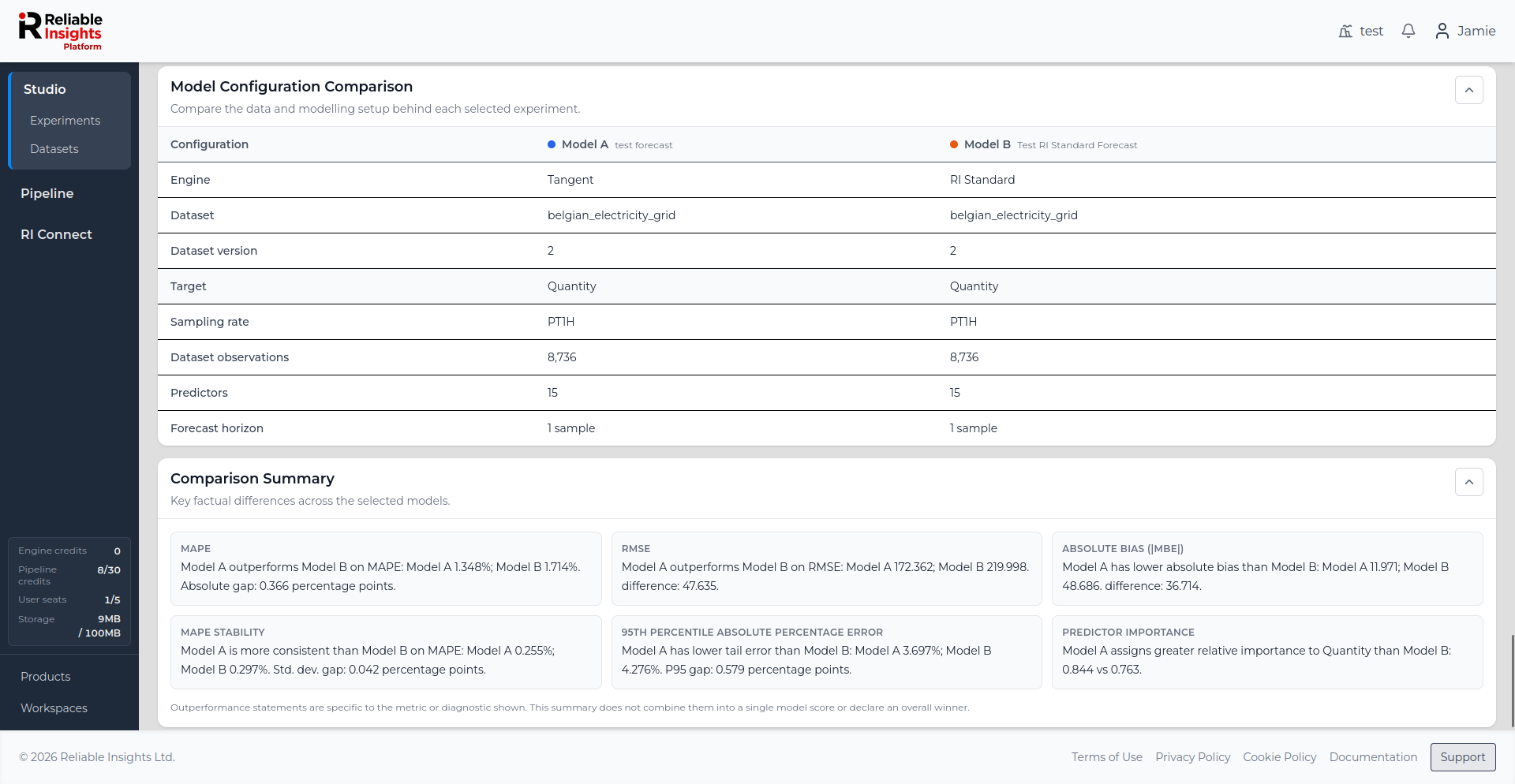
This is useful when model performance differs and you want to check whether that difference may be associated with differences in the modelling setup.
Comparison summary
At the bottom of the comparison, Comparison Summary highlights useful factual differences between the selected models.
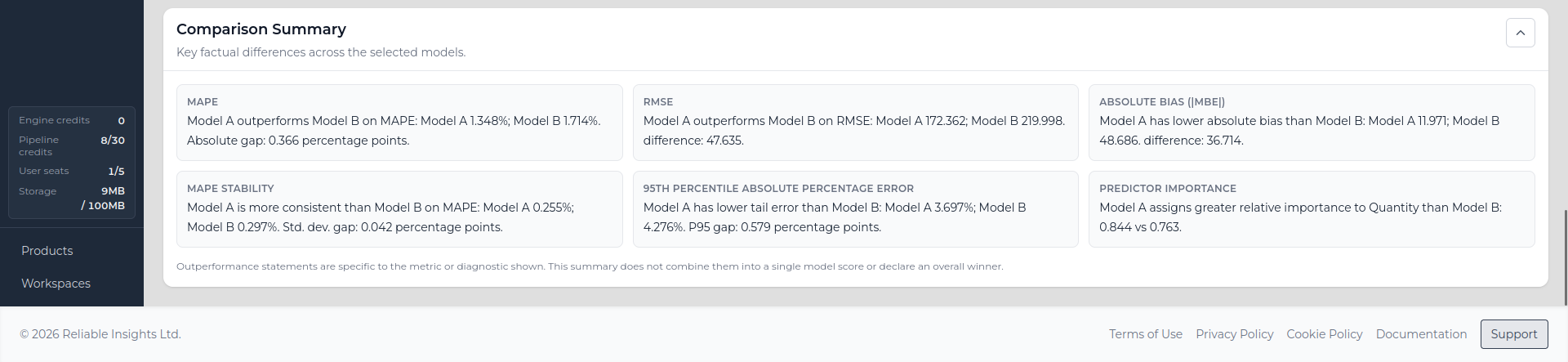
The summary may highlight areas such as:
- Error metrics
- Absolute bias
- Performance stability
- Larger-error observations
- Predictor importance
These statements apply to the individual metric or diagnostic being described.
The comparison does not combine all of these measures into a single score or automatically declare an overall winning model.
Anomaly Detection comparisons
When comparing completed Anomaly Detection models, Compare Models focuses on where the models identify anomalies, how much their detections overlap, and how closely their normal-behaviour models represent observations that both models consider normal.
The comparison uses timestamps shared by the selected models so that detections are assessed over the same observations.
Detections — Model Comparison
The Detections — Model Comparison chart shows the observed target over the shared comparison period together with the anomalies detected by each selected model.
Anomalies are marked using the colour assigned to each model. Where the selected models flag the same timestamp, the chart identifies it as a shared anomaly.
Where available, the normal-behaviour trace for each model can also be displayed from the chart legend.
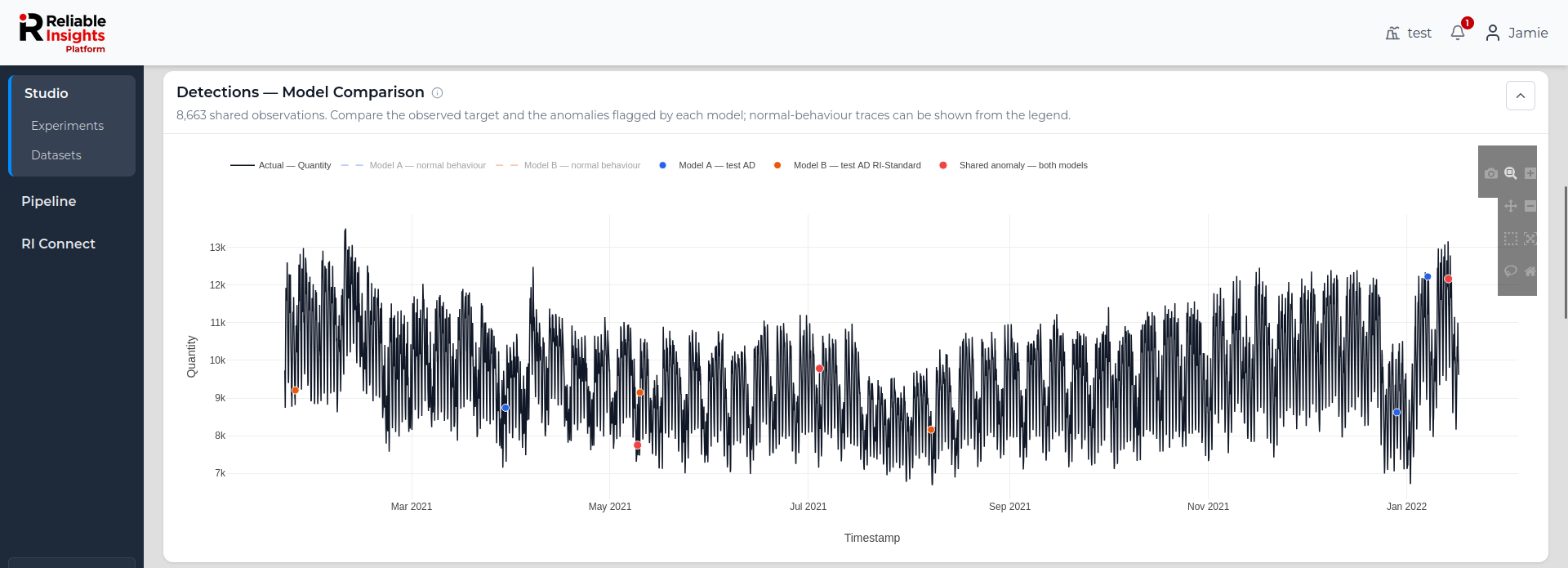
This view helps you see whether the models identify similar unusual observations and where their detections differ.
A difference between two models does not necessarily mean that one model is incorrect. Different models can represent normal behaviour differently and may therefore identify different observations as unusual.
Detection summary
The Detection Summary provides a numerical overview of the anomaly detections across the shared timestamps.
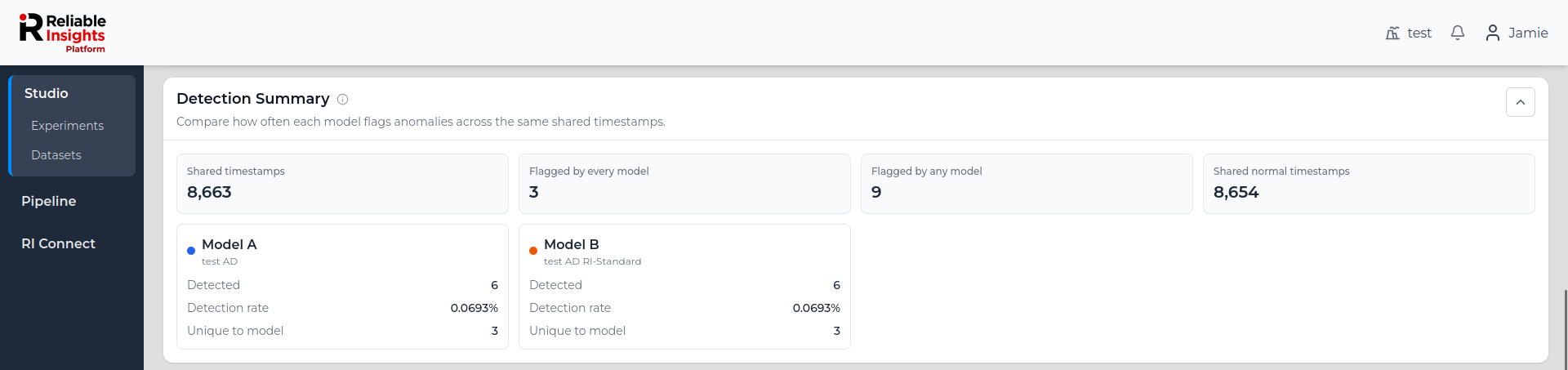
The summary includes:
- Shared timestamps - the number of observations available to all selected models.
- Flagged by every model - timestamps identified as anomalous by all selected models.
- Flagged by any model - timestamps identified as anomalous by at least one selected model.
- Shared normal timestamps - timestamps that none of the selected models identify as anomalous.
For each model, the page also shows:
- Detected - the number of anomalies flagged by that model.
- Detection rate - the percentage of shared observations flagged as anomalous.
- Unique to model - detections that were not flagged by the other selected models.
These values help distinguish models that flag a similar overall number of anomalies from models that actually identify the same timestamps.
Normal Behaviour Model Quality
The Normal Behaviour Model Quality section compares how closely each model's expected normal behaviour follows observations that all selected models treat as normal.
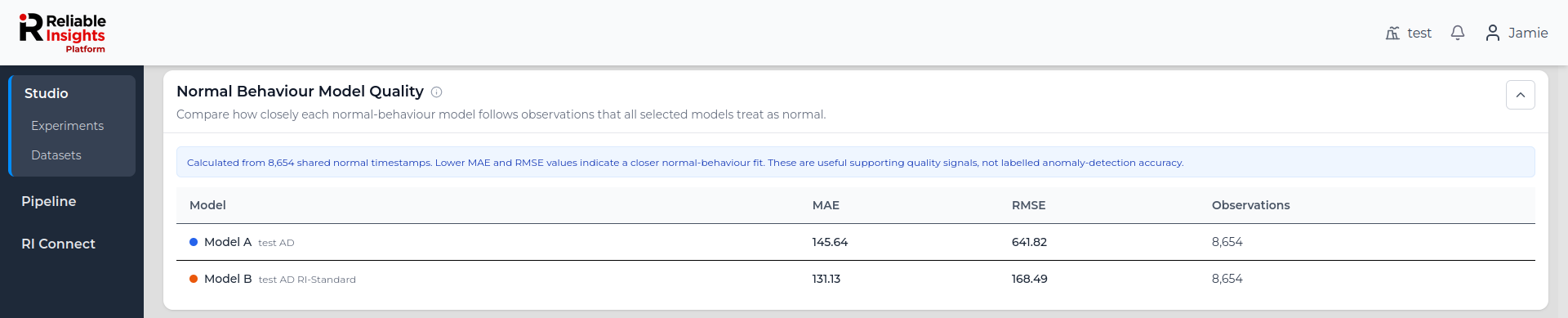
The comparison includes:
-
MAE
-
RMSE
Lower values indicate that the model's expected normal behaviour more closely follows the shared normal observations.
These values describe how closely the normal-behaviour model follows observations treated as normal. They should not be interpreted as labelled anomaly-detection accuracy.
Detection agreement
The Detection Agreement section shows how strongly the selected models agree on which timestamps are anomalous.

For each pair of models, the comparison shows:
- Anomaly overlap - the proportion of timestamps flagged by either model that were flagged by both.
- Shared anomalies - timestamps identified as anomalous by both models.
- Either model flagged - timestamps identified as anomalous by at least one of the two models.
A higher overlap means that the models tend to identify the same observations as anomalous. A lower overlap means their detections differ more often.
Detection agreement measures similarity between models; it does not by itself indicate which model is more accurate.