Dataset Transformations
Dataset Transformations allow you to create new dataset columns from existing Studio data using a visual workflow editor.
They are useful when you want to prepare additional columns before running experiments, without manually editing and re-uploading a CSV file.
You can publish transformed outputs in two ways:
- Add them to the source dataset as new columns.
- Create a new dataset containing the source columns and the transformed outputs.
Opening the transformation editor
To create a Dataset Transformation:
- Go to Studio > Datasets.
- Select Create Transformation.
- Studio opens the transformation editor.
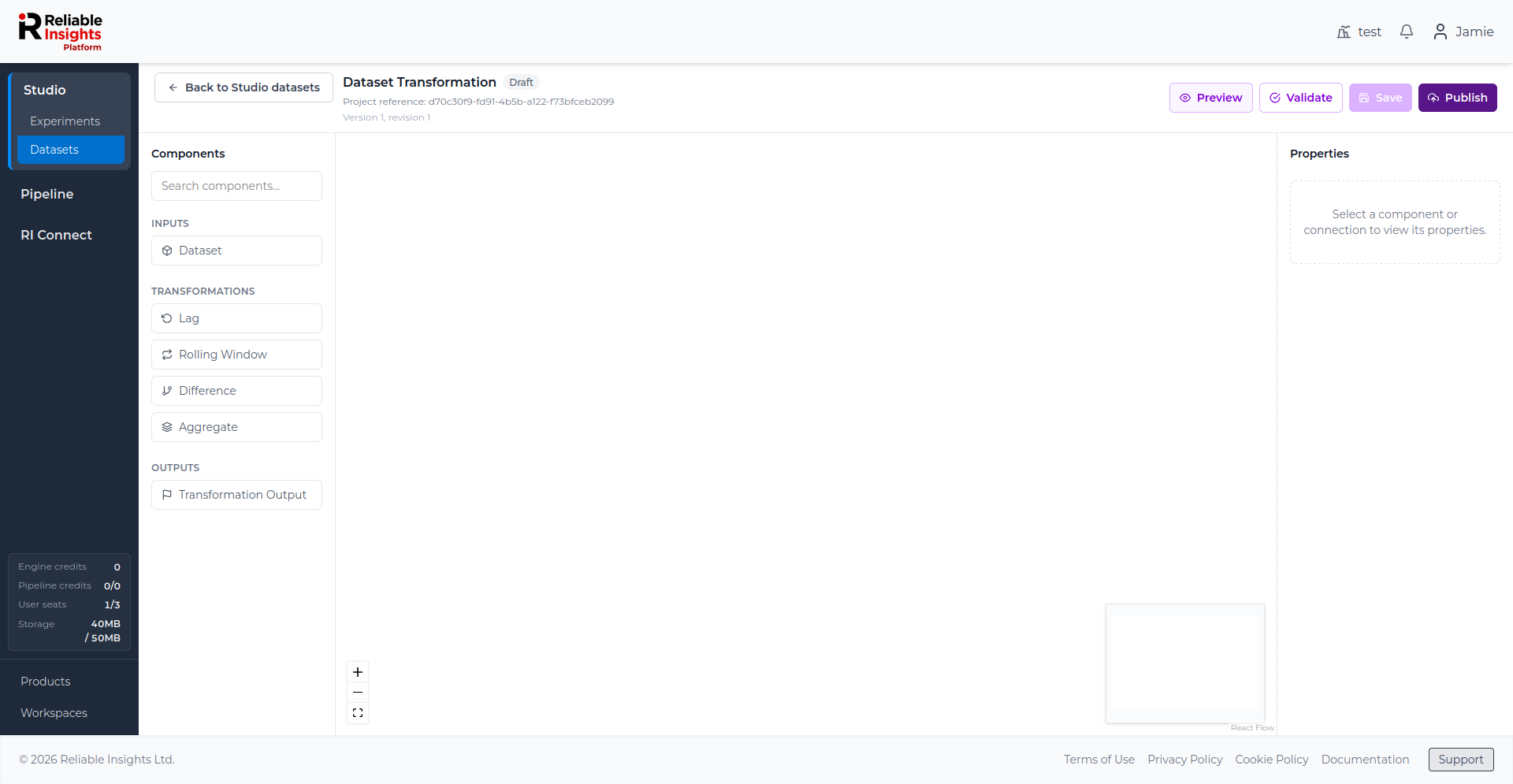
The editor has three main areas:
| Area | Description |
|---|---|
| Components | Add dataset inputs, transformation steps, and transformation outputs. |
| Canvas | Build the workflow by connecting components together. |
| Properties | Configure the selected component or connection. |
Supported components
| Component | Description |
|---|---|
| Dataset | Selects a numeric column from a Studio dataset as an input series. |
| Lag | Shifts values by a selected number of samples. |
| Rolling Window | Calculates a statistic over a moving window, such as mean, sum, minimum, maximum, or median. |
| Difference | Calculates the change between the current value and a previous value. |
| Aggregate | Resamples the series into a larger time period. |
| Transformation Output | Defines a publishable output column. |
All Dataset inputs in one transformation must come from the same Studio dataset, although they can use different columns from that dataset.
Adding a Dataset input
Start by adding a Dataset component. Select the Studio dataset and numeric column that should be used as the input series.
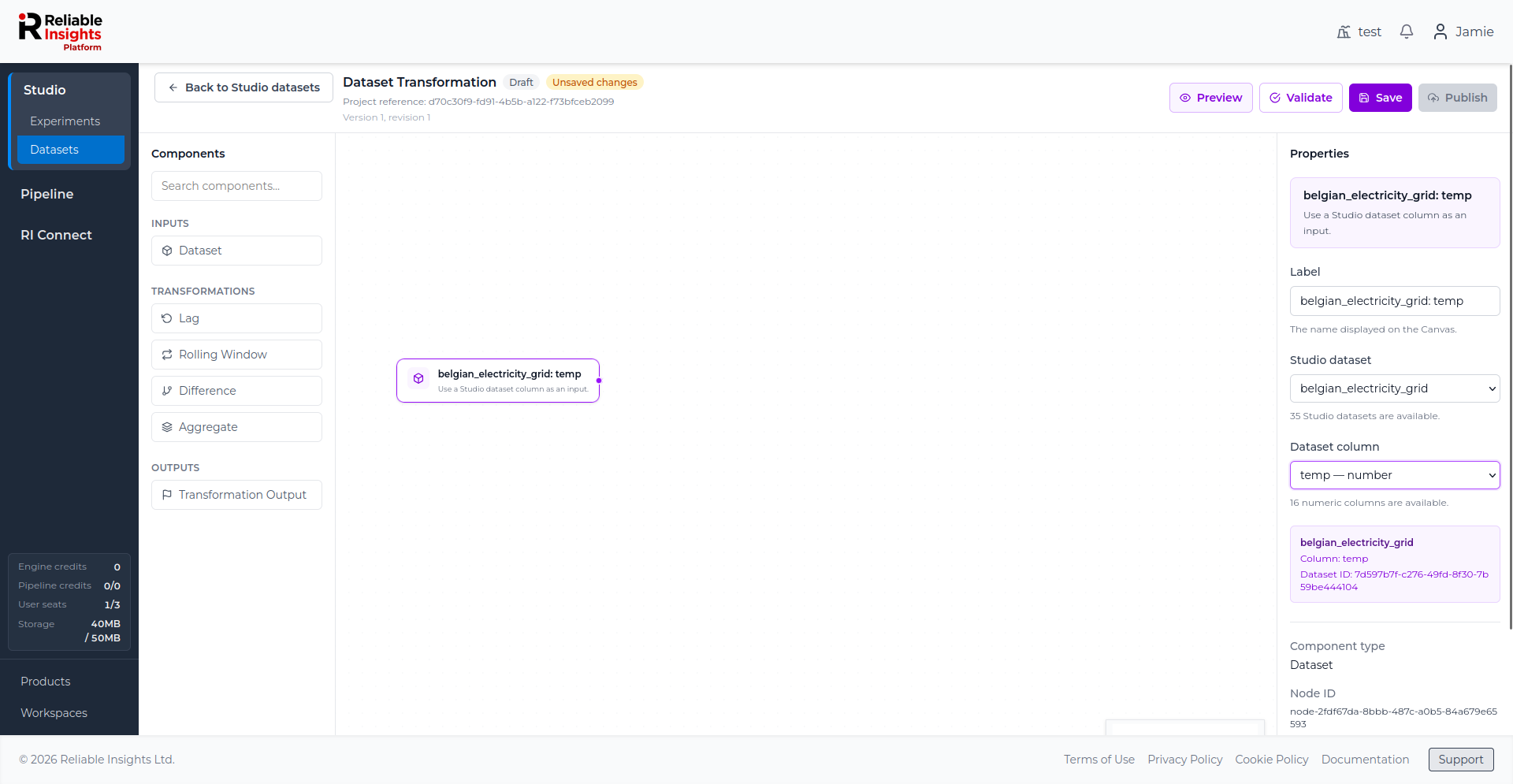
Only numeric dataset columns can be selected as transformation inputs.
Adding transformations
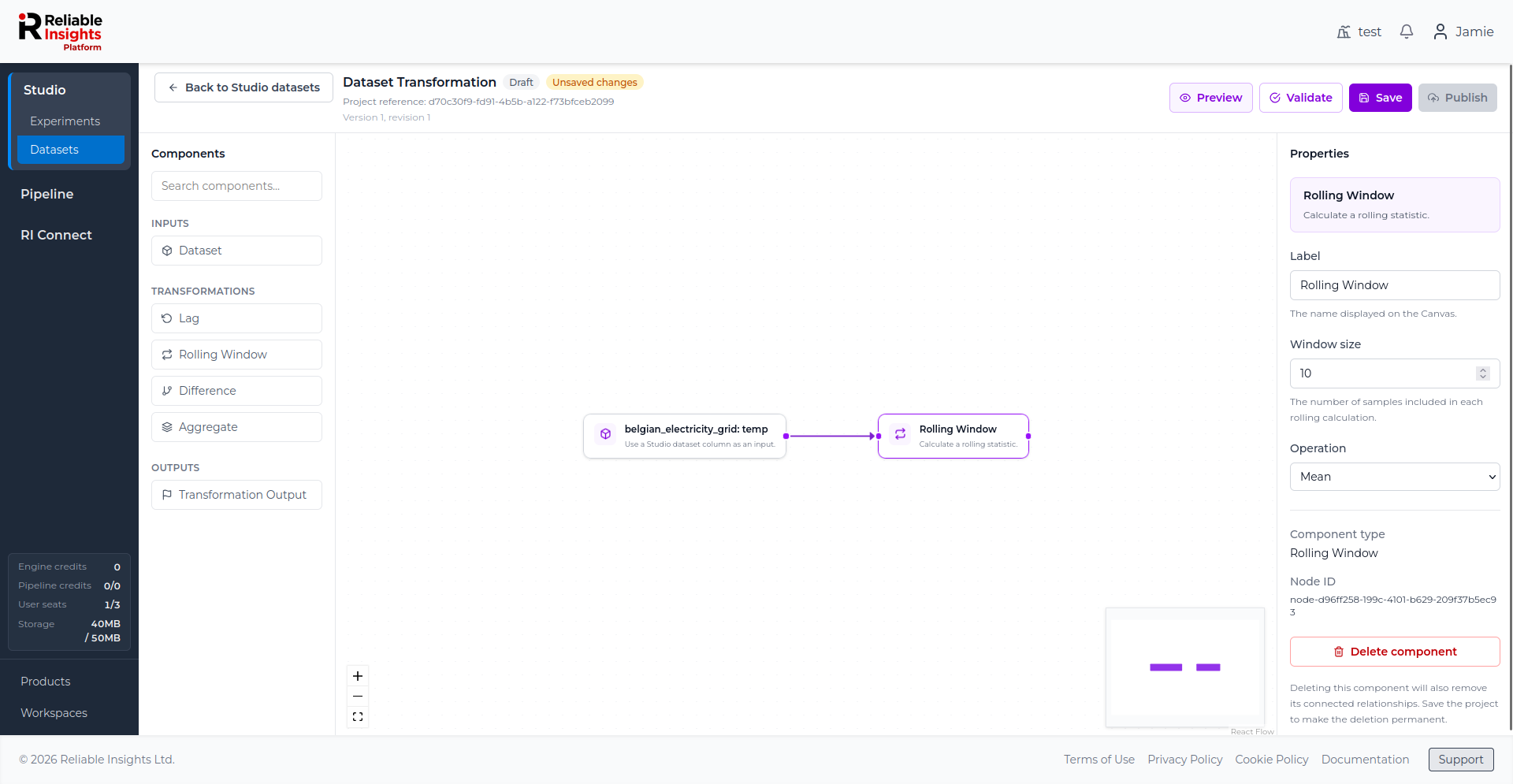
Add transformation components from the left panel and connect them to the Dataset input.
For example, a Rolling Window component can calculate a moving average, moving sum, minimum, maximum, or median over a selected number of samples.
Creating outputs
Each publishable branch must end with a Transformation Output component.
The output name becomes the dataset column name when the transformation is published.
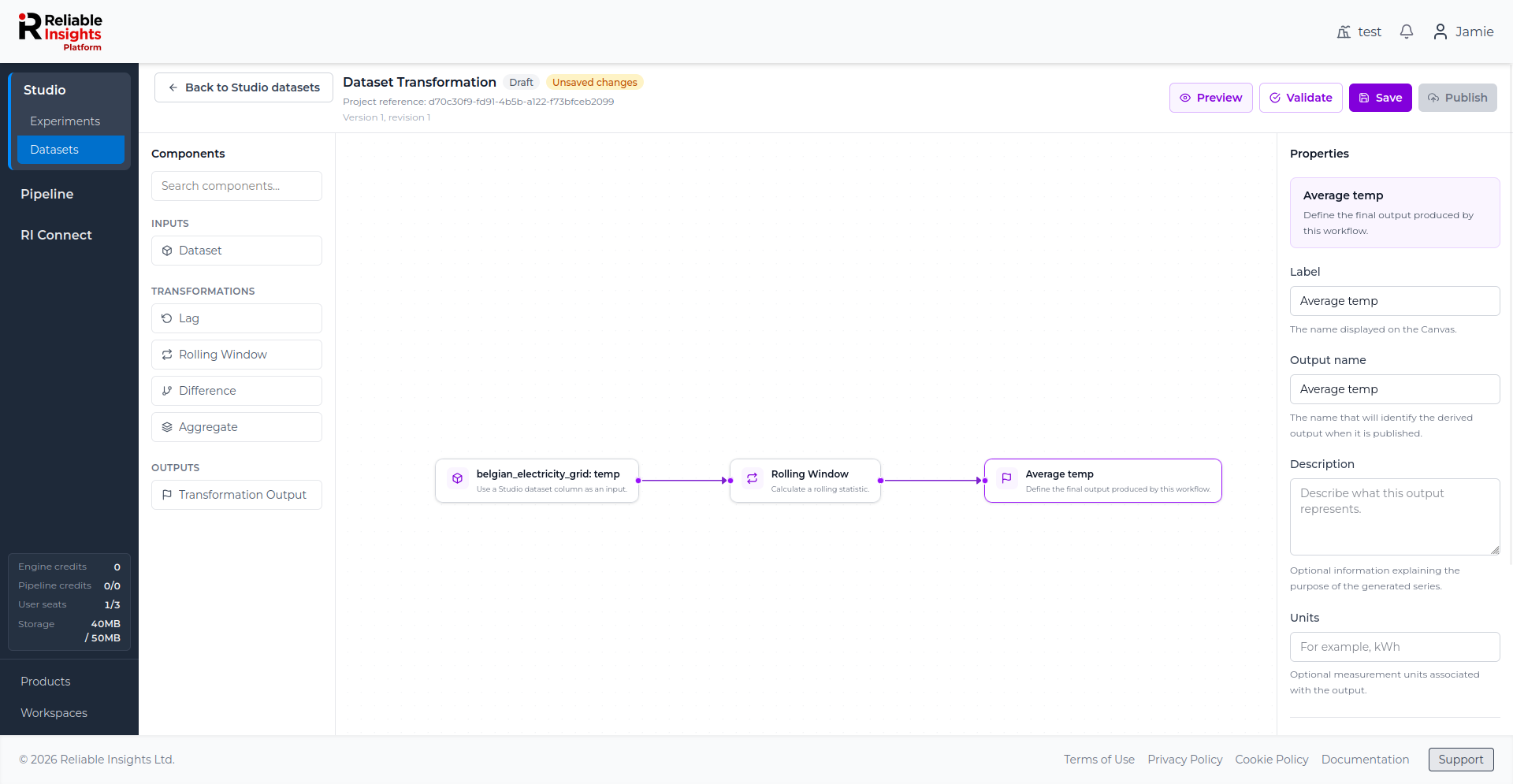
Output names must be unique and cannot duplicate existing column names when publishing to the source dataset.
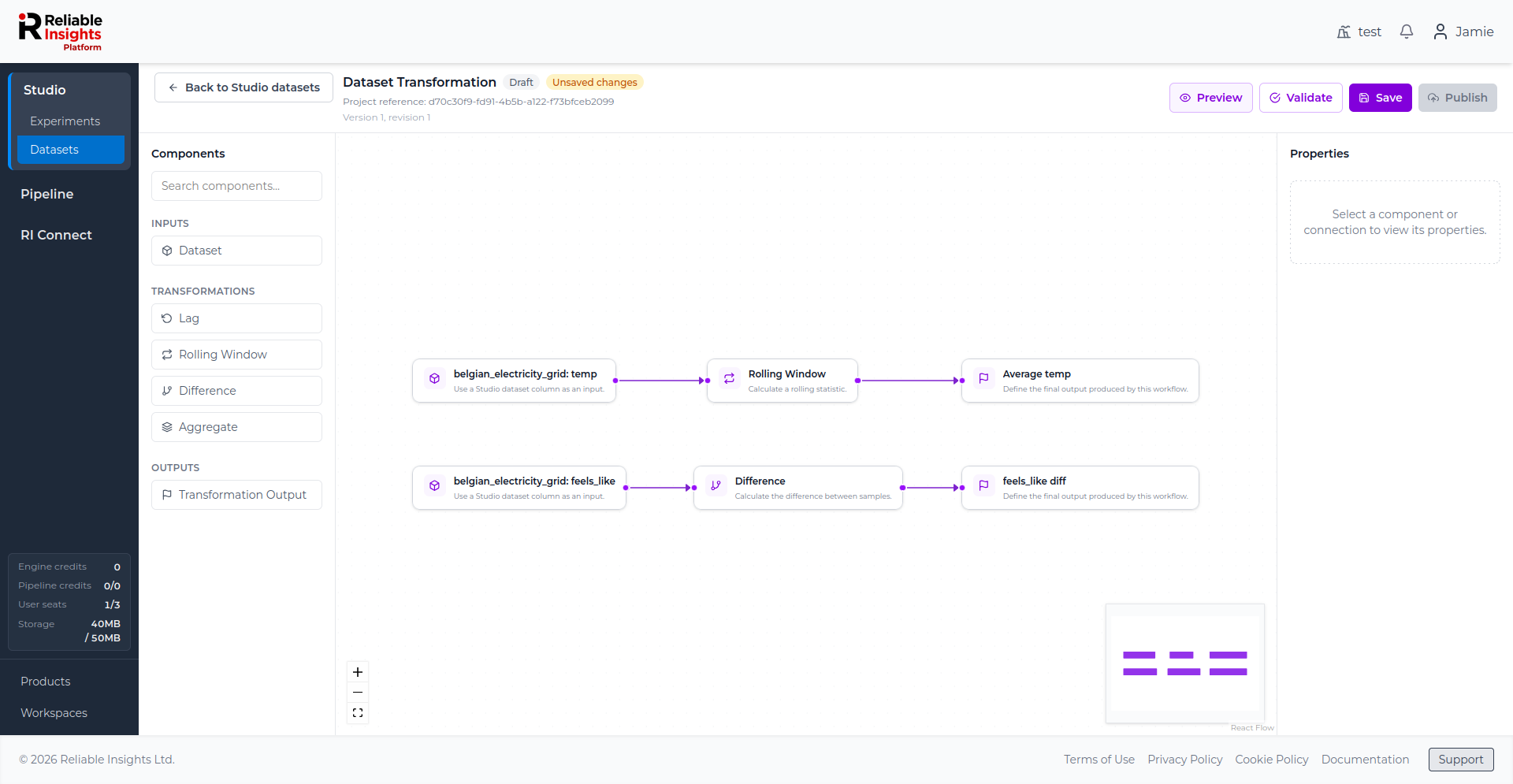
Creating multiple outputs
A single Dataset Transformation can contain multiple output branches. This is useful when you want to create several related columns from the same source dataset.
Validating a transformation
Select Validate to check whether the workflow can be executed.
Validation checks the graph structure, required connections, component settings, output names, and whether the workflow contains errors that must be fixed before publishing.
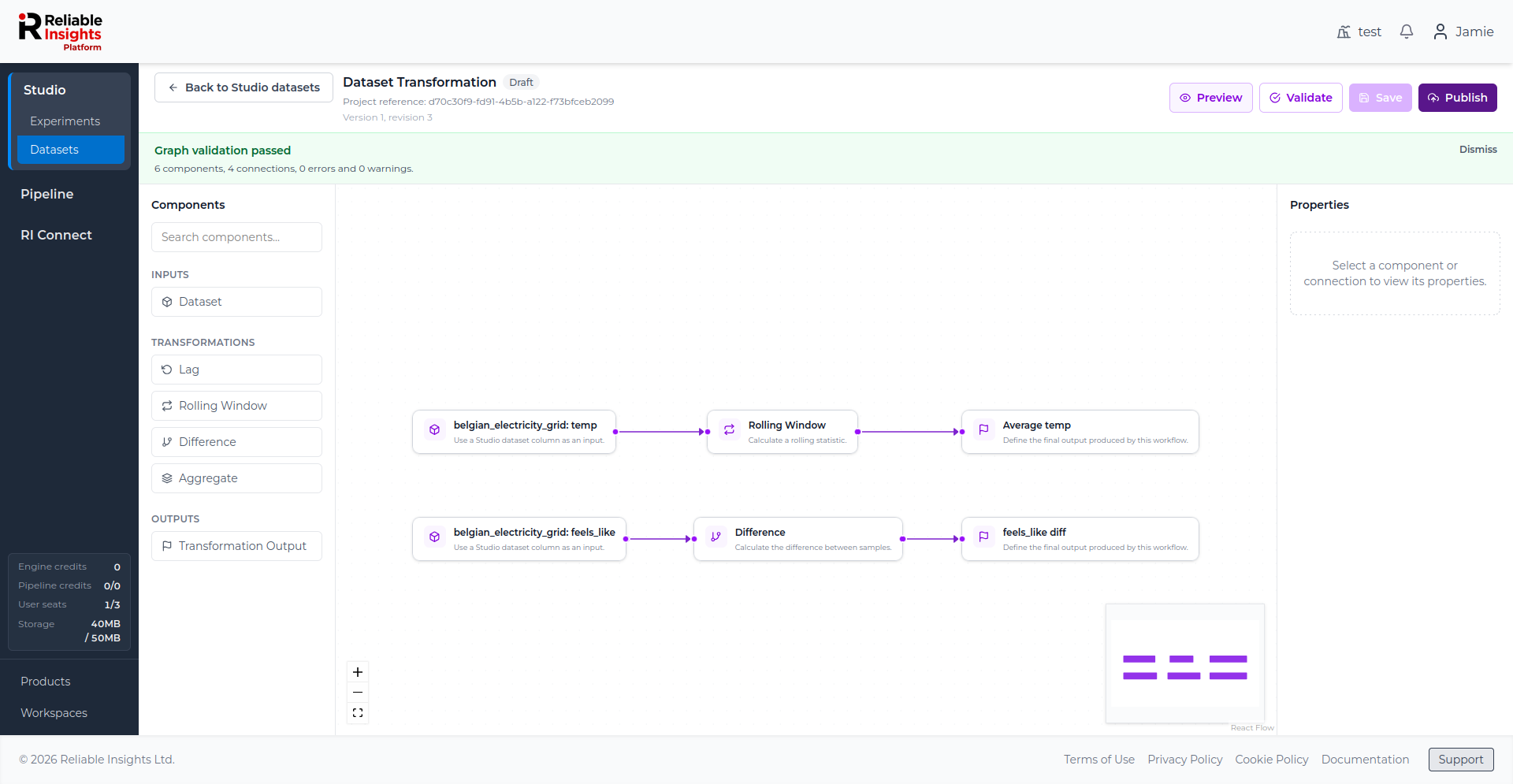
Previewing and validating do not automatically save your changes. Save the draft before publishing.
Previewing transformed outputs
Select Preview to run the current workflow and inspect the transformed output before publishing.
If the transformation has multiple outputs, choose the output you want to preview from the dropdown.
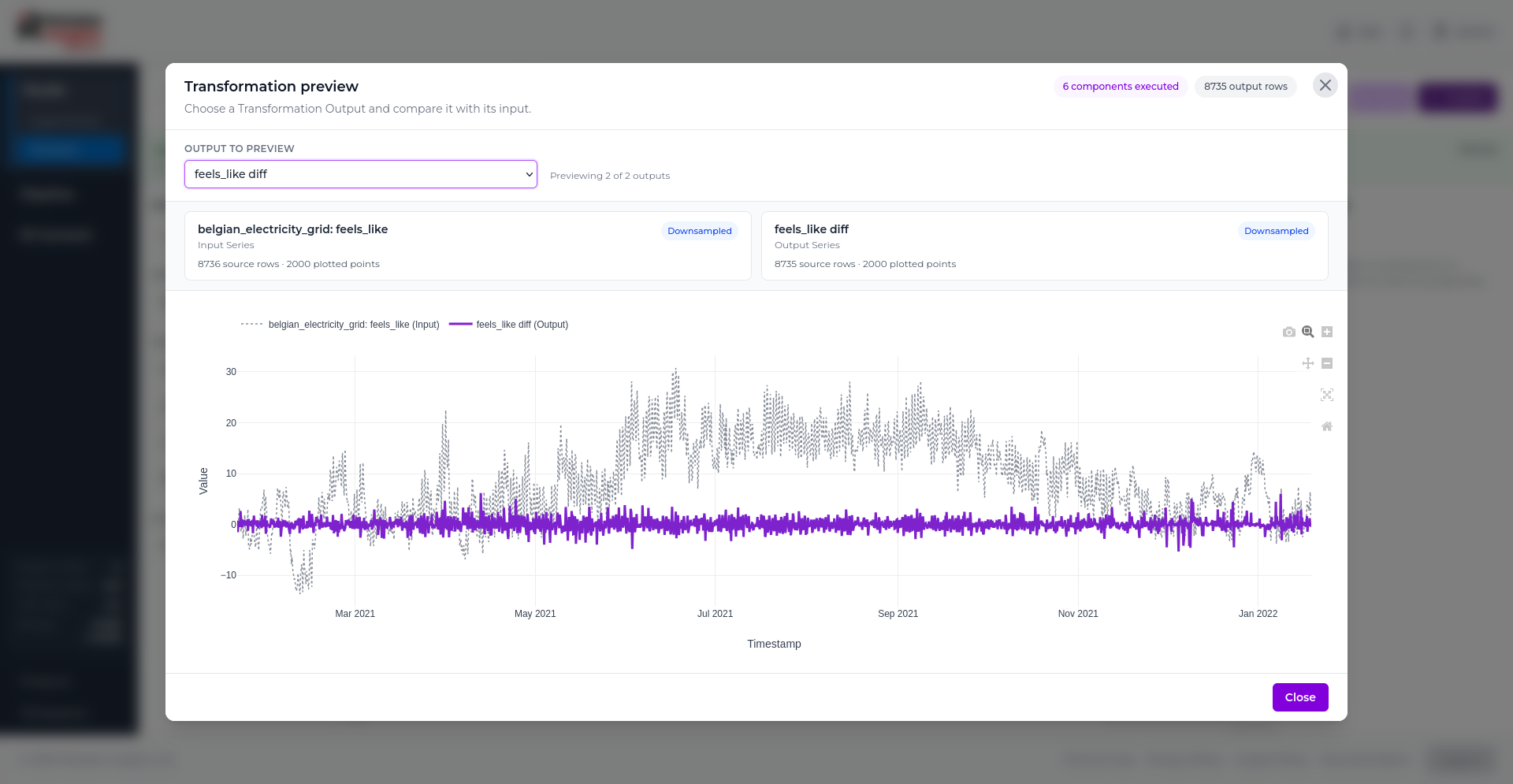
The preview compares the transformed output with its contributing input series.
Saving drafts
Select Save to save the current draft.
Saving stores the current workflow but does not publish any dataset changes. You can return to the draft and continue editing later.
When a transformation has unsaved changes, Studio shows an Unsaved changes indicator.
Publishing transformed outputs
Select Publish when the saved transformation is ready to be applied to Studio data.
You can publish transformed outputs in two ways.
Add to existing Dataset
This adds the transformed outputs as new columns in the source dataset.
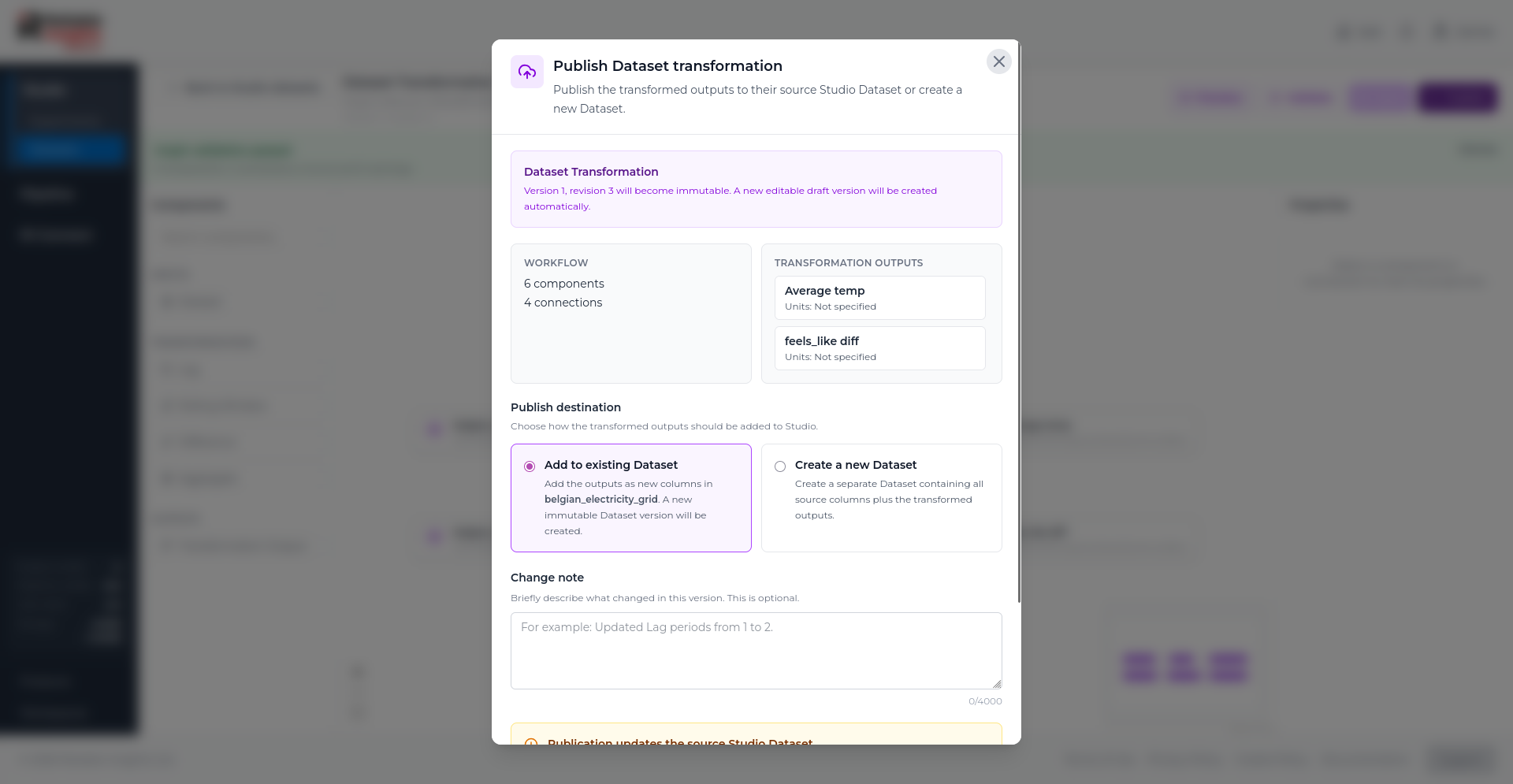
Create a new Dataset
This creates a separate dataset containing the original source columns and the transformed outputs.
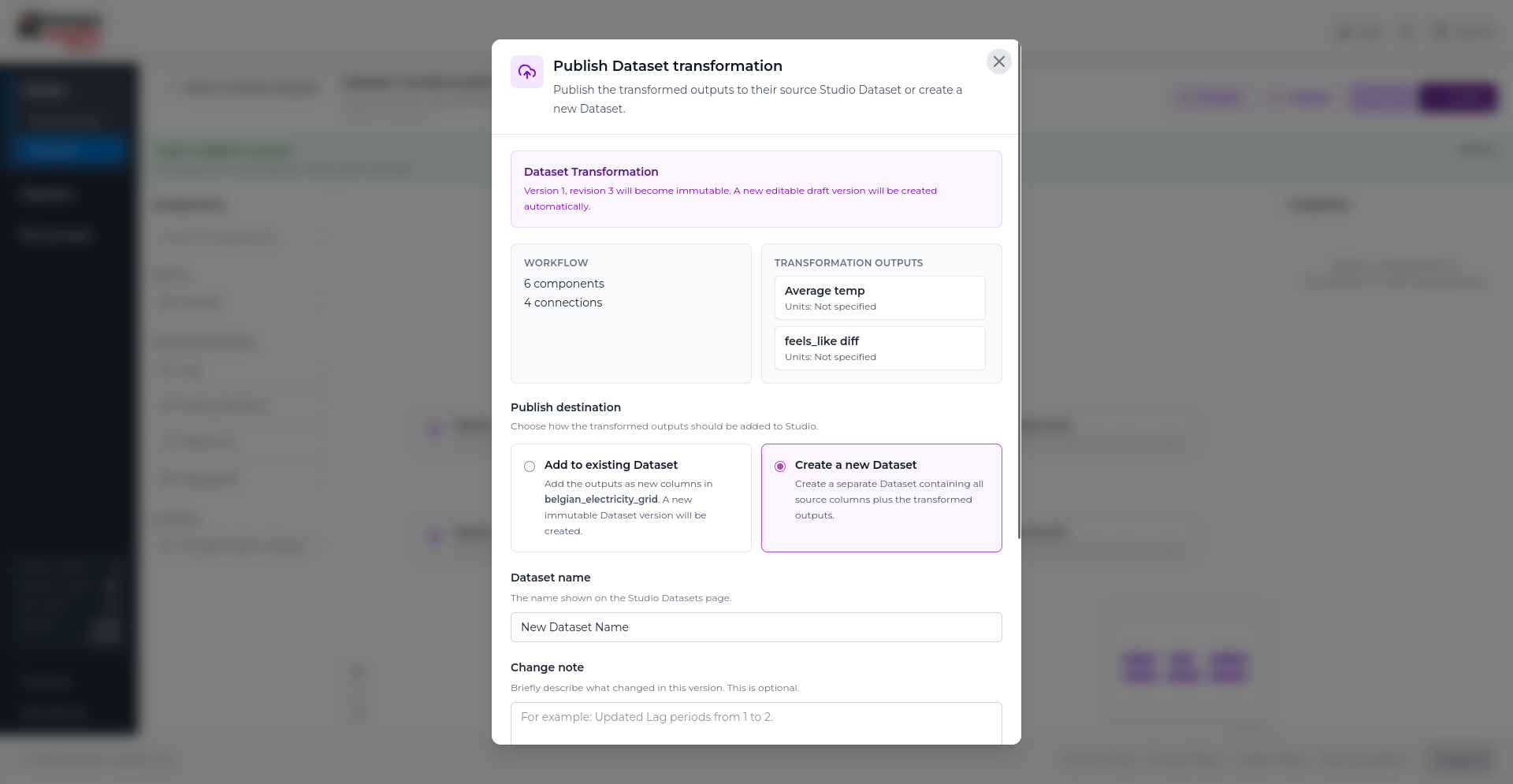
Aggregate transformations change the output timeline and row count. If a transformation includes Aggregate outputs, the outputs must be published as a new dataset rather than added to the source dataset.
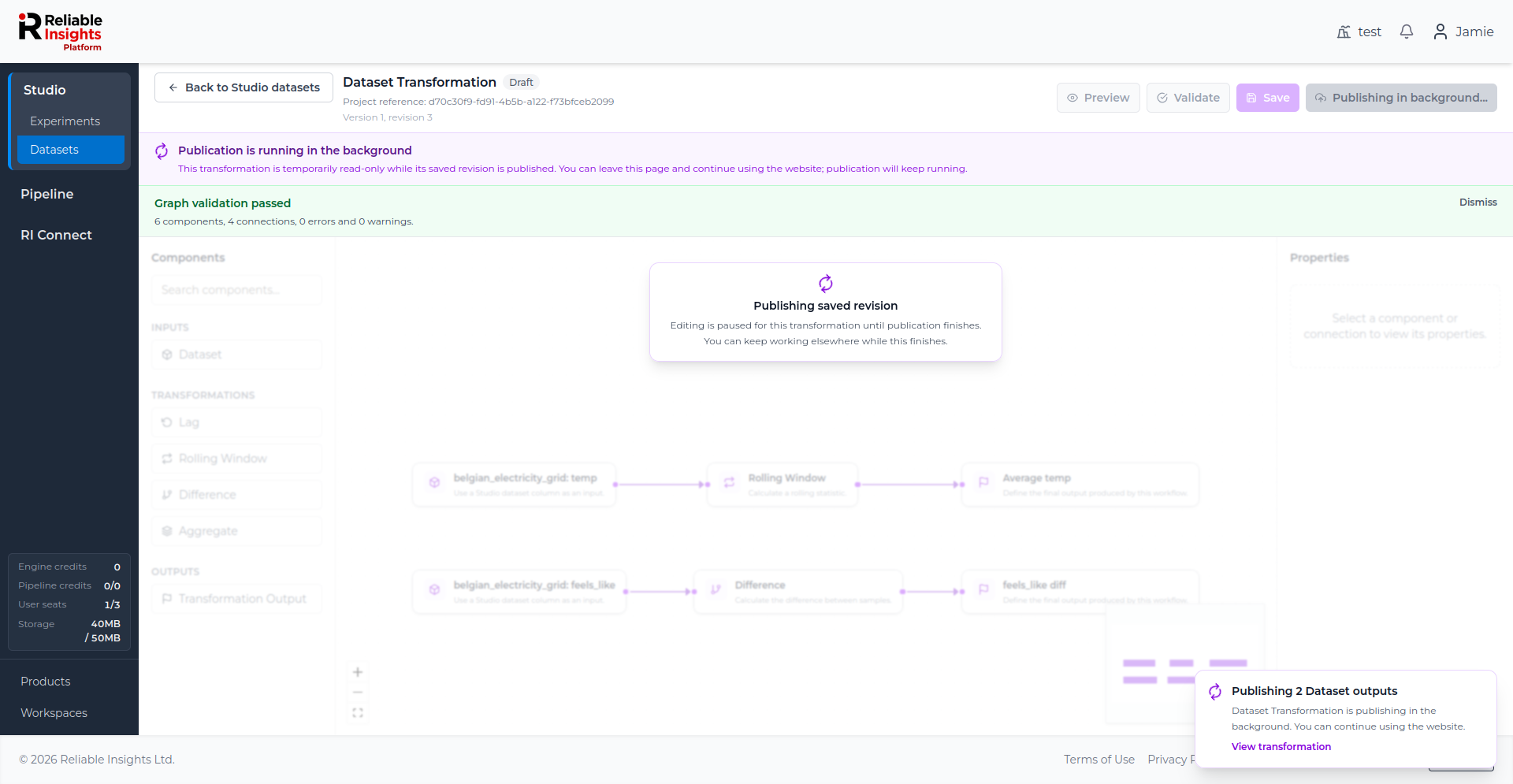
Background publication
Publishing will continue in the background.
You can leave the page while publication continues. Studio shows a notification when publication completes.
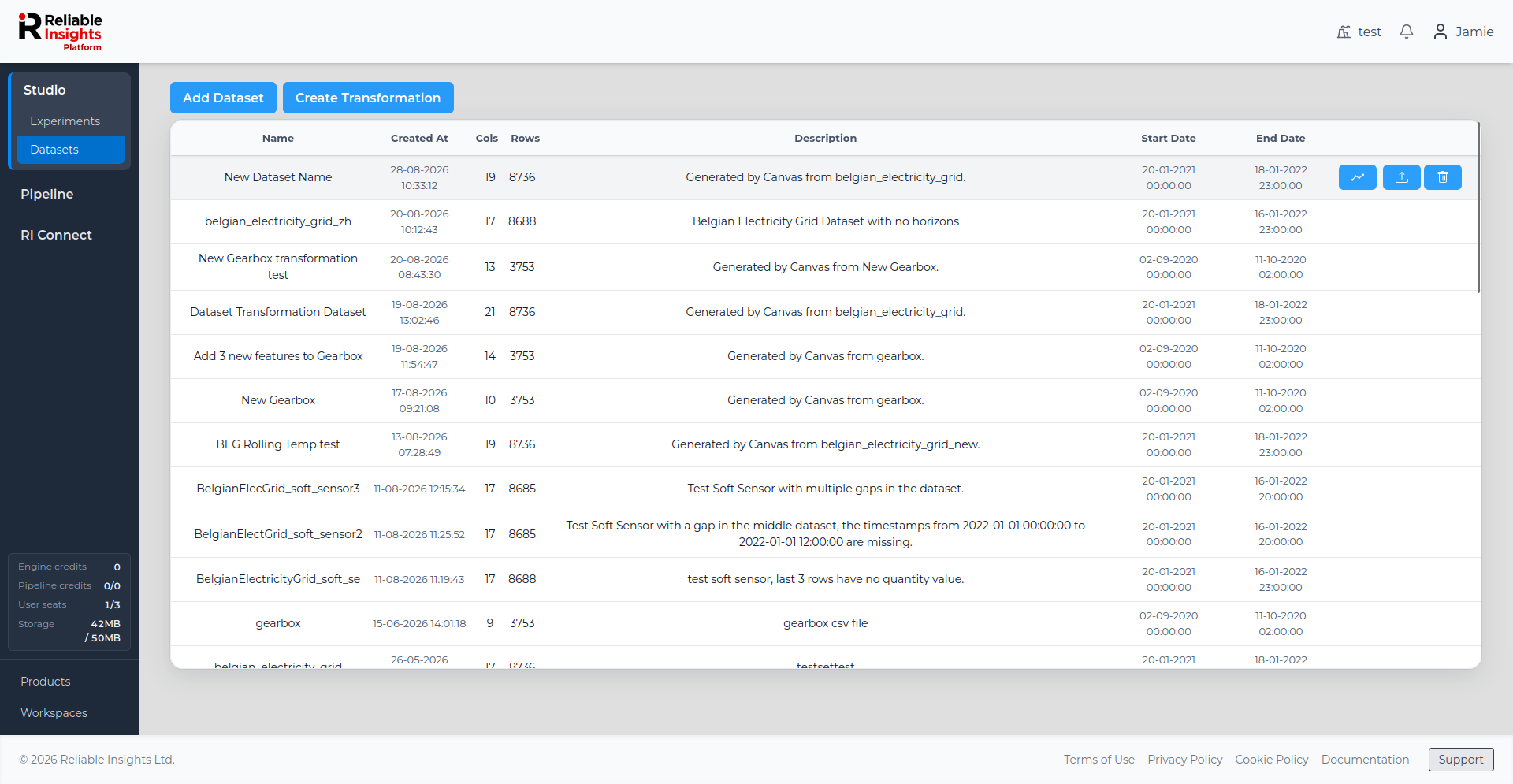
After publication
After publication completes, the new or updated dataset appears on the Studio Datasets page.
Published transformation revisions and dataset versions are immutable. After a successful publication, Studio creates a new editable draft so that you can continue making changes if needed.